AI Replace Background for Product Photos (2026 Guide)


You finally get your new product photos uploaded to Shopify, then the real problem shows up. One image has a gray wall behind it, another has uneven shadows, and a third looks fine on Instagram but messy on a collection page. If your catalog feels visually inconsistent, customers notice it even if they cannot explain why. That lack of polish can weaken trust, make products feel less premium, and create extra work every time you launch a new item.
This is where ai replace background workflows can help. Instead of reshooting every product or spending hours in manual editing software, you can remove distracting backgrounds, swap white for transparent, create cleaner lifestyle scenes, and prepare images for different channels faster. If you sell on Shopify, this can be especially useful for product pages, collection grids, ads, and marketplace listings.
In this guide, you will learn how ai replace background tools actually work, when they help, where they fall short, and how to build a practical workflow for ecommerce. If you want a broader starting point, AcquireConvert also has a useful resource on ai background generator tools that complements the steps below.
Contents
What ai replace background really means for ecommerce
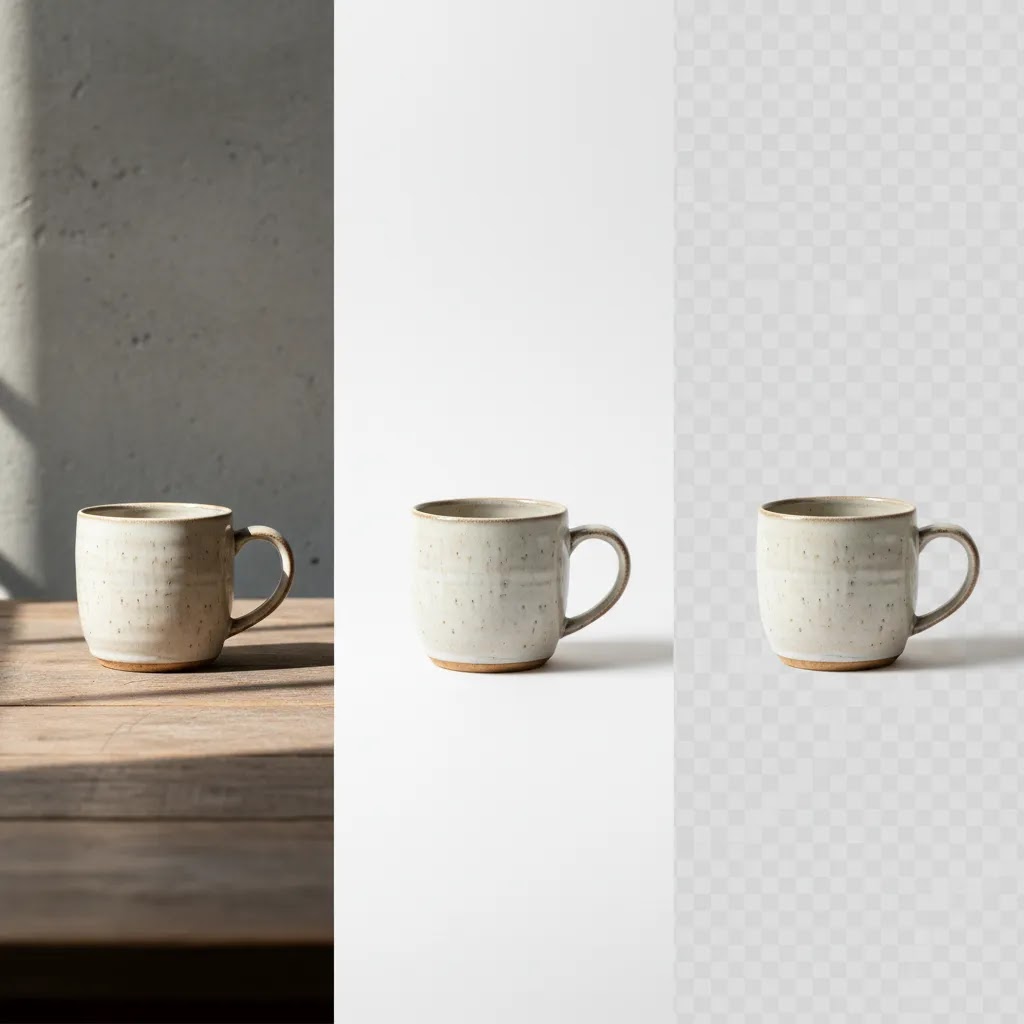
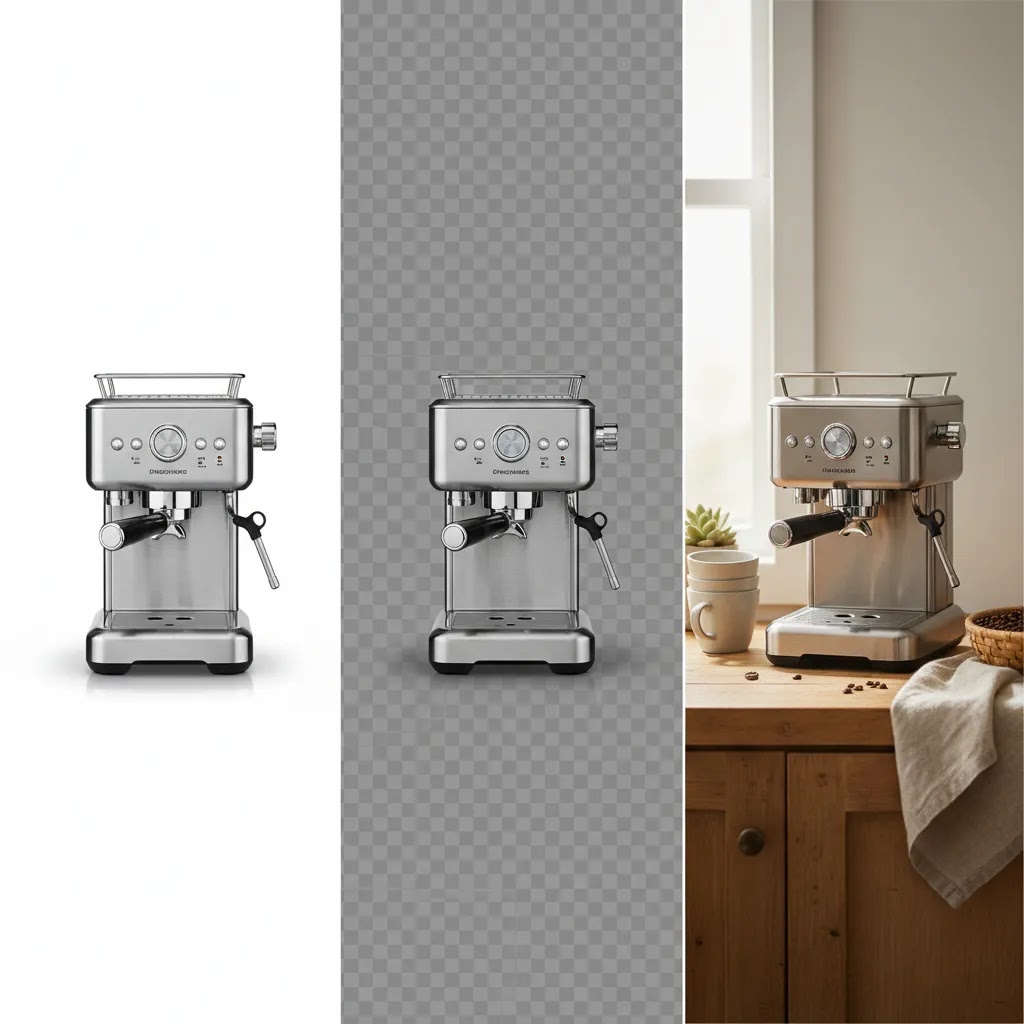
At a basic level, ai replace background tools detect the subject in an image, separate it from the original backdrop, and insert a new one. For ecommerce, that usually means one of three things: placing a product on a clean white background, creating a transparent background for design flexibility, or generating a more polished lifestyle scene.
That sounds simple, but there are different tasks hiding inside the phrase. Background removal is not the same as background replacement. Removal creates a cutout. Replacement adds a new setting, color, texture, or environment behind the product. Some tools do both well, while others are stronger at one than the other.
In practice, this matters because your use case shapes the tool you need. If you only want clean cutouts for catalog consistency, a dedicated ai background remover may be enough. If you also want ad creatives, seasonal campaigns, or styled image variations, you may need broader editing controls.
From a practical standpoint, the goal is not to make your product photos look flashy. The goal is to make them look credible, consistent, and clear enough to help customers buy.
When store owners should use it, and when they should not
AI background replacement is useful when you have decent source photos but poor surroundings. Maybe you photographed mugs on a kitchen table, skincare bottles near a window, or apparel flat lays in mixed lighting. The product itself is usable, but the background is distracting or inconsistent. In cases like that, ai replace background tools can save time and reduce reshoot costs.
Strong use cases
Weak use cases
If the original photo is blurry, badly lit, or poorly framed, replacing the background will not fix the core problem. AI can separate a product from its backdrop, but it usually cannot rescue a fundamentally weak image. Reflective objects, glass packaging, hair, fur, and translucent materials also create more editing errors.
Consider this. If you sell jewelry, cosmetics, or premium home goods, customers often look closely at edges, shine, texture, and shadows. Artificial-looking edits may reduce trust. In those categories, AI editing works best as a supplement to good photography, not a substitute for it.
If you are still building your visual process, browsing AcquireConvert's Background Removal & Editing resources can help you understand where automation fits and where hands-on photography still matters.
A practical workflow for Shopify product photos
For most Shopify stores, the best workflow is not fully automated and not fully manual. It is a simple review-and-refine process that protects image quality while keeping production moving.
1. Start with the cleanest source image you can get
Use even lighting, enough resolution, and consistent framing. AI works better when the product clearly stands apart from the background. A wrinkled sheet, mixed shadows, or low-light phone photo gives the model less to work with.
2. Remove the old background first
Even when your end goal is a new background, start with a clean cutout. This helps you catch edge problems early. Look carefully at handles, straps, transparent packaging, product corners, and shadows beneath the object.
3. Match the output to the page type
Your product page hero image, collection tile, and Meta ad creative should not always use the same background. White or light neutral backgrounds often work well for collection grids because they keep the catalog tidy. Lifestyle replacements can be stronger for ads or social landing pages, where context helps the customer imagine ownership.
4. Keep scale and lighting believable
This is where many edits break down. If the background lighting comes from the left, but your product shadow suggests light from the right, the image feels wrong even if shoppers cannot explain it. The same goes for size. A coffee mug should not look as large as a lamp in a kitchen scene.
5. Review on desktop and mobile
What many store owners overlook is how different an edited image can look once Shopify crops it in theme templates. Test the image inside your actual product grid and product page layout before publishing at scale.
If your store needs more advanced retouching options beyond simple swaps, compare tools in this AcquireConvert guide to the best ai photo editor options for ecommerce teams.
How to use an ai replace background tool (step-by-step)
Most tools follow the same basic flow, even if the buttons have different names. The way this works in practice is that you start with a clean cutout, then you make the replacement look believable enough to hold up on a Shopify product page and in a collection grid.
1. Upload your image and check the starting quality
Before you touch the background, zoom in and look for problems that will carry through the edit. Motion blur, noisy shadows, and low resolution usually become more obvious after you swap the background. If you have multiple shots, pick the one with the cleanest edges and the most even lighting.
2. Let the tool auto-detect the subject, then inspect the mask
Auto-detection usually gets you close, but do not assume it is correct. Check the outline at 200 to 400 percent zoom. Pay attention to thin parts like handles, cords, straps, and small product cutouts. Also check any area where the product color is similar to the original background, because that is where masks often fail.
3. Refine the selection in the tough areas
Now, when it comes to refinement, you are typically fixing three things: edge accuracy, missing detail, and leftover background fringing. Hair, fur, glass, clear plastic, and reflective packaging are the usual trouble spots. If the tool offers a brush or “keep or remove” controls, use them sparingly and re-check the outline after each change.
4. Replace the background, then sanity-check realism
Once the subject is clean, add your new background. If you are going white, make sure it is truly consistent across images. If you are going lifestyle, match the light direction and color temperature to the product. Look for halos around the object, shadows that do not line up with the scene, or a product that looks like it is floating.
Consider this. A subtle shadow that matches the new environment often looks more credible than a perfectly sharp cutout, especially for products meant to sit on a surface.
5. Export for Shopify, with file choices that fit the use case
For most Shopify product photos, JPG is a practical default because it keeps file sizes manageable and works well for full-frame images. PNG is typically best when you truly need transparency, like cutouts used in banners, gift guides, or layered design assets. If you export a transparent PNG just because it looks “pro,” you may end up with heavier files and no real benefit on a standard product page.
After export, do a quick grid check. Upload a few images to Shopify, then view a collection page on mobile and desktop. Shopify themes often crop thumbnails, and a small halo or a slightly off-white background can show up fast when products sit side-by-side.
Quick troubleshooting if the tool keeps failing
If your background is busy, subject detection can get confused. Try again with a cleaner source image, or crop tighter around the product before uploading. If the product has fur, hair-like texture, or transparent material, expect more manual refinement and more review time. In some cases, the fastest path is to pick a different source shot with stronger contrast, even if it is not your favorite angle.
White, transparent, and lifestyle background swaps
Not all background replacements serve the same business purpose. The right output depends on where the image will be used and what action you want the customer to take.
Replacing transparent background with white
This is one of the most common ecommerce tasks. White backgrounds help create consistency across product cards, support marketplace requirements, and keep attention on the item. If your current assets already have transparent backgrounds, adding white can make them easier to display across Shopify themes and third-party sales channels.
White also tends to reduce visual clutter. For stores with broad catalogs, that can improve scanning behavior on collection pages. If this is a priority for you, AcquireConvert's White Background Photography category is worth reviewing alongside AI workflows.
Replacing white background with transparent online
This is useful when you want to reuse product assets in banners, bundles, gift guides, or promotional graphics. Transparent cutouts give your designer or marketing app more flexibility. Just remember that edge cleanup matters more here because transparent assets expose every rough selection line.
Creating lifestyle replacements
Lifestyle backgrounds can help customers picture use, scale, and fit. A candle on a shelf, a supplement bottle on a bathroom counter, or a handbag in a realistic handheld scene can add context that plain catalog images lack. Tools like ProductAI Photo's AI Background Generator or Background Swap Editor can support this kind of workflow, but your results will depend heavily on the source photo and prompt quality.
For products where environment strongly affects perceived quality, a real or virtual product photography studio approach may still outperform a purely automated edit.

How to pick the right tool for your store
There is no single best ai replace background tool for every merchant. Your ideal choice depends on product type, image volume, brand standards, and how much manual control you need.
Look for these capabilities
Think of it this way. A small store with 20 products may be fine with a lightweight tool and manual review. A store with 2,000 SKUs needs speed, consistency rules, and some system for quality control.
ProductAI Photo offers several relevant tools, including Free White Background Generator, Increase Image Resolution, and Magic Photo Editor. Features and availability may change, so verify current details directly with the provider before building them into your production workflow.
Because AcquireConvert is led by Giles Thomas, a Shopify Partner and Google Expert, its guidance tends to focus on the store-level outcome, not just the image edit itself. The question is never only, "Can this tool replace a background?" It is, "Will this image help the product sell better on the page where customers actually see it?"
Batch background replacement for large catalogs (bulk workflows and QA)
If you have a handful of products, you can afford to edit one image at a time. If you are managing hundreds or thousands of SKUs, the risk shifts. The biggest problem is not whether the tool can do a clean cutout. It is whether you can keep output consistent across the whole catalog without creating a cleanup project later.
How batch mode typically works
Most batch workflows are based on one of two ideas. You either upload a group of files and apply the same background setting to all of them, or you set a preset and run multiple groups through it over time. Some tools have upload limits, file size constraints, or caps on how many images can be processed at once, so you may need to break large catalogs into smaller batches.
What many store owners overlook is that batch editing needs rules. Decide your background color, shadow style, crop ratio, and padding first, then apply the same choices across the whole set. If you change the “look” halfway through, your Shopify collection pages will show it immediately.
A lightweight quality control system that works for ecommerce
From a practical standpoint, you do not need to inspect every pixel of every image before you publish. You do need a system that catches problems before they go live across the store.
Start by reviewing a small sample from each batch at high zoom, then do a second check in real store context. That means dropping a few images into a Shopify collection grid and product page template to see how cropping and background tone behave. After that, pull out the edge cases into a separate queue, usually anything with glass, reflections, fur, thin straps, or busy original backgrounds.
Operational tips to avoid version chaos
Bulk edits get messy when you cannot tell what is final and what is not. Use consistent file naming and keep a clear folder structure so you can roll back if needed. Many teams keep the original exports, the cutout version, and the final background replacement as separate files. That can feel slower upfront, but it may prevent rework when you later need a transparent version for a campaign or a white-background version for a marketplace feed.
The way this works in practice is that you standardize once, then you scale. Your goal is a catalog that looks intentionally merchandised, not a catalog where every product looks like it was edited by a different tool on a different day.
Common mistakes that make edited product photos look fake
The reality is that shoppers do not need to consciously spot an edit for it to hurt trust. They only need to feel that something looks off. That is enough to reduce confidence, especially for first-time buyers.
Bad edges and missing detail
Watch for clipped corners, soft halos, erased handles, or jagged outlines. These problems are common with products that have thin parts or reflective surfaces.
Unnatural shadows
If your product appears to float, the image can feel low quality. Add a subtle shadow when appropriate, but make sure it matches the background light source.
Overstyled backgrounds
A background should support the product, not compete with it. Busy scenes may look creative, but they often make product details harder to read on mobile. For many stores, a calm, commercially realistic setting performs better than a highly dramatic one.
Inconsistent catalog presentation
If every product image uses a different style, your store can feel fragmented. Set rules for image ratio, spacing, background tone, and main angle. Even if you use AI, consistency still needs a human decision behind it.
Here is the thing. AI editing is most valuable when it strengthens your existing brand presentation. It is less effective when it is used to cover up a lack of visual standards.
For broader context on this category of tools, AcquireConvert's coverage of ecommerce photography and editing can help you compare automation with more traditional workflows and choose a process that fits your store stage.
Privacy, storage, and usage rights for uploaded product photos
Once you start uploading product photos into any ai replace background tool, you are not just making an editing decision. You are also making a data handling decision. For many Shopify merchants, that matters more than it first appears, especially if you are uploading unreleased products or licensed imagery.
Tools often use phrases like “private,” “encrypted,” or “secure.” Those can be good signs, but you still want to understand what they mean in practice before you upload a full catalog.
What to check before you upload a lot of images
Start with retention and control. How long are your uploads stored? Can you delete images after processing, and does the provider offer a clear way to do that? Next, check who can access the files. If you have a team, confirm whether the tool supports separate logins, permissions, or at least a clear account access model so a contractor is not working out of your main admin credentials.
Then look at usage rights and training language. Some providers may use uploaded content to improve their systems, others may not, and the details can vary. If you are working with brand assets that are sensitive, it is worth reading the relevant terms and checking whether opt-out controls exist.
When it matters most for Shopify merchants
This topic is easy to ignore if you are editing a few basic product shots. It becomes more important when you are handling unreleased SKUs, seasonal launches, or packaging that reveals new claims. It also matters when your imagery includes influencer content, licensed lifestyle photos, or creative that is shared across ad accounts and partners.
What many store owners overlook is that even if a product photo is “public” later, it might not be public yet. If your images reveal a launch early, the downside is real.
A practical checklist for vendor evaluation
Before you commit to a workflow, confirm the basics: data storage and retention, deletion options, account access controls, and a clear policy on how uploaded files are used. If the provider offers business features like team management, that can be a signal they have thought through operational needs, but you should still verify what is actually included.
You do not need to overcomplicate this. The goal is to choose a tool that fits your risk level, especially if your catalog imagery is a competitive asset.
The strategies and tools discussed in this article are based on current ecommerce best practices and publicly available information. Results will vary depending on your store, niche, and implementation. Always verify tool pricing, features, and platform compatibility directly with the relevant provider before making purchasing decisions.
Frequently Asked Questions
What is the difference between ai replace background and background removal?
Background removal isolates the product and deletes the original backdrop. AI replace background goes a step further by adding a new one, such as white, transparent, colored, or lifestyle scenery. For ecommerce, the distinction matters because your use case may only require a clean cutout, not a fully generated setting. If your goal is catalog consistency, removal may be enough. If you need ad creatives or styled images, replacement can be more useful. The better choice depends on where the image will appear and how much realism your brand requires.
Can I use ai replace background for Shopify product images?
Yes, in many cases you can. Shopify stores often use AI-edited images for product pages, collection grids, homepage promos, and paid social creatives. The key is to check how the image looks inside your actual theme, not just in the editor. Cropping, aspect ratio, and mobile layout can change the result. You should also keep your catalog style consistent across products. AI can speed up image prep, but you still need human review to make sure the image looks credible and aligns with your brand.
Does a white background always convert better than a lifestyle background?
Not always. White backgrounds usually work well for clean product grids, marketplace listings, and stores that want a tidy catalog look. Lifestyle backgrounds can help when context matters, such as home decor, apparel, beauty, or products where use is part of the sale. The better format depends on the page and customer intent. Many stores benefit from using both: white for the main catalog image and lifestyle scenes in secondary gallery slots, landing pages, or ad creative. Test by channel and page type rather than assuming one format is always better.
How do I replace white background with transparent online without ruining the edges?
Start with the highest-resolution file you have and zoom in on product boundaries after the background is removed. Fine details like glass edges, packaging reflections, cords, and thin handles often need cleanup. A strong tool helps, but the real quality check happens in review. Export the transparent file and place it on a few different colored backgrounds to spot edge halos or leftover white fringing. If the product will be reused in many design assets, spending extra time on a clean transparent cutout is usually worth it.
What types of products are hardest for ai background replace tools?
Transparent, reflective, and fuzzy products are typically the hardest. Think glass bottles, jewelry, mirrored packaging, sheer fabrics, or anything with hair-like texture. AI tools may struggle to detect true edges or preserve reflections naturally. That does not mean the tools are unusable, but it does mean you should expect more manual review and occasional rework. For premium categories, image trust matters a lot. If your product depends on shine, material realism, or subtle detail, use AI carefully and compare edited images against your original photos before publishing.
Should I use AI-generated lifestyle scenes for every product?
No. Some products benefit from context, while others sell better with simplicity. If you use lifestyle scenes everywhere, your catalog can start to feel noisy or inconsistent. A better approach is to decide where context helps buying decisions. For example, furniture, kitchenware, and beauty products often gain value from environmental cues. Commodity items may not. Keep your main image straightforward, then use selective lifestyle variations where they help customers understand use, scale, or fit. That approach usually gives you more flexibility without making the storefront feel visually scattered.
Are AI-edited product photos acceptable for ads and marketplaces?
Often yes, but you should check platform policies and category-specific standards. Some marketplaces prefer or require plain white backgrounds for primary product images. Ads are generally more flexible, especially on social platforms, but realism still matters. If an image looks misleading or heavily manipulated, it may hurt click quality or customer trust. For paid traffic in particular, image performance depends on audience, placement, creative competition, and offer quality, not just the background style. Review each platform's guidance and keep edited images commercially accurate.
What is the best workflow if I have hundreds of SKU images to update?
Use a staged workflow. First, sort images by quality and product type. Second, batch-process the straightforward items with a tool that handles clean cutouts and standard background swaps. Third, manually review edge cases such as transparent packaging or reflective surfaces. Fourth, test a sample inside Shopify before rolling out the whole set. High-volume stores save time when they define image rules first, including background color, crop ratio, padding, and shadow style. Speed matters, but consistency matters more if you want the catalog to feel professionally merchandised.
Do I need a full photo studio if I already use AI tools?
No, but you still need good source photography. AI can reduce the need for elaborate sets and frequent reshoots, yet it works best when the original image is well lit and properly framed. A simple in-house setup with consistent lighting can go a long way. If you are evaluating whether to improve your DIY workflow or invest in more structured production, this guide to a product photography studio can help you think through the tradeoffs. AI and studio discipline often work better together than either does alone.
Where can I learn more about background editing for ecommerce?
A good next step is to review focused resources rather than trying to solve everything with one app. If you want help choosing tools, AcquireConvert's guides on ai background remover options and the best ai photo editor category can help you compare workflows. If your main challenge is image consistency across listings, the wider Background Removal & Editing hub is a practical place to continue. That gives you a clearer framework for deciding what to automate and what to review manually.
Is there an AI that will replace the background?
Yes. Many ai image editing tools can detect the main subject, remove the original background, and replace it with a new one like white, a solid color, transparent output, or a generated lifestyle scene. The important part is not just whether the background changes, but whether the edges, shadows, and lighting still look believable for ecommerce. Plan on reviewing results before publishing, especially for reflective or transparent products.
How do I use AI to change my background?
Upload your image, let the tool auto-detect the product, refine the mask where needed, then choose your replacement background and export. After that, check for halos around edges, missing details, and shadows that do not match the new scene. For Shopify, it is smart to test a few edited images in your actual collection grid, because theme cropping can make small issues stand out.
How to make AI remove a background?
Most tools have a remove background feature that creates a cutout automatically. Start with the cleanest source image you have, then inspect the mask at high zoom and fix problem areas like handles, cords, glass edges, and fur. Once the background is removed, you can export a transparent file if you need it, or add a replacement background for a finished product image.
How do I replace the background of an image?
First remove the original background to create a clean subject cutout. Then add the new background and adjust positioning, scale, and shadows so the product sits naturally in the scene. Export and do a quick sanity check in the real place customers will see it, like a Shopify product page or collection grid, since spacing and cropping can change the way the edit feels.
Key Takeaways
Conclusion
AI background replacement can be a strong practical upgrade for ecommerce teams that need faster image production without sacrificing too much control. It is especially useful when your products are shot reasonably well, but the background is inconsistent, distracting, or wrong for the channel. The biggest gains usually come from standardizing your image workflow, not from pushing every photo through automation without review.
If you want to improve results this week, start small. Pick ten products, define one visual standard for your collection pages, and test white, transparent, and lifestyle variants against real store placements. Then document what looks credible and what needs manual cleanup.
If you want to keep learning, explore AcquireConvert's guides on AI image editing and background workflows, especially if you are refining a Shopify visual merchandising process. The more intentional your image system becomes, the easier it gets to publish product photos that look polished, trustworthy, and ready to sell.
Disclaimer: Results from ecommerce strategies vary depending on store type, niche, audience, budget, and execution. Nothing in this article constitutes a guarantee of specific outcomes. Third-party tool features and pricing are subject to change: verify current details directly with each provider.

Hi, I'm Giles Thomas.
Founder of AcquireConvert, the place where ecommerce entrepreneurs & marketers go to learn growth. I'm also the founder of Shopify agency Whole Design Studios.