How to Remove Text From Product Images (2026)


If you sell online, messy product images can quietly hurt trust. Watermarks from suppliers, promotional text baked into old creatives, and screenshots reused as product photos can all make your store look inconsistent. If you need to remove text from image files before publishing product pages, ads, or marketplace listings, the goal is not just visual cleanup. It is protecting conversion quality, keeping your brand presentation consistent, and giving shoppers a clearer view of the item itself. This guide explains how store owners typically approach text removal, when AI tools make sense, where manual editing still matters, and what to check before you upload the final image. If you are also exploring adjacent workflows, AcquireConvert’s guide to an ai background generator is a useful next read.
Contents
- What removing text from product images actually involves
- How to remove text from image files step by step
- How to remove text from an image on iPhone
- AI tools that can help
- Common formats and scenarios store owners ask about
- Pros and Cons
- Removing text without blurring the image
- Who this approach is for
- How to choose the right workflow
- AcquireConvert recommendation
- Frequently Asked Questions
- Key Takeaways
What removing text from product images actually involves
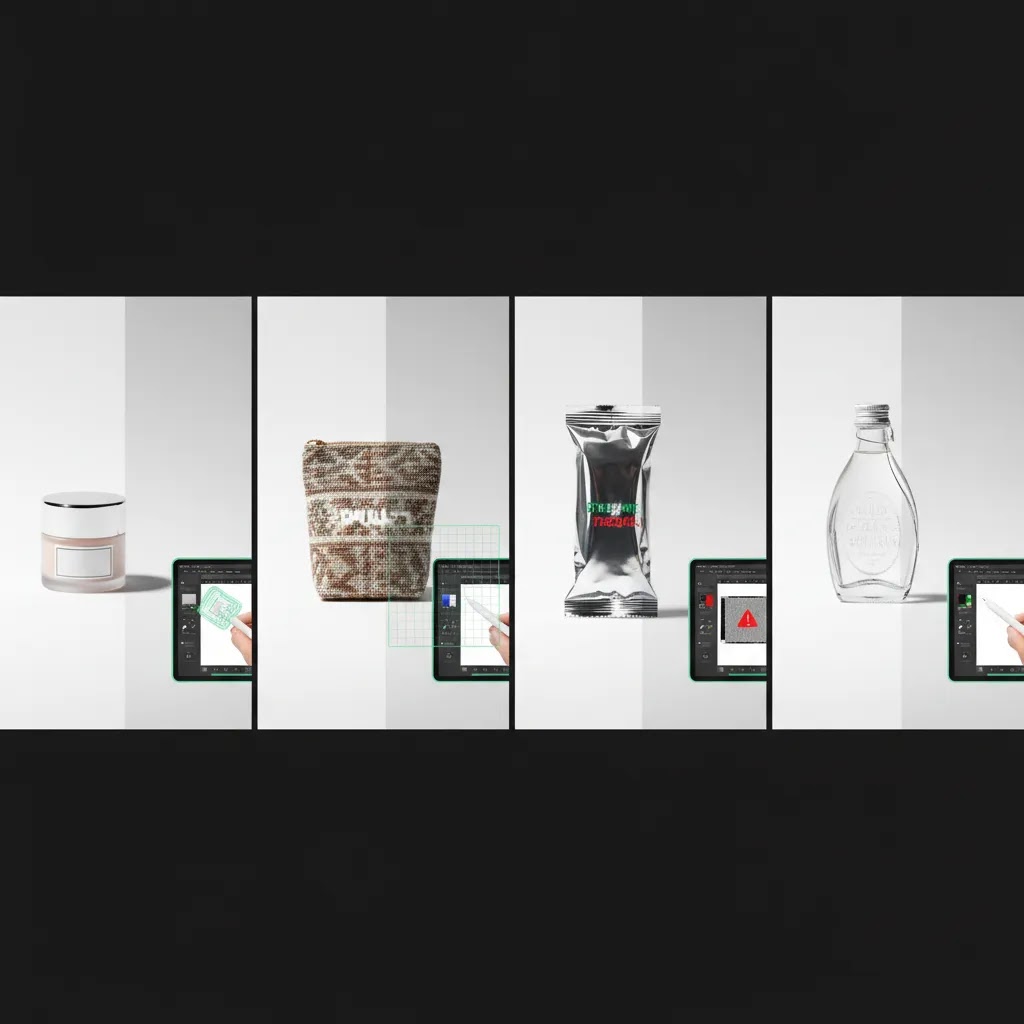
Text removal sounds simple, but the quality of the result depends on what the text overlaps. If the text sits on a plain background, AI removal is usually straightforward. If it crosses product edges, fabric texture, reflections, shadows, packaging details, or skin tones, cleanup gets more demanding.
For ecommerce, the standard is higher than it is for casual social media editing. Your revised image may end up on a product detail page, collection page, Google Shopping feed, marketplace listing, or email campaign. That means any blur, warping, or inconsistent fill can become more noticeable once the image is compressed, cropped, or zoomed.
In practice, most merchants use text removal for four scenarios:
- Cleaning supplier or manufacturer images before using them on a Shopify store
- Removing sale overlays or legacy promotional badges from evergreen product photos
- Fixing old creative assets for reuse in ads, email, and landing pages
- Preparing images for a cleaner catalog presentation across channels
The best approach is usually part of a wider image workflow. After removing text, you may also need an image upscaler if quality dropped during editing, or you may combine cleanup with a broader ai background remover workflow if the product shot still looks inconsistent.
How to remove text from image files step by step
If you are wondering how to remove text from image assets without creating a fake-looking result, use a simple review process before you edit.
1. Start with the highest-quality source file
If you only have a compressed screenshot, AI has less detail to reconstruct. Whenever possible, begin with the original supplier image, camera export, or highest-resolution version available.
2. Check what the text overlaps
Text on a clean white background is usually low risk. Text across lace, jewelry, cosmetics packaging, patterned apparel, or reflective surfaces is much harder. The more complex the area, the more likely you will need a second pass or manual retouching.
3. Use a targeted AI editor
From the current product data available, one relevant option is Remove Text From Images. For store owners, the appeal of a purpose-built tool is speed. You are not opening a full design suite just to erase a supplier watermark or old headline.
4. Zoom in and inspect edges
Do not approve the result at thumbnail size. Check product outlines, shadows, labels, and texture continuity. What looks fine in a small preview may show obvious artifacts on a product page zoom or a retina display.
5. Rework the image if needed
If text removal softens the image, sharpen or upscale carefully. If the scene still looks inconsistent, you might rebuild more of the image with tools like Magic Photo Editor or adjust the background after cleanup. In room or scene-based imagery, some merchants also use virtual staging ai techniques to create a more polished final composition.
6. Validate for channel use
Before publishing, make sure the edited image still meets the standards of your storefront, marketplace, or ad channel. Product pages usually tolerate more polished editing than marketplaces with stricter image authenticity rules.
How to remove text from an image on iPhone
For most Shopify store owners, iPhone editing comes up in two situations: you are doing a quick cleanup before posting to social, or you are fixing a supplier image while you are away from your laptop. The reality is that iPhone workflows generally fall into two categories, and they produce different results.
Option 1: Cover the text using Markup (fast, but not true removal)
If you only need to hide text for a quick mockup or internal use, the Photos app Markup tool can work. It is basically a cover-up. You are drawing over the text, not reconstructing what is behind it.
A practical path:
- Open the image in Photos, tap Edit, then tap the Markup icon.
- Use the pen or highlighter to paint over the text, then adjust thickness and color.
- Save a copy so you still have the original file if you need a cleaner edit later.
Here is the thing: for product photos, this tends to look obvious fast. The “painted” area is usually a flat block of color and it can stand out on gradients, shadows, or textured backgrounds.
Option 2: Use an object remover or text remover app (removes and fills background)
If you want actual text removal on iPhone, you typically need an app that can remove the text and fill in the background. Some apps do this with AI-style inpainting, similar to what desktop tools do.
A practical workflow:
- Import the image into the app.
- Brush over the text as tightly as you can without covering extra product detail.
- Run the removal, then repeat with smaller touch-ups if needed.
- Inspect the result at full size before exporting.
What many store owners overlook is where mobile results break down: edges and shadows. If text crosses packaging outlines, a product silhouette, or cast shadows, mobile tools can create a “melted” edge or a smudged shadow that makes the whole image feel edited.
What quality to expect on product photos
On plain backgrounds, iPhone removal can be good enough for quick content. On real ecommerce product photography, quality depends on the overlap:
- If text is on a simple wall or a smooth tabletop, results are often usable.
- If text crosses a label, logo, or fine print on packaging, the fill can look synthetic.
- If text crosses hairline edges, jewelry, transparent plastics, or reflective surfaces, expect artifacts and plan on a desktop AI tool for a cleaner pass.
From a practical standpoint, if the image is going into your Shopify product gallery or a paid ad, it is usually worth doing the final edit on a desktop AI tool where you can inspect at 100% and 200% and export without aggressive mobile compression.
A simple export checklist for Shopify product galleries and ads
- Save a copy, not the only version, so you can redo the edit if needed.
- Export at the highest available quality, and avoid “small file” options meant for messaging apps.
- Do not repeatedly re-save the same JPEG through multiple apps, since quality can degrade each time.
- Check the final file by opening it again and zooming in, not just trusting the editor preview.
AI tools that can help
For this topic, the most directly relevant tool from the current product set is Remove Text From Images. The name clearly aligns with the use case, which matters if you want a faster workflow than a general image editor.
Depending on what happens after text removal, a few related tools may also fit into the process:
- Increase Image Resolution for recovering clarity if the edited area looks soft
- Free White Background Generator if you are standardizing catalog-style product images
- AI Background Generator if you are turning a cleaned image into a new marketing asset
- Background Swap Editor for replacing distracting environments after cleanup
- Creator Studio if you want a broader workflow for editing, asset generation, and iteration
For ecommerce teams, the point is not to use more tools than necessary. It is to build a repeatable workflow. If all you need is to remove text from image files online, a single-purpose tool may be enough. If you are rebuilding product imagery at scale, the better answer may be a small stack: text removal, cleanup, upscaling, and background standardization.
This is especially relevant if you are refreshing supplier-provided photography before moving it into a product photography studio style catalog standard, or if you are working through broader image optimization advice from AcquireConvert’s Background Removal & Editing resources.
Common formats and scenarios store owners ask about
Once you start cleaning product images, the “remove text from image” question quickly turns into format and export questions. That matters because file types behave differently when you edit and re-save them, and ecommerce channels can be picky about consistency.
JPG vs PNG vs WEBP: what changes when you remove text
Most store owners run into three common formats:
- JPG (or JPEG): common for product photography, smaller file sizes, but it is lossy. Each re-save can reduce quality a little, especially around fine edges and gradients.
- PNG: useful when you need transparency or sharp graphic edges. File sizes can be larger. For product photos, it can preserve certain details better after editing, but you still need to export carefully.
- WEBP: often used for web performance. Some tools export to WEBP by default, which can be fine, but make sure the quality setting is not too aggressive for product detail.
Think of it this way: the more times you export and re-edit a lossy format, the harder it gets to keep product edges crisp. If you are doing multiple steps, it can help to work from the highest-quality source and keep a “master” version that you only export from once at the end.
What “HD” really means for ecommerce images
“HD” usually just means higher pixel dimensions, not higher true detail. If the source file is low resolution, removing text and exporting “HD” does not magically recreate missing product detail. Some upscalers can improve perceived sharpness, but you still want realistic expectations and you should review outputs before using them in ads or on a PDP.
For Shopify specifically, the practical goal is simple: upload images that are large enough to look clean on modern displays and theme zoom features, without bloating file size so much that your pages slow down.
How to handle “remove text from image PDF” requests
Store owners often get supplier assets in a PDF, especially line sheets or sell sheets. In most cases, you cannot reliably remove text inside the PDF and expect a clean product photo output. The typical workflow is:
- Extract the image from the PDF, or export the PDF page to an image at a high resolution.
- Run the text removal on the extracted image file.
- Re-export what you need, either as an image for Shopify or back into a PDF if you are rebuilding a sell sheet.
The reality is that PDF images are sometimes already compressed. If the embedded image is low quality, your best move may be to ask the supplier for the original image files.
Export guidance for Shopify and feeds
After text removal, exporting is where a lot of quality gets lost. A few practical rules help:
- Avoid re-compressing the same file repeatedly across multiple apps and editors.
- Keep aspect ratios consistent across your product gallery so collection pages look clean and your theme cropping is predictable.
- Save channel-ready versions. The image you use for a Shopify PDP may not be the same version you want for a social ad placement.

Pros and Cons
Strengths
- AI text removal can save time when you need to clean multiple product images for a store refresh or catalog migration.
- It can help you reuse older creative assets instead of recreating every image from scratch.
- Purpose-built tools are often more approachable for merchants who do not want to learn full photo editing software.
- For plain backgrounds and simple overlays, results can be good enough for many storefront use cases.
- It supports a cleaner, more consistent visual brand across product pages, collection pages, and ad creatives.
Considerations
- AI does not always reconstruct complex textures, reflections, or product edges accurately.
- Removing text from supplier images does not automatically give you brand-original photography.
- Some marketplaces or compliance-sensitive categories may require extra care around edited imagery.
- You may still need follow-up tools for sharpening, background cleanup, or manual retouching.
Removing text without blurring the image
Blurry results are one of the most common frustrations with text removal, especially on product photos where sharp edges and clean detail matter. In many cases, the blur is not random. It is caused by a few predictable workflow mistakes.
Why text removal looks blurry in practice
Here are the typical causes:
- Low-resolution source files: if you start with a small screenshot or heavily compressed supplier image, the tool has less real detail to work with.
- Selection area is too large: if your mask covers product edges, shadows, or texture that did not need editing, the fill has to “guess” more of the scene.
- Repeated heavy passes: running removal over the same area multiple times can smear texture and create a plastic-looking patch.
- Compression on export: some editors and mobile apps export at lower quality by default, which can soften the whole image.
- Aggressive smoothing: some tools blend the edited area too much to hide seams, which can reduce sharpness.
How to get cleaner results
The way this works in practice is closer to retouching than it is to a one-click fix. A few habits usually help:
- Mask smaller than you think you need. Cover the text, but avoid pulling in product outlines or important details.
- Use multiple light passes. Clean the text in sections instead of trying to erase everything in one big selection.
- Inspect while you work. Zoom in, make the edit, then zoom out and back in to confirm the fill holds up.
- Only upscale or sharpen when needed, and focus on the problem area. Over-sharpening the entire photo can create halos around edges and make the product look over-processed.
A quick ecommerce quality control checklist
Before you upload the final file to Shopify or use it in ads, do a quick check that matches how shoppers and platforms actually see your images:
- Check at 100% and 200% zoom: look for smudging, repeating patterns, or visible seams.
- Verify edge integrity: make sure product outlines are crisp, especially on packaging corners, labels, and cutout shapes.
- Inspect textures and gradients: fabric, wood, and smooth studio backdrops are where AI artifacts often show up.
- Look at the image in context: drop it next to your existing product images to see if the edited photo looks softer or “different” from the rest of the catalog.
Who this approach is for
This workflow is a strong fit for Shopify merchants, ecommerce operators, and in-house marketers who need cleaner visuals without turning every image task into a design project. It is especially useful if you are managing a medium-sized catalog, refreshing old assets, or trying to standardize supplier photography before publishing.
It is less ideal if your product photos are premium brand assets where every detail matters, such as luxury goods, cosmetics close-ups, or highly textured fashion imagery. In those cases, AI may still help with first-pass cleanup, but you will often want human review before anything goes live.
If your images need more than text removal, AcquireConvert’s E Commerce Product Photography content is helpful for thinking about image quality at the catalog level, not just the single-file edit.

How to choose the right workflow
If you are comparing ways to remove text from image files, choose based on the job, not the trend. Here are the criteria that matter most for ecommerce teams.
1. Image complexity
Ask what sits underneath the text. Flat backgrounds are the easiest. Product detail, shadows, folds, glass, and skin are harder. The more complex the overlap, the more you should expect to test and review.
2. Volume of edits
If you are cleaning three hero images, manual work may be fine. If you are cleaning 300 supplier images, an AI-first workflow is usually more practical. Your time has value, especially if you are also handling merchandising, email, and paid traffic.
3. Final channel requirements
A product detail page gives you more room to optimize visuals for branding. Marketplaces and comparison surfaces may require more caution. If an image is heading into Google Shopping, Amazon, Etsy, or a feed-driven ad environment, review channel policies before publishing edited creative.
4. Post-edit quality recovery
Some edits leave a slightly soft or synthetic patch behind. That is where companion tools matter. If the file quality drops, use an upscaling or sharpening step carefully rather than publishing a compromised image.
5. Repeatability for your team
The best workflow is one your team can follow consistently. A small SOP often works better than a complex setup. For example:
- Upload original file
- Remove text
- Inspect at 200% zoom
- Upscale if needed
- Standardize background if required
- Export channel-ready versions
This is the kind of practical process experienced store owners build over time. They do not just ask whether AI can remove text from image files. They ask whether the result holds up on a live storefront, in a feed, and across a scaled catalog.
AcquireConvert recommendation
If you are evaluating AI image cleanup for your store, think beyond a single edit. Text removal works best when it fits into a broader product image system that includes consistency, resolution, and channel readiness. AcquireConvert covers that wider picture with a practical ecommerce lens, which is especially useful if you are selling on Shopify and handling creative decisions in-house.
Giles Thomas brings the perspective of a Shopify Partner and Google Expert, so the guidance is not just about making an image look cleaner. It is about how visual assets support trust, merchandising, paid traffic, and conversion paths. If you are weighing adjacent options, explore our guides on ai background generator workflows, compare cleanup options in our ai background remover resource, and review practical image editing content across the Background Removal & Editing hub.
Frequently Asked Questions
What is the best way to remove text from image files for product pages?
The best method depends on where the text sits. If it is over a clean background, an AI tool may handle it well. If it crosses product details or textured surfaces, expect to review the result closely and possibly do additional cleanup before publishing the image on your storefront.
Can AI remove text from image files without damaging the product photo?
Sometimes, yes. AI can do a solid job on simple edits, especially on plain or lightly textured areas. It may struggle with reflections, intricate textures, packaging edges, or shadows. For ecommerce, always inspect the edited area at full size before using it in a PDP, collection page, or ad.
Is remove text from image online good enough for Shopify stores?
For many Shopify use cases, yes, especially when you need to clean supplier assets or remove expired promo overlays. The key is consistency and review. A result that looks acceptable in a small editor preview may still appear unnatural once placed into your theme’s product gallery or zoom view.
Should I use AI to remove text from image assets in bulk?
Bulk editing can make sense if you have many catalog images to clean and the text placement is similar across files. It is usually most effective when paired with a review step so you can catch low-quality fills, blurry patches, or distorted product edges before pushing assets live.
Are there cases where I should not remove text from a product image?
Yes. If the text is part of the product itself, such as packaging, labeling, ingredients, or legally required information, editing it out could create an inaccurate image. Be especially careful in regulated categories and on marketplaces where image authenticity standards may be stricter.
Can I remove text and then change the background too?
Yes, and that is a common ecommerce workflow. Many merchants remove the unwanted text first, then standardize the background for cleaner catalog presentation. If that is your next step, AcquireConvert’s guide to an ai background remover can help you evaluate the broader image-editing process.
What if text removal makes the image blurry?
If the edited area looks soft, try a careful quality recovery step rather than over-sharpening the whole file. A tool like Increase Image Resolution may help in some cases. Still, if the source image was low quality to begin with, there is only so much any AI workflow can realistically restore.
Is there a difference between removing text for ads and for product pages?
Yes. Ad creatives often allow more styling and compositing, while product pages usually need a cleaner, more accurate product representation. For PDPs, shoppers inspect the product more closely, so patchy edits or unnatural fills are easier to spot and may affect trust.
Do I still need professional photography if I can use AI text removal?
Often, yes. AI cleanup is useful for fixing existing assets and improving consistency, but it is not a complete substitute for strong original photography. If your brand depends on premium presentation, a well-shot image from the start still gives you more flexibility and fewer quality compromises later.
Can I remove text from a picture?
Yes. In many cases you can remove text from a picture using an AI tool that fills in the background after the text is deleted. The key is to start with the highest-quality source file you can, then inspect the result closely, especially if the text crosses product edges, shadows, or detailed textures.
How can I remove text from an image in iPhone?
On iPhone, you can either cover the text using the Photos app Markup tool, or use a dedicated object remover or text remover app that removes the text and reconstructs the background. For ecommerce product photos, the second option is usually closer to what you want, but you still need to zoom in and check edges before exporting.
How to remove text for free?
Some tools offer free usage limits or free trials, and you may also be able to do basic cover-ups using built-in phone editing features. For store use, pay attention to export quality and whether the “free” output adds a watermark or reduces resolution, since that can create extra work before you upload images to Shopify.
Can I remove text without blurring the image?
Sometimes, yes. Blurring is often caused by low-resolution source files, masking too large an area, repeated heavy edits, or exporting with extra compression. Tighter selections, lighter passes, and careful exporting typically help, and it is worth checking the final file at 100% and 200% zoom before using it on a product page or ad.
Key Takeaways
- Use AI text removal for speed, but always review the result at full size before publishing.
- Plain backgrounds are easier to fix than textures, reflections, and detailed product edges.
- A good ecommerce workflow often includes text removal, quality recovery, and background standardization.
- Choose tools based on image complexity, edit volume, and the requirements of your final sales channel.
- Think about image cleanup as part of conversion quality, not just design tidiness.
Conclusion
If you need to remove text from product images, AI can be a practical option, especially for merchants working with supplier assets, legacy promotional creatives, or large product catalogs. The real test is not whether the text disappears. It is whether the finished image still looks trustworthy on your storefront and across your acquisition channels. For many stores, a lightweight AI workflow is enough. For higher-detail products, you may need a more careful edit and review process. If you want broader guidance on product image optimization, background cleanup, and conversion-focused visual merchandising, explore AcquireConvert’s specialist resources. Giles Thomas’s Shopify Partner and Google Expert perspective helps keep the advice grounded in how ecommerce operators actually work.
This content is editorial and provided for educational purposes. It is not a paid endorsement unless explicitly stated otherwise. Tool availability, features, and pricing are subject to change, so verify current details directly with the provider before making a decision. Results from AI image editing vary based on source image quality, product complexity, and channel requirements. No specific performance or conversion outcomes are guaranteed.

Hi, I'm Giles Thomas.
Founder of AcquireConvert, the place where ecommerce entrepreneurs & marketers go to learn growth. I'm also the founder of Shopify agency Whole Design Studios.