Best Image Upscaler for Product Photos (2026)

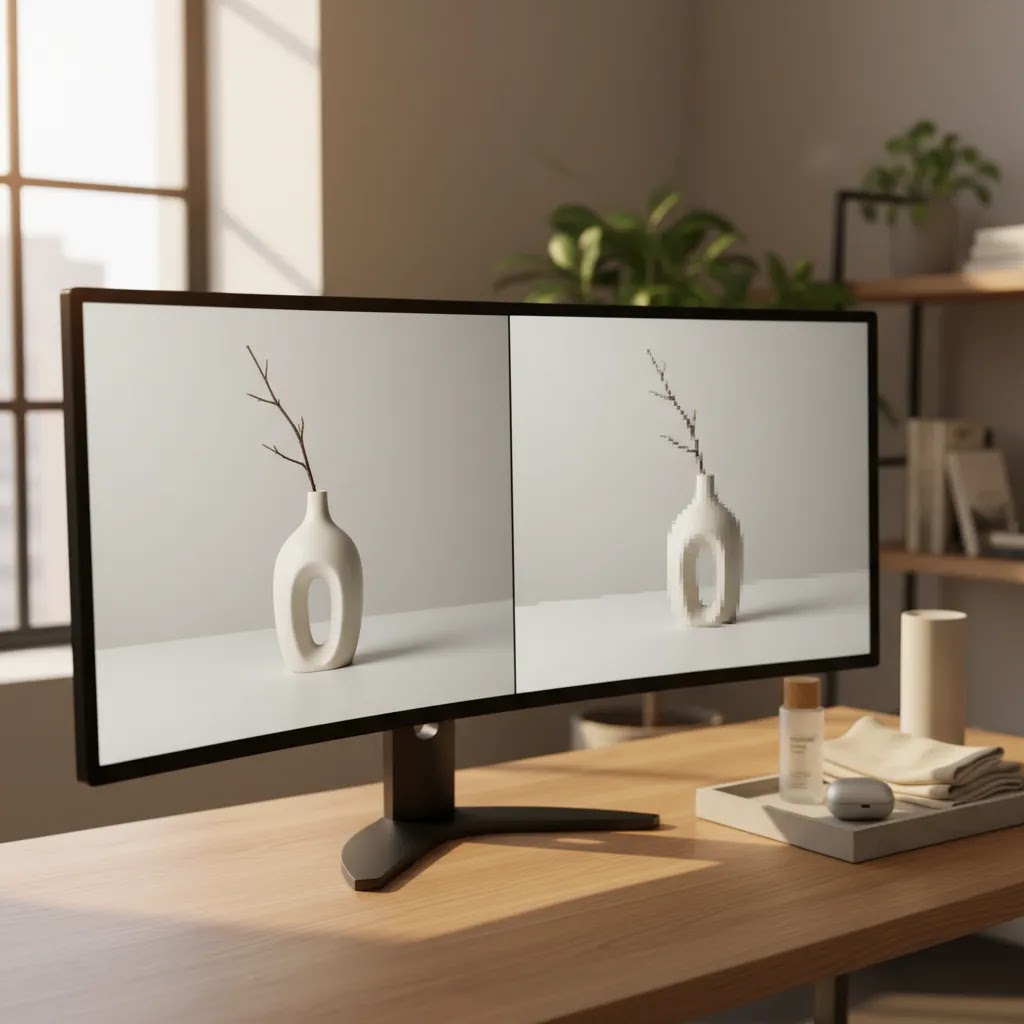
If your product photos look soft, pixelated, or too small for zoom, ads, or marketplace requirements, choosing the best image upscaler can save you from expensive reshoots. For ecommerce stores, this matters most when you are refreshing older product images, preparing creative for paid campaigns, or adapting visuals for larger displays without losing too much detail. The right tool should improve resolution while keeping edges, textures, and product shapes believable. It also helps if it fits into the rest of your image workflow, alongside tools like an ai background generator. In this evaluation, I focus on practical store-owner use cases, what the available tools actually help with, where they fall short, and how to decide whether an image upscaler is the right move for your catalog.
Contents
- What makes a good image upscaler for ecommerce
- Key features to look for
- Upscaling limits: what AI can and cannot recover
- Product evaluation
- Batch upscaling and workflow: how to handle a catalog refresh
- Pros and Cons
- Who this is for
- AcquireConvert recommendation
- How to choose the best image upscaler
- Recommended export sizes and use cases (Shopify, ads, marketplaces)
- Frequently Asked Questions
What makes a good image upscaler for ecommerce
For product photography, upscaling is not just about making an image bigger. You need a tool that preserves product edges, keeps colors consistent, and avoids turning fabrics, labels, or packaging into artificial-looking textures. A lifestyle brand might get away with slightly stylized enhancement, but a supplements, cosmetics, or electronics store usually needs cleaner, more accurate detail.
That is why the best image upscaler for product photos is usually one that fits into a broader editing workflow. If you are already removing clutter, replacing backgrounds, or refining creatives with an ai background remover, your upscaler should support that process instead of forcing a separate, manual workflow.
From the currently available product data, Increase Image Resolution is the most directly relevant option because it is purpose-built for resolution improvement. Supporting tools such as Magic Photo Editor, Creator Studio, and background editing tools can still matter, especially if your real need is not just bigger images, but cleaner product visuals overall.
If you are comparing your options at a category level, AcquireConvert’s Background Removal & Editing resources are a useful next stop for evaluating where upscaling fits in your image production stack.
Key features to look for
Before you pick any best ai image upscaler online option, check these five areas.
- Detail preservation: Product edges, logos, stitching, ingredients labels, and packaging text should remain believable. If an upscaler invents too much detail, the image may look sharper at first glance but less trustworthy on a product page.
- Workflow compatibility: Most stores need more than one edit. You may upscale first, then retouch, or edit the background first and upscale later. Tools that sit near your other editing tasks can save time.
- Output suitability: Think about where the final image will be used. Shopify product pages, Google Merchant Center assets, social ads, and marketplace listings may all need different image sizes and crops.
- Ease of use: A practical store owner tool should not require design software expertise. If you can upload, preview, and export quickly, adoption is far more realistic for a lean team.
- Editing depth: Sometimes low resolution is not the real issue. The photo may need better background treatment, cleanup, or composition. In those cases, a broader editor may outperform a single-purpose upscaler.
If your images still feel weak after upscaling, the issue may be lighting, composition, or source quality. That is where related resources like best ai photo editor comparisons and guidance on a product photography studio setup become more useful than resolution enhancement alone.
Upscaling limits: what AI can and cannot recover
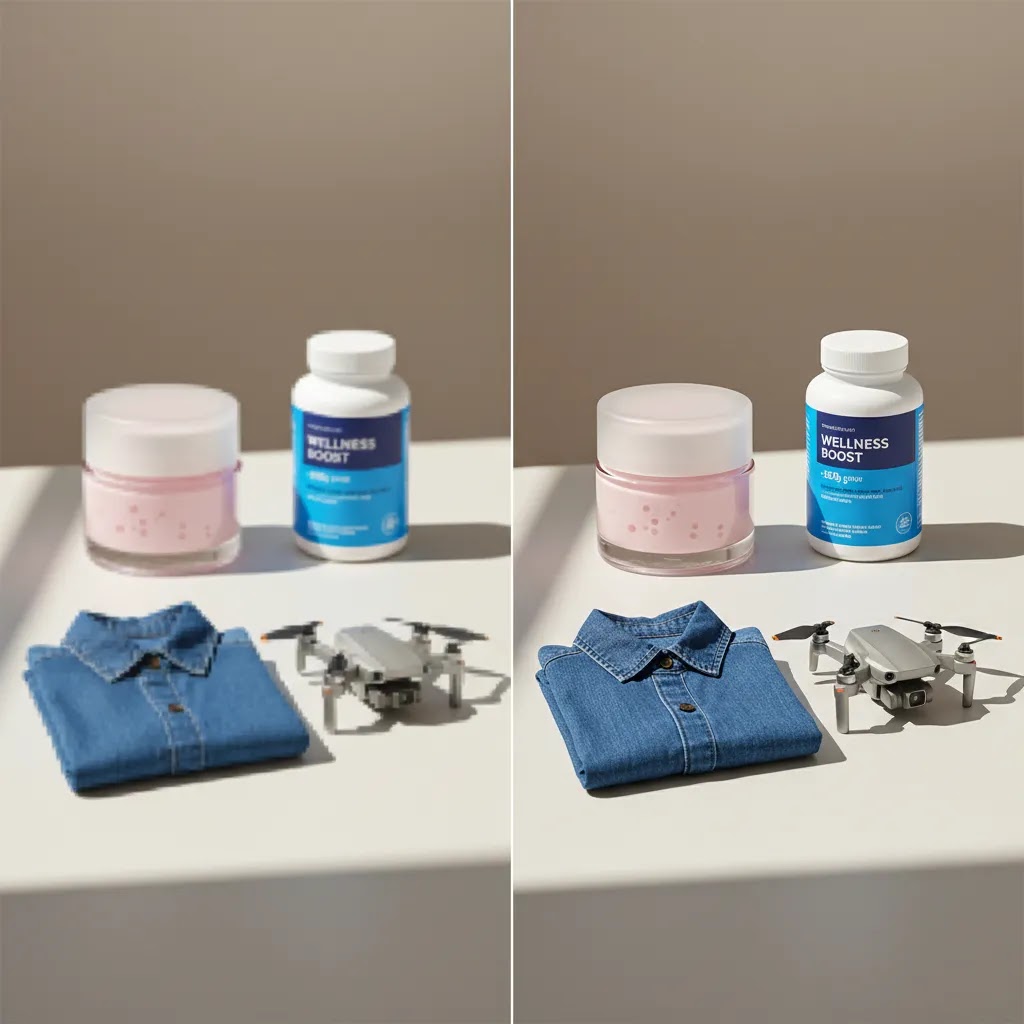
Here is the thing: upscaling is partly real improvement and partly an illusion of detail. Many AI upscalers can make an image look sharper by predicting texture, refining edges, and reducing noise. What they cannot do is truly recover missing information from a bad source file.
This matters a lot for ecommerce because your customers zoom in for proof. If the original image is heavily compressed, motion-blurred, or pulled from a tiny thumbnail, an upscaler may produce a bigger file, but it may also invent detail that is not actually there. That can show up as packaging text that looks almost readable but is slightly wrong, ingredient labels that smear into fake characters, or repeating patterns that are not true to the product.
Common failure modes I see store owners miss until the image is already live on the PDP include fabric grain that looks weirdly uniform, warped logo edges, crunchy halos around transparent products like bottles or glass, and plastic-looking skin texture on lifestyle model shots. For lifestyle photography, “natural-looking results” often matter more than maximum sharpness. If the tool overdoes it, the photo can feel edited in a way that hurts trust.
From a practical standpoint, you want guardrails:
- If text accuracy matters for compliance or clarity, like supplements, cosmetics, and food packaging, consider reshooting when the source is too soft to read cleanly. Upscaling can help legibility, but it can also introduce artifacts that look like real text at first glance.
- Start with mild settings and smaller scaling steps, then review at true zoom on a product page sized layout. In many cases 2x can look more believable than jumping straight to 8x.
- Always do a human review before publishing. AI tools are fast, but they are not accountable for whether a label looks trustworthy in a Shopify product gallery.
The reality is that upscalers work best when you treat them as an enhancement tool, not a rescue tool. If the original photo is fundamentally weak, your best “image upscaler” may be a better photo, a better lighting setup, or a tighter workflow that prevents repeated exports and compression in the first place.
Product evaluation
Best fit for direct upscaling: Increase Image Resolution URL: https://www.productai.photo/tools/increase-image-resolution/?cstmsrc=acquireconvert
This is the clearest match for store owners searching for the best image upscaler ai tool. Based on the available product data, it is specifically built to increase image resolution, which makes it the most direct option for improving product photo size and clarity without switching to a broad, all-purpose image editor.
For ecommerce, that focused positioning is a strength. If your catalog contains older supplier images, screenshots, cropped marketplace assets, or creative resized too many times, a dedicated resolution tool is often the fastest place to start. It may help you prep larger hero images, improve zoom-friendly product visuals, or adapt media for multiple channels.
Best for broader editing workflows: Magic Photo Editor URL: https://create.productai.photo/editor/?cstmsrc=acquireconvert
If your problem is not only low resolution, Magic Photo Editor may be more useful. Many merchants discover that a “bad” product image actually needs cleanup, background work, object removal, or visual refinement before resolution becomes the final step. For a small team, having those edits in one place can be more practical than using disconnected tools.
Best for production workflow: Creator Studio URL: https://create.productai.photo/?cstmsrc=acquireconvert
Creator Studio looks more suitable for merchants managing repeated visual content creation rather than one-off edits. If your team produces product page images, ad variants, and seasonal creative on a regular schedule, a broader studio environment may support consistency better than a single utility tool.
Useful supporting tools
- AI Background Generator: https://www.productai.photo/tools/free-ai-background-generator/?cstmsrc=acquireconvert
- Free White Background Generator: https://www.productai.photo/tools/free-white-background-generator/?cstmsrc=acquireconvert
- Background Swap Editor: https://create.productai.photo/editor?tab=background-swap/?cstmsrc=acquireconvert
These are not image upscalers, but they matter if your end goal is stronger ecommerce imagery rather than resolution alone. Many stores get better results by combining cleaner background treatment with selective resolution enhancement, especially for homepage banners, collection imagery, and social creative.
Batch upscaling and workflow: how to handle a catalog refresh
What many store owners overlook is that the hardest part of upscaling is not the single image test. It is making sure the results stay consistent across dozens or hundreds of SKUs. If you are refreshing a catalog, treat this like a production workflow, not a one-off edit.
A practical process looks like this:
- Pick a representative sample set first. Include a few product types, different colors, different materials, and at least one image with fine text, like packaging or labels.
- Define acceptance criteria before you upscale everything. For ecommerce, that typically means text legibility, edge integrity around the product silhouette, and color consistency across variants.
- Run a batch on the sample set, then QA the results in context. Do not just judge the image at full screen. Check it the way a customer will see it: in a Shopify product gallery, on mobile, and at zoom.
- Only then scale up to the full catalog. If you change settings halfway through, your gallery can end up looking inconsistent, which is a subtle trust killer.
File management matters more than people think, especially when you are iterating. Keep your originals. Use clear naming so you can tell what is what, for example “sku-color-angle-original” and “sku-color-angle-upscale2x-v1”. Avoid repeatedly re-exporting a file that has already been processed multiple times, because artifacts can compound and you end up “baking in” problems that are hard to remove later.
Now, when it comes to tool choice, this is where a studio environment can earn its keep. A single upscaler is great for quick fixes. A broader studio workflow is often better when you need repeatable output for seasonal launches, consistent backgrounds for collections, and fast ad iterations that still look like they belong to the same brand.
Pros and Cons
Strengths
- Increase Image Resolution is directly aligned with the core need of upscaling product photos.
- The available tool set supports a broader image workflow, including background generation, white background creation, and general editing.
- These tools appear practical for lean ecommerce teams that need faster creative iteration without a full design department.
- A focused upscaler can be useful for refreshing older product imagery, ad assets, and catalog photos that are too small for current storefront standards.
- Supporting editors may reduce the need to move files across multiple disconnected apps for common image enhancement tasks.
Considerations
- No pricing data was available from the product data provided, so you will need to verify current costs directly with the provider.
- No ratings were returned, which limits side-by-side scoring against competing image upscalers.
- Upscaling cannot fully fix poor source photography. Blurry, badly lit, or compressed images may still need reshooting.
- Single-purpose upscalers are helpful, but some stores may get more value from an editor or studio workflow if resolution is only one part of the problem.
Who this is for
This evaluation is for ecommerce operators who already know they need better image quality and are close to choosing a tool. If you run a Shopify store with older catalog images, supplier-provided files, or inconsistent ad creative, a dedicated upscaler may be worth testing first. It is also relevant for merchants who need larger images for zoom, homepage placements, collection banners, or marketplace submissions.
If you are still diagnosing the issue, be careful not to assume low resolution is the only problem. Many stores benefit more from improving their overall E Commerce Product Photography process before relying heavily on AI enhancement.
AcquireConvert recommendation
If you are evaluating the best free image upscaler or the best ai image upscaler for product photos, start with the tool that matches the job most directly: Increase Image Resolution. Then pressure-test whether your issue is really resolution, or whether it is workflow, background treatment, or editing quality more broadly.
That practical decision-making approach is how AcquireConvert covers ecommerce tools. Giles Thomas brings a Shopify Partner and Google Expert perspective, which matters if your images need to work not just on a product page, but across paid traffic, Shopping feeds, landing pages, and conversion-focused store design. If you want the next step after this article, compare related image workflows on AcquireConvert, review the ai background remover and best ai photo editor resources linked above, and use that context to decide whether you need a utility tool, a broader editor, or a stronger production setup.
How to choose the best image upscaler
For most ecommerce stores, the right choice comes down to four questions.
1. Are you fixing resolution, or fixing the whole image?
If the photo is already well-lit, framed correctly, and visually clean, a dedicated upscaler is usually the most efficient choice. If the image also needs cleanup, retouching, or background work, a general editor may be a better investment.
2. Where will the image be used?
Product page galleries, zoom features, collection grids, social ads, and marketplace listings all place different demands on image files. A merchant selling premium home goods may prioritize large detail-rich images, while a fast-moving accessories brand might care more about quick ad-ready creative output.
3. How strong is the original file?
This is where many decisions go wrong. Upscaling works best when the source image is decent to begin with. If your file is heavily compressed, blurry, or poorly lit, resolution enhancement may only make flaws more visible. In those cases, reshooting or rebuilding the visual may be smarter.
4. Do you need a repeatable workflow?
If you manage a large catalog or frequent campaign refreshes, think beyond a one-time fix. A studio-style environment could be more efficient than isolated tools, especially if your team regularly creates PDP images, seasonal banners, and paid social creative.
5. Are you choosing based on speed or image fidelity?
Sometimes the fastest tool wins for campaign deadlines. Other times, especially for premium products, you need cleaner, more accurate visuals even if the process takes a little longer. For conversion-focused product pages, realism often matters more than dramatic enhancement.
A simple decision path looks like this:
- Use a dedicated upscaler if the image is good but too small.
- Use a broader editor if the image needs multiple fixes.
- Improve your photography process if the original image quality is fundamentally weak.
- Use studio-based workflows if your team handles ongoing creative production at scale.
Recommended export sizes and use cases (Shopify, ads, marketplaces)
Once you have a better-looking file, the next decision is export size. Bigger is not always better. For most Shopify store owners, you are trying to hit the point where images look crisp in the theme’s containers and zoom, without uploading files so large that they slow down product pages.
Think of it this way: choose the output based on where the image will live, then optimize for clarity, consistency, and load time.
- Small PDP image: Used in product galleries and collection grids. Prioritize clean edges, accurate color, and consistent aspect ratios so the grid does not look messy. If you upscale too aggressively, you may end up with oversized files that do not look meaningfully better at normal viewing size.
- Hero banner: Used for homepages, landing pages, and featured collection sections. Prioritize resolution and composition, since these often display wider and larger. Make sure the crop still works on mobile, because Shopify themes frequently shift or stack layouts.
- Ad creative: Used on paid social and display placements. Prioritize readability on mobile and keep exports efficient. Overly sharp upscales can look artificial once ad platforms compress the image again, so test a couple of settings and view the final in-feed preview where possible.
- Marketplace main image: Used where requirements and automated checks can be strict. Prioritize natural-looking edges and clean backgrounds. If the upscaler introduces halos, warped text, or odd texture, it may get flagged or simply reduce buyer confidence.
Page speed is the quiet tradeoff. Upscaling can create large files fast, especially if you export at high resolution and high quality. After you upload to Shopify, spot check a few product pages. If pages feel heavy, review the file sizes of the new images and compare them to the old ones. In many cases, a slightly smaller export that looks the same on the PDP is the smarter choice.
Device context also matters. Browser tools are convenient for quick tests and remote teams. Desktop apps can be better for consistent batch work, offline processing, and keeping sensitive product imagery local. For some brands, that privacy and repeatability is as important as raw output quality.
Frequently Asked Questions
What is the best image upscaler for product photos?
Based on the currently available product data, Increase Image Resolution is the strongest direct match because it is specifically built for improving image resolution. For product photos, that makes it the most relevant starting point. If your images also need cleanup or background edits, a broader tool like Magic Photo Editor may be more practical.
Can AI image upscalers improve Shopify product images?
They can help in many cases, especially if your Shopify store has older or undersized product images. A good upscaler may make files more usable for larger layouts or zoom features. It will not fully fix bad lighting, motion blur, or poor composition, so you still need to assess the original source image honestly.
Is a free image upscaler enough for ecommerce use?
Sometimes, yes. If you only need to improve a few decent-quality product images, a simpler or free option may be enough for testing. But if you manage a larger catalog, need repeatable output, or also require retouching and background work, a broader editing workflow may be a better fit over time.
What should I check before upscaling a product image?
Check sharpness, lighting, compression artifacts, crop quality, and whether text or branding is readable. If the image is fundamentally weak, upscaling may only enlarge the problem. For ecommerce, it is also worth checking whether the image already matches your storefront, ad, or marketplace requirements before editing further.
Will upscaling improve conversion rates?
Better product images can support trust and product understanding, which may help conversions in some stores. But there are no guaranteed results. Image quality is only one part of performance, alongside pricing, offer strength, page speed, reviews, merchandising, and traffic quality.
Should I upscale before or after background editing?
That depends on the tool and the image. In many workflows, it makes sense to clean up the image first so the upscaler works from a tidier source. In other cases, you may want to enlarge first if later edits require more pixel detail. Testing both orders on a few SKUs is usually the safest approach.
What is better for ecommerce, an upscaler or a full photo editor?
If resolution is the only problem, an upscaler is usually the faster choice. If your product imagery needs retouching, background changes, or layout refinements too, a full editor often gives better overall value. Many store owners end up needing both functions at different points in their visual workflow.
Can image upscalers help with ad creatives too?
Yes, they can be useful for paid social and display creative, especially when you need larger assets from existing source files. Still, ad images often need more than resolution improvement. Composition, copy space, background consistency, and mobile readability usually matter just as much as pixel count.
Do I still need better product photography if I use AI tools?
Usually, yes. AI tools can improve usable assets and speed up production, but they work best when the source photography is already decent. If your team struggles with soft lighting, poor framing, or inconsistent shots, improving your photography process may deliver more value than relying on enhancement alone.
What is the best AI image upscaler for enlarging low resolution photos?
If your goal is direct resolution improvement, Increase Image Resolution is the most relevant starting point from the available product data because it is purpose-built for upscaling. The key is to test it on a few real catalog images first, especially ones with labels, patterns, or transparency, and review the result at product page zoom before updating your store.
Is Topaz a good image upscaler for product photos?
Topaz is widely used as a desktop upscaling option, and some merchants like it for offline processing and batch consistency. Whether it is “good” for product photos depends on how natural the output looks on your specific products, and whether it preserves fine details like packaging text without inventing weird texture. Whatever tool you choose, plan on human review before publishing, especially for regulated categories.
How can I upscale an image 8x without losing quality?
In most cases you cannot upscale 8x without some tradeoffs. The larger the multiplier, the more the tool has to guess, which can create artificial texture, warped edges, or fake detail. A more reliable approach is to test smaller steps first, like 2x or 4x, keep settings mild, and reshoot images that are too far gone due to blur or compression.
What is the best free AI image upscaler online?
The best free option is usually the one that reliably produces believable results on your product types. Start by testing a few images that represent your catalog, then compare output for edge quality, color consistency, and text legibility. Free tools can be fine for light needs, but if you are doing a large refresh or need repeatable outputs, a dedicated workflow tool may be more sustainable.
Key Takeaways
- Increase Image Resolution is the clearest direct option for merchants looking for the best image upscaler for product photos.
- Magic Photo Editor and Creator Studio may be better fits if your workflow includes broader editing or repeated creative production.
- Upscaling works best on decent source images and is not a full replacement for strong product photography.
- For ecommerce, choose based on end use: product pages, zoom, ads, marketplaces, or catalog refreshes.
- Use AcquireConvert’s related image editing resources to decide whether you need resolution enhancement, background cleanup, or a more complete photo workflow.
Conclusion
If you need the best ai image upscaler for ecommerce product photos, the strongest direct option from the available data is Increase Image Resolution. It addresses the core problem clearly, which is exactly what many store owners need when older images no longer meet modern storefront standards. Still, the smartest choice depends on whether your images need enlargement only or a more complete cleanup and editing workflow. That is where broader tools like Magic Photo Editor or Creator Studio can make more sense. For sharper decision-making, compare image editing options side by side on AcquireConvert, explore the linked guides on background removal and AI photo editing, and use Giles Thomas’s Shopify-focused perspective to choose a workflow that fits your store, team, and creative volume.
This content is editorial and provided for informational purposes only. It is not a paid endorsement unless explicitly stated otherwise. Pricing, features, and product availability are subject to change, so verify current details directly with the provider before making a purchase decision. Any performance or conversion impact discussed is not guaranteed and will vary by store, traffic, offer, and implementation quality.

Hi, I'm Giles Thomas.
Founder of AcquireConvert, the place where ecommerce entrepreneurs & marketers go to learn growth. I'm also the founder of Shopify agency Whole Design Studios.