How to Export With Transparent Background Illustrator


If you sell online, transparent files are one of those small workflow details that can save a lot of cleanup later. You might need a logo for your Shopify header, a PNG for product badges, or an SVG icon for your theme. Adobe Illustrator can export all of these with no background, but only if your document setup and export settings are correct. If not, you can end up with a white box, missing edges, or a file type that does not behave well on your storefront. This guide walks you through how to export with transparent background illustrator, which format to choose for ecommerce use, and where store owners often get stuck. If you need broader help with image cleanup beyond Illustrator, start with our background remover resources.
Contents
- What transparent export in Illustrator actually means
- How to export with a transparent background in Illustrator
- Troubleshooting: why your PNG export is not transparent
- Best export formats for ecommerce use
- How to export SVG without a white background (and why it happens)
- Pros and Cons
- Who this workflow is best for
- How to choose the right transparent file type
- AcquireConvert recommendation
- Frequently Asked Questions
- Key Takeaways
What transparent export in Illustrator actually means
In Illustrator, transparency means your artwork has no solid color background baked into the exported file. That matters for ecommerce because logos, promotional stickers, packaging marks, and product overlays often need to sit on different page backgrounds without showing a white rectangle around the asset.
The important distinction is this: Illustrator can display a transparency grid inside the app, but that does not automatically mean every export format will preserve transparency. File type choice matters. PNG, SVG, EPS, and some TIFF workflows can support transparency. JPG does not.
For Shopify merchants, the most common use cases are:
- Logo files for headers, footers, and checkout branding
- Badge graphics such as “new,” “bundle,” or “limited edition”
- Icons and vector illustrations for product pages
- Overlay graphics used in marketing creatives or product composites
If your source image is not clean to begin with, Illustrator may not be the fastest fix. In those cases, a dedicated remove background workflow may be better before you return to design polishing in Illustrator.
How to export with a transparent background in Illustrator
Here is the workflow most store owners and ecommerce designers use when they need a clean transparent export.
1. Confirm your artwork has no background object
Open the Layers panel and make sure there is not a white rectangle or filled shape sitting behind your design. This is a common reason exports look non-transparent even when the artboard appears clean.
2. Check the transparency grid
Go to View > Show Transparency Grid. If you see the checkerboard behind your artwork, that usually means there is no background object on the artboard.
3. Fit the artboard to the design if needed
If you are exporting a logo or icon, use the Artboard tool to crop the canvas closely around the design. This helps avoid extra empty space around the exported asset. For ecommerce, tight crops often make theme placement cleaner and reduce the need for CSS adjustments later.
4. Choose the right export command
Use one of these paths depending on the output you need:
- File > Export > Export As for PNG, SVG, TIFF, and other common formats
- File > Export > Export for Screens when you need multiple sizes for web assets
- File > Save As for formats like EPS that may preserve vector data for printers or designers
5. Select a transparency-friendly format
For most storefront graphics, PNG and SVG are the main choices. If you export a JPG, Illustrator will flatten the file and replace transparency with a solid background.
6. Check export settings carefully
For PNG, look for a Background Color setting and choose Transparent if available. For SVG, review styling and font settings so the file displays correctly in browsers and Shopify themes.
7. Test the file outside Illustrator
Do not stop at the export screen. Open the file in a browser, image viewer, or your Shopify theme editor to make sure transparency is actually preserved. This extra check catches issues before you upload assets across your site.

Troubleshooting: why your PNG export is not transparent
Here’s the thing: a PNG can look transparent inside Illustrator and still export with a white box if one small setting is off, or if there is a hidden object in your file. This comes up a lot with logos and badges that get reused across Shopify headers, email templates, and ads.
A quick diagnostic checklist
Start with the simplest failure modes first:
- You exported as JPG by mistake. JPG cannot store transparency, so Illustrator will flatten the background.
- There is a hidden filled rectangle in the Layers panel. It might be locked, clipped, or sitting inside a group, so it is easy to miss.
- You used artboards in a way that adds extra canvas. For example, exporting “Use Artboards” can include empty space you did not expect, which can make the asset feel like it has a background when it is really just oversized.
- Your PNG export settings are not actually set to transparent. In some workflows, the export dialog can default to a background color rather than transparency.
Do not rely on the transparency grid alone
The checkerboard inside Illustrator is a preview mode, not proof that your exported file is clean. Verify the export in a context that behaves like the real world:
- Drag the PNG into a web browser and place it over a non-white area (many browsers show PNG transparency properly).
- Drop it into another app with a colored background, like a slide deck, a design tool, or even a Shopify theme preview where the header background is not pure white.
- If you are testing inside Shopify, upload it where you will actually use it, such as your theme’s header logo setting, and preview a few template pages.
Fixes that map directly to each problem
If you exported the wrong format, re-export as PNG and avoid JPG.
If you suspect a hidden background object, open the Layers panel, expand groups, and toggle visibility. Often the “white background” is just a rectangle that was created early in the design process and forgotten. Delete it, or remove its fill.
If the canvas is the issue, go back and fit the artboard to the artwork before exporting. That gives you a tighter file that behaves better in Shopify sections, especially for logos and smaller UI graphics.
If it is an export settings issue, use File > Export > Export As, choose PNG, and check for the Background Color option in the PNG export dialog. Set it to Transparent when available. If you are exporting multiple assets, File > Export > Export for Screens can be more reliable because it makes you confirm formats and targets per asset, and it is designed for web outputs rather than one-off exports.
Best export formats for ecommerce use
The right format depends on how you plan to use the file.
PNG for logos, badges, and fixed-size graphics
PNG is usually the safest option when you need a transparent background and want consistent display across browsers, apps, and marketplaces. It works well for header logos, trust badges, promo graphics, and many product page assets.
Choose PNG when:
- You need a transparent raster file
- You want predictable display on Shopify and email platforms
- You are exporting text or illustration at a fixed size
SVG for scalable web graphics
SVG is often the best choice for logos and icons because it stays sharp at different sizes. If you are asking how to export svg with transparent background illustrator, the good news is that transparency is usually preserved by default as long as you have no background object behind the art.
Choose SVG when:
- You need a lightweight vector graphic for web use
- You want crisp display on retina and large screens
- Your Shopify theme supports SVG uploads or inline use
TIFF for specialty workflows
If you need to know how to export tiff from illustrator with transparent background, use Export As and review the TIFF options carefully. TIFF can support transparency in some workflows, but it is rarely the first choice for storefront performance. It is more common in print, packaging, or team handoff situations than live ecommerce pages.
What about AI, EPS, or PDF?
These formats are more about editing, sharing, or print production than direct store deployment. They can preserve transparent elements, but they are not usually the final format you upload to a Shopify storefront.
Exporting transparent PDF or EPS: when it matters (print, packaging, and handoff)
From a practical standpoint, PDF and EPS exports matter most when you are handing files off to someone else, not when you are trying to improve how your Shopify storefront looks. If a vendor asks for a “transparent PDF,” they usually mean they do not want a big white rectangle behind your logo when they place it into a layout.
Transparent PDF export can be useful for ecommerce teams when you are dealing with print inserts, packaging files, wholesale line sheets, retail sell sheets, or brand guideline documents. It is usually the wrong choice for storefront assets because Shopify, email platforms, and ad channels typically want PNG or SVG for transparent graphics.
When you hand off PDF or EPS files, a few things are worth watching:
- Live transparency: some print workflows flatten transparency depending on how the file is saved and where it is opened. That can change how shadows, glows, or overlays render.
- Placed images: if your Illustrator file includes linked images, make sure they are included in the handoff or properly embedded, otherwise the recipient may see missing elements.
- Spot colors: packaging and print vendors may care about spot colors and overprint behavior, which is a separate concern from web transparency, but it can affect what “looks right” when they output the file.
- Viewer settings: some people interpret a “white background” as a transparency issue when it is really just their PDF viewer showing a page color behind the art. The file can still be fine.
Think of it this way: keep AI as your editable master, export PNG and SVG for Shopify and marketing, and only export PDF or EPS when a partner explicitly requests it. That simple “master file vs. delivery file” workflow prevents a lot of asset chaos as your store grows and more people touch your brand files.
If you are balancing Illustrator exports with broader product image work, our Transparent Background hub and Background Removal & Editing category can help you pick the right workflow for each visual asset.
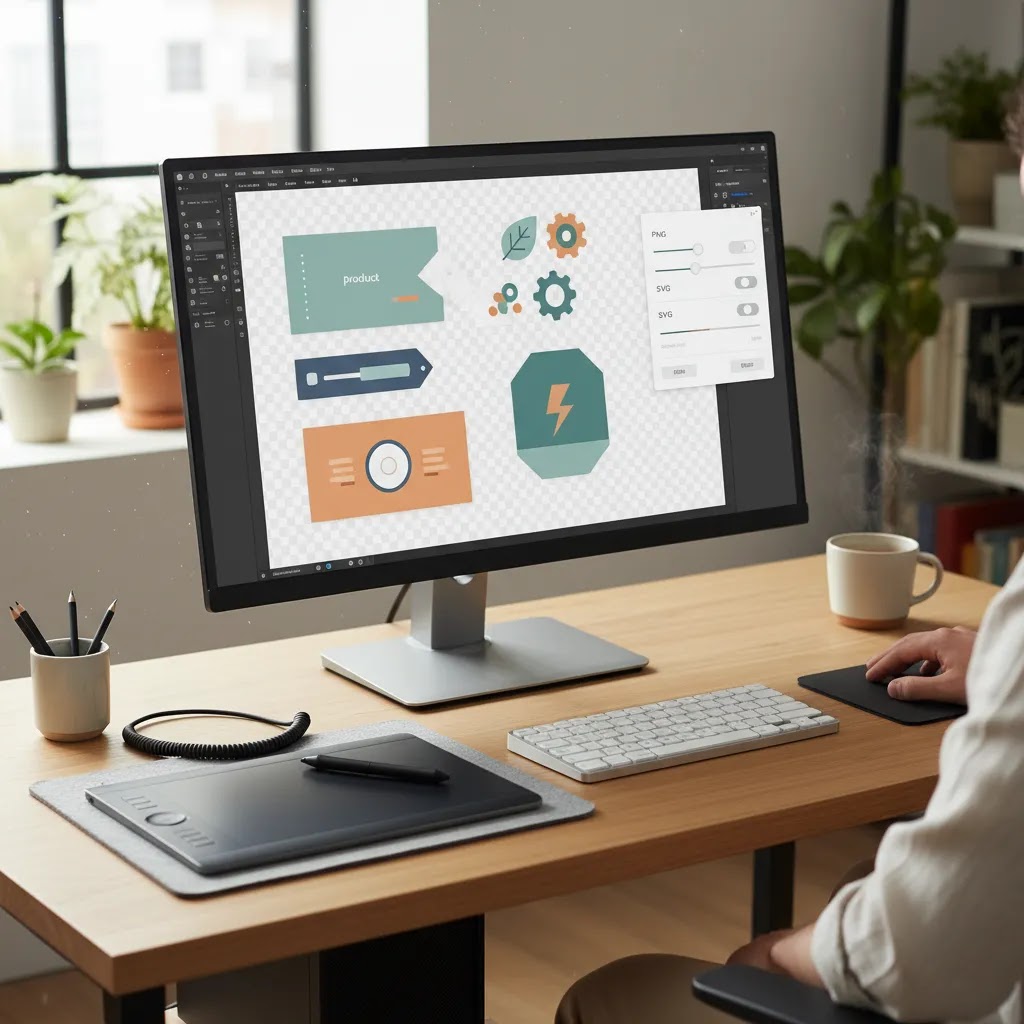
How to export SVG without a white background (and why it happens)
A lot of “SVG exported with a white background” complaints are not actually caused by the SVG file containing a white box. The reality is that SVG is transparent by nature unless you draw a background shape. What usually happens is that the artboard looks white in Illustrator, or the place you are previewing the SVG is putting a white background behind it.
Why SVG looks like it has a white background
First, Illustrator’s artboard color is not part of your artwork. If your logo sits on a white artboard, that does not mean a white rectangle will export.
Second, SVGs are often displayed inside a viewer, a browser, or a theme component that has its own background color. For Shopify store owners, this is common when an SVG is used in a header block, a section that has a white background set in theme settings, or CSS that sets a background on the element wrapping the SVG.
Illustrator export settings that reduce SVG issues
When you export an SVG from Illustrator, you are not just exporting shapes, you are exporting instructions that the browser has to interpret. A few choices can reduce “looks different on my storefront” problems:
- Confirm there is no background object. Check Layers for any rectangles, clipping masks, or groups that might include a filled shape behind the logo.
- Be careful with fonts. If you use a custom font in a logo lockup, it may not render correctly everywhere unless that font is available. For some Shopify theme uses, converting text to outlines can be the safer option, especially for logos and icons where you need consistent display. Keep an editable version with live text for future changes.
- Avoid effects that do not translate well. Some gradients, blurs, and clipping mask setups can render differently depending on how the SVG is embedded. If an SVG is going to be used as a simple UI asset, simpler is usually more reliable.
How to test an SVG correctly for Shopify
Open the SVG in a browser first. If it looks correct there, the SVG file itself is probably fine.
Then test it in the context that matters, your Shopify theme. The same SVG can look “wrong” if it is being displayed on a section with a forced background color, or if the theme is placing it inside a container with padding and background styles that create the impression of a white box.
If your theme or your usage method is forcing a background color, the fix is typically on the theme side rather than in Illustrator. You can either adjust the theme setting for that section background, or use a PNG export instead when you need predictable behavior and you do not want to touch theme code.
Pros and Cons
Strengths
- Illustrator gives you precise control over vector artwork, which is ideal for logos, icons, and branded graphics.
- You can export multiple transparent-friendly formats, including PNG and SVG, depending on storefront needs.
- Artboards make it easier to create tightly cropped exports for Shopify themes, ads, and email assets.
- Export for Screens is useful when you need several sizes of the same asset for desktop, mobile, and marketplace placements.
- Transparency preview inside Illustrator helps you spot hidden background shapes before export.
Considerations
- Illustrator is not the fastest option for removing backgrounds from photos. It is better for vector graphics than photo cutouts.
- Some export issues come from hidden background objects, which can confuse less experienced users.
- SVG exports may need extra testing in Shopify themes, especially if fonts, effects, or clipping masks are involved.
- TIFF and other advanced formats can add complexity without much benefit for everyday storefront use.
Who this workflow is best for
This workflow is best for ecommerce teams creating brand assets rather than editing product photography. If you are exporting a logo from Illustrator with transparent background, preparing icons for a Shopify theme, or saving promo graphics without a white box around them, Illustrator is a strong fit.
It is especially useful for merchants with in-house design control, freelance designers handing off files to a store team, and growth-stage brands trying to keep visual consistency across product pages, email campaigns, and paid ads. If your task is more photo-focused than vector-focused, you may need a different tool stack or a dedicated remove.bg reviews comparison before choosing your next step.
How to choose the right transparent file type
Most export problems come from picking the wrong output format for the job. Here is a practical way to decide.
1. Start with where the file will be used
If the file is going on your Shopify storefront, think about theme behavior first. Header logos, small icons, and section graphics often work best as SVG if supported. Marketing badges or complex illustrations often work better as PNG because display is more predictable.
2. Decide whether you need vector scalability
If the same logo might appear in your header, packaging insert, trade show banner, and wholesale PDF, keep a vector master and export SVG or EPS where appropriate. If the asset only needs to appear online at a fixed size, PNG is usually enough.
3. Watch file weight and page speed
Transparent PNGs can get heavy, especially if dimensions are larger than necessary. Before export, fit the artboard closely to the design and avoid oversized canvas dimensions. This matters for Shopify merchants because decorative assets can quietly slow section load times.
4. Test for compatibility
Not every ecommerce platform, email tool, ad network, or marketplace handles SVG the same way. If you are sharing assets across channels, PNG may be the more reliable choice even if SVG is technically cleaner.
5. Match the tool to the image type
Illustrator is excellent for vector graphics. It is less efficient for product photo background removal. If you are creating a listing image from a studio shot, your process might involve a product photography studio setup first, then photo editing, then final graphic export for overlays or branding.
If you are working with a non-Adobe design stack or helping team members with simpler tools, this companion guide on how to make background transparent in paint is useful for basic image edits.
AcquireConvert recommendation
For most ecommerce store owners, the best approach is to treat Illustrator as a precision design tool, not a one-tool solution for every image task. Use it for logos, icons, badges, and vector brand assets that need transparent export. Use specialized background editing tools for product photos when speed matters more than vector control.
That is generally how experienced Shopify operators work. They keep clean master assets, export the right format for each channel, and test files on the storefront before rolling them out sitewide. AcquireConvert covers that practical side of visual merchandising in more detail, with guidance shaped by Giles Thomas’s experience as a Shopify Partner and Google Expert. If you are comparing broader cleanup options beyond Illustrator, explore our transparent background and editing resources to see which workflow fits your store’s catalog, team skills, and conversion goals.
Frequently Asked Questions
How do I export from Illustrator with a transparent background?
Make sure there is no filled background object behind your artwork, show the transparency grid to confirm, then use Export As or Export for Screens and choose a format like PNG or SVG. If you pick JPG, transparency will not be preserved. Always test the exported file outside Illustrator before uploading it to your store.
How do I export a logo from Illustrator with a transparent background?
Crop the artboard closely around the logo, remove any background shapes, and export as PNG or SVG. PNG is often better for fixed placement in email or marketplace assets. SVG is usually better when you want a crisp logo that scales cleanly across different screen sizes on your storefront.
Why is my Illustrator export showing a white background?
The most common causes are a hidden white rectangle on the artboard, exporting as JPG, or using PNG settings that do not preserve transparency. Check your Layers panel, enable the transparency grid, and review the export dialog carefully. A white artboard in Illustrator does not necessarily mean the file will export with a white background.
How do I remove the white background in Illustrator when exporting?
First, confirm there is no background shape by checking the Layers panel for a rectangle or filled object behind your artwork. Then export as PNG or SVG, not JPG. If you are exporting PNG, review the PNG export options and set the background color to transparent when available. Finally, open the exported file in a browser or place it over a colored background to confirm it is truly transparent.
How to make something have a transparent background in Illustrator?
Remove any filled shape behind your artwork, then use the transparency grid as a quick visual check. Transparency in Illustrator comes from the absence of a background object, not from changing the artboard color. Once your layers are clean, export as PNG or SVG and test the result outside Illustrator.
How to save an image so it has a transparent background?
Choose an export format that supports transparency, usually PNG for raster or SVG for vector. Make sure your artwork has no background rectangle, then export and verify the file in a browser or on a colored background. If you save as JPG, transparency will be replaced with a solid background.
Why is my PNG not transparent in Illustrator?
Usually it comes down to one of four issues: the file was exported as JPG, a hidden filled rectangle is still in the Layers panel, the artboard was not cropped and the file includes extra canvas that looks like a background, or the PNG export settings were not set to transparent. Re-export as PNG, confirm no background object exists, check the PNG export dialog background setting, and test the exported file outside Illustrator.
How do I export SVG with transparent background in Illustrator?
SVG usually preserves transparency automatically as long as your design does not include a background object. Use Export As, choose SVG, and review styling settings for browser compatibility. After export, open the file in a browser and test it in your Shopify theme if that is where it will be used.
Can I export an Illustrator file with a transparent background for Shopify?
Yes. For Shopify, PNG and SVG are the most useful transparent formats. PNG is widely supported and dependable for badges, logos, and promotional graphics. SVG can be ideal for logos and icons, but it is worth checking theme compatibility and testing display before making it your default format.
How do I export an artboard with a transparent background in Illustrator?
Select the correct artboard, make sure it contains no background shape, and export only that artboard using Export As or Export for Screens. This is useful if you manage several brand assets in one Illustrator file and want separate transparent exports for different storefront placements.
Can Illustrator export TIFF with transparency?
It can in some workflows, but TIFF is rarely the best choice for ecommerce storefront assets. It is more often used for print or internal production handoff. For most online store needs, PNG or SVG will be easier to manage, lighter to deploy, and more compatible with common web use cases.
What is better for ecommerce, PNG or SVG?
It depends on the asset. SVG is often better for simple logos and icons because it scales sharply. PNG is usually better for more detailed graphics, badges, or situations where platform compatibility is more important than scalability. Many stores use both, depending on the design element and placement.
Is Illustrator the best tool for removing backgrounds from product photos?
No, not usually. Illustrator can help with vector tracing and some manual editing, but it is not typically the fastest option for product photo cutouts. If your goal is photo cleanup rather than brand graphic export, a dedicated background editing workflow will usually save time and produce more consistent listing assets.
Key Takeaways
- Use PNG or SVG if you want Illustrator exports with transparent backgrounds. Do not use JPG.
- Always check for hidden background shapes before exporting.
- Crop artboards tightly to reduce extra space and keep ecommerce assets cleaner.
- Choose SVG for scalable logos and icons, and PNG for broader compatibility.
- Test the final file in your Shopify storefront or design environment before publishing.
Conclusion
If you have been searching for how to export with transparent background illustrator, the real answer is less about one button and more about using the right export format, clean layers, and a sensible ecommerce workflow. Illustrator is excellent for brand graphics, vector logos, and web assets that need to stay sharp across channels. It is less suited to high-volume product photo cleanup. For store owners, that distinction matters because better file choices can reduce rework, improve visual consistency, and keep uploads smoother across Shopify, email, and ads. If you want more practical help on transparent image workflows, image cleanup, and storefront-ready visuals, explore AcquireConvert’s related guides and category resources shaped by Giles Thomas’s hands-on Shopify and ecommerce expertise.
This article is editorial content created for educational purposes and is not a paid endorsement unless explicitly stated otherwise. File format support and software settings may change over time. Always verify current Adobe Illustrator export options and test assets in your own ecommerce environment before publishing. Results will vary based on your workflow, theme, and image requirements.

Hi, I'm Giles Thomas.
Founder of AcquireConvert, the place where ecommerce entrepreneurs & marketers go to learn growth. I'm also the founder of Shopify agency Whole Design Studios.