How to Make a Picture Transparent in Paint (2026)

If you run an ecommerce store, you will eventually need a transparent image. Maybe it is a product cutout for your homepage banner, a logo overlay for a Shopify section, or a clean PNG for an email campaign. A lot of store owners start by asking how to make a picture transparent in Paint because it is already on their Windows computer. That makes sense, but Paint has limits you should know before you spend too much time on it. In this guide, I will show you what Paint can and cannot do, how to use it for simple transparency tasks, and when a dedicated background remover is the smarter choice for ecommerce workflows.
Contents
- Can Paint make a picture transparent?
- How to make a picture transparent in Paint
- Paint vs the newer Windows Paint app vs Paint 3D: what actually works for transparency
- Where Paint falls short for ecommerce images
- How to change opacity in Paint (and why you usually cannot)
- Better options if you need cleaner transparency
- Pros and Cons
- Who Paint is best for
- How to choose the right approach
- Frequently Asked Questions
- Key Takeaways
- Conclusion
Can Paint make a picture transparent?
Yes, but only in a limited way. Microsoft Paint can help you remove a simple background color or place one image over another by treating one color as transparent during editing. That is very different from creating a polished transparent PNG with clean product edges.
For ecommerce, that distinction matters. If you sell apparel, beauty products, accessories, or home goods, your product imagery often needs crisp edges, realistic shadows, and a true transparent background that works across product pages, collection banners, ads, and email graphics. Paint is usually fine for basic experimentation, especially if your image has a solid, high-contrast background. It is much less reliable for hair, soft edges, reflective packaging, glass, or textured product shots.
If your goal is a quick DIY edit, Paint can help you understand the basics. If your goal is production-ready store visuals, you may want to compare it with other ways to remove background from product images. That is especially true if you are updating multiple SKUs and need consistent results across your catalog.
Here is the thing that trips up many store owners. Paint can appear to support transparency while you are editing, then the transparency “disappears” after you save and upload the image. In most cases, it comes down to file format, and what Paint is actually doing behind the scenes.
If you need a quick rule: if you want a truly transparent background file you can upload to Shopify and reuse in design assets, you usually want a PNG. JPEG does not support transparency, so any “transparent” area will typically get filled with a solid color when you save.
How to make a picture transparent in Paint
If you are using classic Microsoft Paint, the process is best thought of as making one background color disappear rather than creating advanced transparency.
- Open Paint and load your image.
- Select Color 2 and choose the background color you want to treat as transparent.
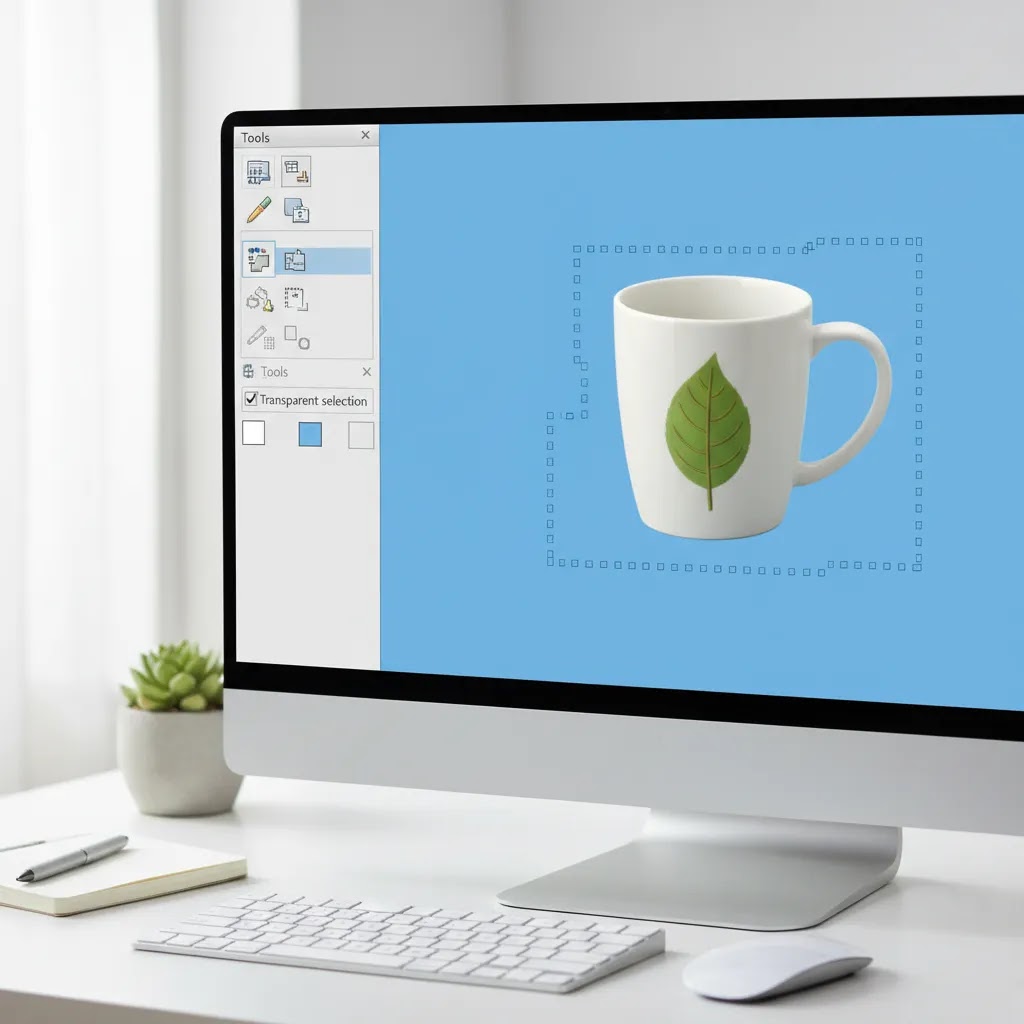
- Use the Select tool and turn on Transparent selection.
- Highlight the part of the image you want to move or copy.
- Paste it onto another canvas or image.
This method works best when the background is one flat color and clearly separated from the subject. For example, if you have a black logo on a white square and want to place it over a colored banner, Paint may be enough.
If you are trying to create a transparent background for a product shot, the results are usually mixed. Jagged edges are common. Color fringing can show up around the product. You may also find that Paint does not preserve transparency the way you expect unless you export in the right format and use an image with simple edges.
If you want a more detailed walkthrough of the specific Paint method, see our guide on how to make background transparent in paint. That article is useful if you are troubleshooting selection settings or trying to understand why your pasted image still shows a solid background.
Paint vs the newer Windows Paint app vs Paint 3D: what actually works for transparency
A lot of the confusion around “how to make a picture transparent in Paint” comes from the fact that Windows users may be talking about three different apps. They look similar at a glance, but they do not behave the same when you try to remove a background or export a transparent image.
Classic Microsoft Paint is the old-school app that many ecommerce store owners still use for quick edits. Its “Transparent selection” feature is basically a color-key trick. It can treat one color as transparent while you move or paste a selection, but it is not the same as producing a clean transparent background around a product cutout.
The newer Windows Paint app (the updated version Microsoft has been shipping on newer Windows builds) can look more modern, but it still tends to behave like Paint in the ways that matter here. You may have slightly different menu options, but you should still assume that true, production-ready transparency is not its core strength. If you are getting inconsistent results, it is not just you. It is the tool.
Paint 3D is where many “remove background” tutorials point because it has historically offered a more visual cutout workflow than classic Paint. Depending on your Windows version and what Microsoft has installed or deprecated, Paint 3D may or may not be available. If you do have it, it can be worth testing for simple product cutouts, especially when the product is clearly separated from the background.
Now, when it comes to ecommerce use, what matters is your output. Many store owners think transparency did not work because the cutout looks fine inside the app, then they save it and end up with a white background. In practice, that is usually one of these issues.
- You saved as JPEG, which cannot keep transparency.
- You pasted onto a white canvas first, which effectively “bakes in” the white background.
- You exported from a workflow that only shows transparency during selection, not as a real alpha-transparent background.
From a practical standpoint, if you are doing one banner mockup, a logo overlay, or a quick internal visual, experimenting in Paint or Paint 3D may be fine. If you are cleaning up a catalog image that is going on a Shopify product page, a dedicated background remover is usually faster and more consistent, particularly for tricky edges like glass, hair, and soft shadows.
Where Paint falls short for ecommerce images
Paint is accessible, but it was not built as a modern ecommerce image tool. That becomes obvious the moment you need precision.
First, edge quality is a problem. Product photos rarely have perfectly hard outlines. Think of hair, fabric fibers, transparent bottles, jewelry chains, or soft shadows under footwear. Paint struggles with those details, which can leave your image looking cut out by hand.
Second, scalability is limited. If you manage even a modest Shopify catalog, editing images one by one inside Paint becomes slow. That can hold up launches, seasonal collection updates, and ad creative refreshes.
Third, consistency is hard to maintain. Ecommerce visuals work best when image style is standardized across your product grid, PDPs, and marketing assets. With Paint, each cutout often needs manual adjustment, so one product may look clean while the next looks rough.
Fourth, Paint is not a good fit for advanced merchandising. If you want transparent backgrounds for composite lifestyle images, hero banners, or polished marketplace listings, specialized tools usually save time and produce more reliable outputs. This is one reason many merchants end up looking at broader background removal & editing options after trying Paint first.
How to change opacity in Paint (and why you usually cannot)
If you searched for how to change opacity in Paint, you are usually trying to do something like place a semi-transparent logo watermark over a hero image, fade a badge into a corner, or soften a background texture behind product text. The reality is that classic Paint does not give you real opacity controls because it does not support layers in the way modern editors do.
Paint’s “Transparent selection” is not the same thing as changing opacity. It does not let you make an object 30% transparent. It typically just treats one color as fully transparent while you move or paste a selection. That is useful for simple logo placement, but it will not give you soft fades or subtle overlays.
For most Shopify store owners, this becomes a practical decision. If you need any of these, you will usually want a different tool.
- Semi-transparent overlays for text readability on homepage banners
- Watermarks that are visible but not distracting
- Soft-edged promotional badges that blend into photography instead of looking like a hard sticker
Consider this: a harsh, fully opaque logo overlay can make a store look less premium, especially on collection banners and email headers. If your branding relies on clean design and subtlety, Paint can be a frustrating place to do that kind of work. In many cases, it is faster to use a dedicated editor for opacity and layering, and keep Paint for quick, low-stakes edits.
Better options if you need cleaner transparency
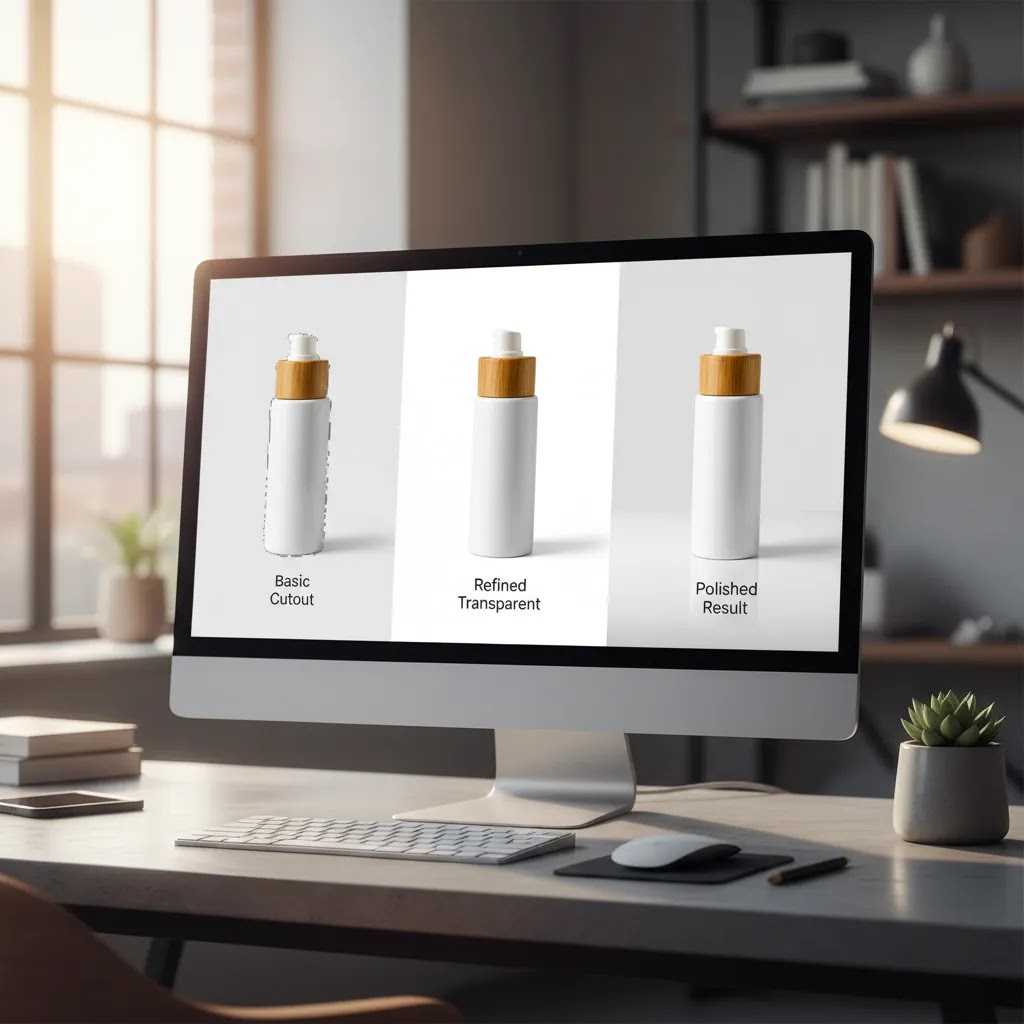
If Paint is too limited, there are purpose-built tools worth considering. Based on current product data, ProductAI offers several image editing tools relevant to transparent background workflows.
- AI Background Generator for creating new edited backgrounds around product imagery
- Free White Background Generator for standardizing marketplace-style product images
- Background Swap Editor for replacing existing backgrounds more flexibly than Paint
- Magic Photo Editor for broader image editing workflows
These options are better suited to store owners who need repeatable catalog edits, campaign creative, or cleaner product cutouts. The exact pricing was not provided in the current product data, so you should verify current rates directly with the provider before choosing a tool.
If you are deciding whether a dedicated remover is worth it, our remove.bg reviews page can help you compare what a specialist tool may do better than Paint for ecommerce use cases. For many merchants, the real question is not whether Paint can work at all. It is whether the time saved and visual quality gained from a dedicated tool justify switching.
Pros and Cons
Strengths
- Paint is already available on many Windows devices, so you can test simple transparency edits without installing complex software.
- It works reasonably well for flat-color backgrounds, simple logos, icons, and very basic graphic tasks.
- The interface is familiar to many non-designers, which lowers the barrier for first-time image editing.
- It can be useful for quick mockups before you commit to a more advanced image workflow.
- For one-off internal assets, such as a temporary banner graphic, the limitations may be acceptable.
Considerations
- It is not ideal for precise product cutouts, especially around curved edges, hair, glass, or semi-transparent objects.
- Manual editing can become slow if you are processing multiple ecommerce images or a full product catalog.
- Results may look inconsistent across listings, which can weaken the visual quality of your storefront.
- Advanced editing features common in dedicated image tools are missing or limited.
Who Paint is best for
Paint is best for store owners who need a quick, basic solution and are working with very simple images. If you are creating a transparent logo, cleaning up a rough internal mockup, or testing a design idea before handing it off to a designer, Paint may be enough.
It is less suitable if your product visuals directly influence conversion, which is the case for most Shopify stores. Merchants selling visual products like fashion, cosmetics, gifts, or premium packaged goods usually need cleaner edges and more consistent output than Paint can deliver. If your images play a central role in paid ads, landing pages, or collection page merchandising, better editing tools are often worth the switch.
AcquireConvert's take for ecommerce store owners
From an ecommerce perspective, Paint is best treated as a starting point, not a long-term image workflow. Giles Thomas's work as a Shopify Partner and Google Expert consistently points toward practical decisions that protect merchandising quality and save operator time. If you are only editing the occasional logo or one-color graphic, Paint can be enough. If you are preparing product images that influence clicks, add-to-cart behavior, or ad performance, cleaner transparency usually matters.
AcquireConvert is a useful specialist resource if you want to evaluate those trade-offs without guesswork. You can browse the main transparent background hub for related tutorials, compare editing approaches, and see how other store owners handle visual cleanup before publishing images. If your next step is broader image improvement rather than simple transparency, our article on setting up a product photography studio is also worth reading, especially if you want better source images before editing starts.
How to choose the right approach
If you are deciding between Paint and a dedicated background tool, use these criteria.
1. How many images do you need to edit?
For one or two images, Paint may be acceptable. For dozens of product photos, manual editing time adds up quickly. A more specialized editor usually becomes more practical once image volume increases.
2. How important is edge quality?
If your product has straight lines and a plain background, Paint has a better chance of working. If your product has fine details, transparent materials, or irregular edges, a dedicated tool is usually the better fit.
3. Where will the image appear?
Internal presentations and rough design tests have lower quality demands. Product pages, paid ads, collection banners, and email campaigns need a more polished finish because customers will judge image quality quickly.
4. Do you need consistency across your store?
Consistent image treatment matters for trust and perceived brand quality. If one listing has crisp transparent edges and another has a rough cutout, your storefront can feel uneven. This is a common issue when merchants rely on ad hoc manual editing.
5. Are you solving the right problem?
Sometimes the issue is not just transparency. It is lighting, framing, shadow quality, or low resolution. In those cases, fixing the original photography process may help more than forcing a basic edit in Paint. That is why it is worth looking at your entire product image workflow, not just the background removal step.
A good rule is simple: use Paint for low-stakes edits, and use a specialized tool or cleaner source photography for high-visibility ecommerce assets. That balance usually saves time and avoids rework.
Frequently Asked Questions
Can Microsoft Paint create a real transparent PNG?
Paint can handle limited transparency tasks, but it is not the strongest option for creating polished transparent PNG files for ecommerce use. It may work for simple shapes or single-color backgrounds, but more complex product edges often need a dedicated background removal or editing tool to look clean.
Why does my image still show a white background after editing in Paint?
This usually happens because the background was not actually removed, only visually treated as transparent during selection or paste actions. File format can also be an issue. If the export does not preserve transparency properly, the background may reappear as white in other programs or storefront assets.
How do I make a picture background transparent in Paint for Shopify?
You can try Paint for simple assets like logos or icons, especially if the background is a flat color. For Shopify product images, though, you will usually get better results with a dedicated tool because product photos often need cleaner edges, better shadow handling, and more consistent presentation across listings.
Is Paint good enough for product photography editing?
For very basic edits, maybe. For production-ready product photography, usually not. Most ecommerce stores benefit from tools that can better handle cutouts, lighting cleanup, and standardized image output. That is particularly true if visuals are central to how shoppers evaluate your products.
What file format should I use for transparent images?
PNG is the most common choice for transparent images because it supports transparency well across many ecommerce and design use cases. JPEG does not preserve transparent backgrounds. If you are preparing overlays, logos, or product cutouts, PNG is usually the safer option.
Can I remove a complex background in Paint?
Not very well in most cases. Paint is much better with flat, simple backgrounds than with detailed scenes. If your image includes hair, shadows, textured materials, or overlapping colors, manual editing in Paint can become slow and the result may still look rough.
What is the biggest drawback of using Paint for transparent backgrounds?
The biggest drawback is precision. Paint can help with simple tasks, but it struggles when edge quality matters. For ecommerce, poor edges can make products look less professional, which may affect how shoppers perceive your store and the quality of what you sell.
Should I use Paint or a dedicated background removal tool?
If speed, consistency, and cleaner output matter, a dedicated tool is usually the better choice. If you only need a quick one-off edit on a basic image, Paint may be enough. The right choice depends on image complexity, output quality needs, and how often you edit visuals for your store.
How do I turn an image into transparent?
It depends on what you mean by “transparent.” If you want a true transparent background (so the image can sit on any color), you typically need to export to a format that supports transparency, usually PNG. In classic Paint, you can only treat a single color as transparent during selection and paste, which is useful for simple logos. For product photos and anything with detailed edges, a dedicated background removal tool is usually a better fit.
How do I change the opacity of an image in Paint?
In classic Microsoft Paint, you typically cannot change opacity because Paint does not offer real layer opacity controls. “Transparent selection” is a different feature that can hide a specific background color while moving or pasting a selection, but it will not let you make an object partially transparent. If you need a soft watermark, a subtle overlay, or a fade effect for ecommerce banners, you will usually need a more advanced editor.
Can Paint save as a transparent image?
Paint often causes confusion here. If you save as JPEG, transparency will not be preserved because JPEG does not support transparent backgrounds. In many cases, Paint’s transparency is only visible during selection and paste, not as a true transparent background that exports cleanly. If you are trying to upload a transparent asset to Shopify, do a quick check before you publish. Open the saved file in an image viewer that shows transparency as a checkerboard, or drop it onto a colored background and confirm the background does not turn white.
How to clear image background in Paint?
In classic Paint, you cannot reliably “clear” a complex background the way you can in a dedicated editor. What you can do is use the Select tool with “Transparent selection” turned on, and treat one background color as transparent while you copy and paste. This can work for simple, flat-color backgrounds like a logo on a white box. For product images shot in real-world lighting, Paint usually struggles with edges and leftover color fringing.
Key Takeaways
- Paint can make a picture transparent in limited situations, especially with flat-color backgrounds and simple shapes.
- It is usually not the best option for polished ecommerce product cutouts or catalog-wide image editing.
- Store owners should judge Paint by image complexity, editing volume, and where the image will appear.
- Dedicated tools such as AI background and editing solutions may save time and improve consistency for online stores.
- Better source photography often improves results more than trying to force complex edits inside a basic editor.
Conclusion
If you came here asking how to make a picture transparent in Paint, the short answer is that you can, but only for simple jobs. For logos, rough mockups, and flat-color graphics, it may do enough. For serious ecommerce image work, it often becomes more effort than it is worth. Clean product presentation affects how professional your store feels, and that is not something most merchants want to compromise on. If you want to go beyond the basics, explore AcquireConvert's transparent background resources, compare specialist tools, and use Giles Thomas's practical ecommerce guidance to choose the approach that fits your store, your catalog size, and your workflow.
This article is editorial content and not a paid endorsement unless otherwise stated. Tool features and availability were based on current source data at the time of writing. Pricing for third-party tools was not available in the provided product data and is subject to change, so verify current rates directly with the provider. Any workflow or performance benefits mentioned are not guaranteed and may vary based on your image quality, catalog complexity, and ecommerce setup.

Hi, I'm Giles Thomas.
Founder of AcquireConvert, the place where ecommerce entrepreneurs & marketers go to learn growth. I'm also the founder of Shopify agency Whole Design Studios.