Background Remover for Product Images (2026 Guide)


If you sell online, image presentation affects clicks, trust, and how polished your store looks. A clean transparent background lets you reuse one product image across Shopify collection pages, product pages, ads, marketplaces, and design assets without rebuilding graphics every time. The challenge is that not every background remover handles edges, shadows, reflective surfaces, or textured products well. That matters if you sell apparel, cosmetics, jewelry, or home goods. This guide shows you how to make transparent backgrounds for product images, what tools and workflows are worth considering, and where manual editing still beats automation. If you want a deeper walkthrough first, start with this guide on how to remove background for ecommerce images.
Contents
- What a background remover actually needs to do
- Tools and workflows for transparent product images
- How to use a background remover for ecommerce (step-by-step workflow)
- Pros and Cons
- Common background removal mistakes (and how to fix them)
- Who this approach is for
- AcquireConvert recommendation
- How to choose the right background remover workflow
- What to do after removing the background
- Frequently Asked Questions
- Key Takeaways
What a background remover actually needs to do
A background remover is not just about deleting the area behind a product. For ecommerce, it needs to isolate the subject cleanly, preserve accurate edges, and export in a format that works across your sales channels. The most common requirement is a transparent PNG, but some stores also need layered edits for ad creatives, marketplace compliance, or lifestyle composites.
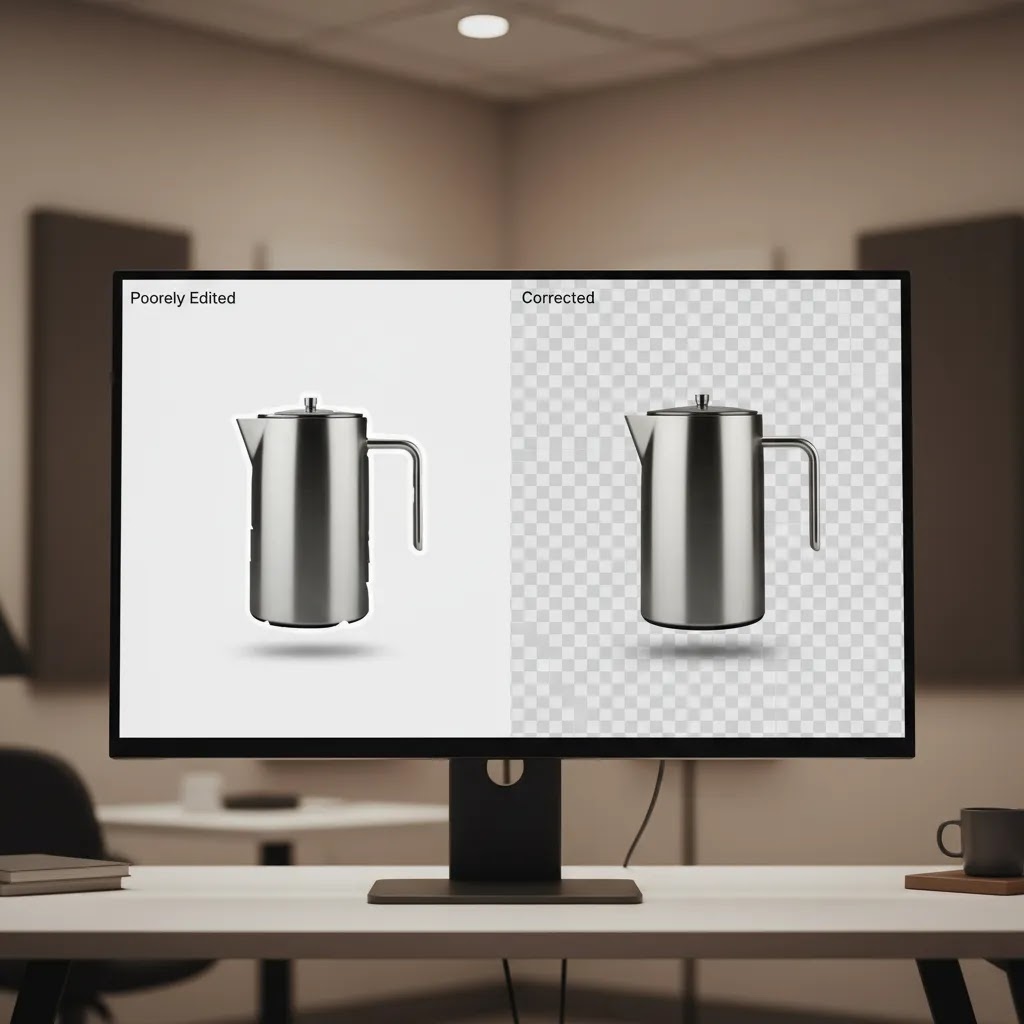
In practice, the right workflow depends on your catalog. Flat products on plain backgrounds are usually straightforward. Complex shapes, translucent packaging, hair, fur, gloss, and metallic surfaces are harder. If the result leaves a halo, clips the product edge, or removes shadows that help the item look real, your listings can look low quality even when the product itself is strong.
That is why experienced store owners look beyond the phrase background remover ai and ask better questions. Can it keep fine detail? Can it standardize hundreds of SKUs? Can it produce transparent files that still look natural on white, colored, or patterned website sections? If you are still clarifying the file type itself, this explanation of what type of image has no background is a useful starting point.
You can also browse AcquireConvert’s transparent background hub for adjacent tutorials and use cases.
Tools and workflows for transparent product images
For most ecommerce teams, there are three practical routes.
First, use an AI background remover or editor. This is usually the fastest option for growing catalogs. Based on the current product data available, relevant tools include AI Background Generator, Free White Background Generator, and Background Swap Editor. These are especially useful when you want to remove the original backdrop and either keep transparency or place the product onto a new clean background for marketplaces and product feeds.
Second, edit manually in desktop software. If your product images have difficult edges, partial transparency, or branding requirements, manual control still matters. Store owners and in-house marketers often use beginner tools first, then step up to more advanced editing when needed. If you want a no-frills method, see this tutorial on how to make background transparent in paint. If you need tighter path control and more professional output, this guide on how to make background transparent in illustrator is the better fit.
Third, combine removal with image cleanup. A transparent file only works if the product still looks sharp after extraction. That often means retouching brightness, fixing cropped edges, or improving resolution. ProductAI’s Increase Image Resolution can help if your source photos are too soft for zoomed product pages, and Magic Photo Editor may be useful for broader post-processing tasks.
For Shopify merchants, the practical goal is consistency. Transparent PNGs let you keep a uniform card layout across collection pages and create cleaner promotional graphics without re-shooting every SKU. If your underlying source photography is inconsistent, a better capture process may matter more than the remover itself. This guide to building a product photography studio is worth reviewing before you commit to a high-volume editing workflow.
If you work in visual categories like beauty, transparent product cutouts also pair well with AI-led creative testing. For example, if you sell cosmetics, this article on using an ai makeup generator shows how image workflows can extend beyond plain catalog shots.
For broader technique comparisons, AcquireConvert’s background removal & editing category is a good next stop.

How to use a background remover for ecommerce (step-by-step workflow)
What many store owners overlook is that background removal is less about the tool and more about the production routine. If you want a workflow your team can repeat, here is a simple process that works for most Shopify catalogs.
Start with your best available source photo. Choose an image that is sharp, evenly lit, and framed consistently with the rest of your catalog. The way this works in practice is that a clean source image makes every downstream step faster, including AI tools and manual cleanup.
Remove the background with your chosen tool, then immediately check the cutout quality before you export. Do not judge at 100 percent zoom. Inspect edges at 200 to 400 percent. That is where halos, fringing, and clipped details show up, and those issues tend to be visible later on zoomed product pages and in ad creatives.
Refine the problem areas. Focus on the parts that commonly break background removal: hair-like fibers, fuzzy fabrics, straps and handles, glossy edges on metal, and tiny gaps in products with negative space. If your editor supports it, adjust the edge softness carefully. Too hard looks pasted on, too soft looks blurry. If you see a color tint from the original backdrop on the product edge, use an edge cleanup or color decontamination style option if available, then re-check the boundary.
Decide on a shadow strategy. Removing the background often removes the natural contact shadow, and that can make the product float. In many cases, a subtle ground shadow is enough to make the product feel real without turning it into a full composite. Keep it consistent across your catalog so collection pages look cohesive.
Export a transparent PNG as your master file. Think of it this way: the transparent PNG is the asset you can reuse for anything, including white-background listings, seasonal promotions, and ad variations. From there, create channel-specific exports as needed, for example a white background version for marketplace requirements and a compressed web version for faster page loads.
Now, when it comes to Shopify specifics, consistency matters as much as quality. Pick a standard pixel size for product images and stick with it across your catalog so your theme grid does not jump around. Most Shopify themes handle a range of sizes, but the visual layout is cleaner when every product image shares the same aspect ratio. If you are creating multiple variants for the same photo, naming conventions help keep order in your media library. Many teams use a pattern like sku-color-angle-transparent.png, sku-color-angle-white.jpg, and sku-color-angle-web.jpg so it is obvious which file is the master and which is the export.
Before you publish, do a quick quality control pass. You are looking for obvious cutout issues, but also subtle problems that hurt trust. Check that there are no halos around the product, no clipped edges on curves, no missing inner cutouts like handles or strap gaps, and no strange smoothing that removes texture. Compare a few products side by side on your collection page background color, not just on a plain canvas. A cutout that looks fine in isolation can still look inconsistent in a grid.
Pros and Cons
Strengths
- Transparent backgrounds make product images more reusable across Shopify themes, landing pages, ads, email campaigns, and marketplace listings.
- AI-assisted tools can reduce editing time for large catalogs, especially when products are photographed on simple backdrops.
- A clean transparent PNG can improve visual consistency across collection grids and promotional creatives.
- Background removal helps separate subject and background decisions, so you can test white, colored, seasonal, or lifestyle placements later.
- Combining removal with resolution enhancement or background swap tools can extend the useful life of existing product photography.
Considerations
- Automated tools may struggle with reflective surfaces, loose fabric edges, glass, hair-like textures, or semi-transparent packaging.
- Not every product should be shown on a transparent background. Some stores convert better with contextual lifestyle imagery alongside cutouts.
- Poor source photography limits the quality of any background remover, even if the software is good.
- Different sales channels may have different file, size, and background requirements, so one export format may not suit every use case.
Common background removal mistakes (and how to fix them)
Here’s the thing: most background removal problems are predictable. Once you know what to look for, you can fix a lot of issues quickly, and you will also know when it is smarter to reshoot instead of over-editing a weak photo.
Jagged edges and stair-stepping
This usually shows up on angled product shots, handles, and sharp corners. If the cutout looks pixelated, your first fix is to refine the mask edge and re-export at the correct size. A slightly softer edge can help, but too much feathering makes the product look blurry. If the original image is low resolution, improving resolution first may help, but results vary and you should still check edges at high zoom.
Over-smoothed edges that remove detail
Some tools “beautify” the cutout by smoothing edges so aggressively that texture disappears. That is a problem for knitwear, fuzzy fabrics, and anything where texture signals quality. In these cases, aim for “clean but honest.” Keep fine detail where it matters, especially on hero images and best sellers.
Missing inner cutouts
Common examples are bag handles, strap gaps, open-toe shoes, and product stands. The background remover may keep the outer edge but fill in holes that should be transparent. The fix is usually manual, even if you started with AI. Zoom in, identify where transparency should exist, and cut those areas out cleanly so the product does not look like a flat blob.
Removing natural shadows, then wondering why the product “floats”
Shadows are not just decoration. A subtle contact shadow helps the eye accept the product as real. If the remover wipes out the original shadow, rebuild a simple ground shadow and keep it consistent across the catalog. The goal is believability, not dramatic lighting.
Color fringing from the original backdrop
If you photographed on a colored background, you may see that color tint on the product edge after removal. This is especially obvious around white products and glossy packaging. If your editor has a color decontamination, defringe, or edge color cleanup tool, use it lightly and re-check. If you do not, a manual fix is to slightly contract the mask or paint out the fringe, but be careful not to clip the product itself.
Category-specific pitfalls you should plan for
Reflective products like jewelry and chrome hardware can confuse automation because the product contains the environment. Translucent packaging can lose its realism if the tool treats it as solid. Textured fabrics can look cut out with scissors if the edge is too hard. For most Shopify store owners, “good enough for catalog” means the product reads cleanly at normal browsing size in a collection grid. “Needs manual polish” usually means the flaws are visible on zoom, on large product page images, or on ad creatives where the product is isolated on a simple background.
Consider this: if you keep fighting the same issue across multiple images, it is often a photography setup problem, not an editing problem. A cleaner background, better separation between product and backdrop, and consistent lighting can reduce your editing time more than swapping tools.

Who this approach is for
This approach fits Shopify merchants and ecommerce teams that need clean product presentation without rebuilding every visual from scratch. It is especially useful for stores with medium to large catalogs, merchants running frequent promotions, and brands that use the same SKU across onsite merchandising, Meta ads, Google Shopping assets, and email campaigns.
If you sell products with straightforward outlines, an AI-assisted background remover workflow may be enough for day-to-day production. If you sell technically difficult items, such as cosmetics in reflective packaging, jewelry, or soft apparel with fine edge detail, you may need a hybrid workflow that combines automation with manual cleanup.
AcquireConvert recommendation
For most store owners, the best path is not choosing between AI and manual editing as if one replaces the other. It is building a workflow that matches your catalog complexity and publishing volume. Giles Thomas’s experience as a Shopify Partner and Google Expert is especially useful here because product imagery affects both conversion and acquisition. Clean cutouts support stronger merchandising on Shopify, while better product visuals can also improve feed presentation for paid channels.
If you are still comparing methods, explore AcquireConvert’s transparent background guides first, then review the practical editing tutorials linked above. That will help you decide whether a fast AI workflow, a manual design workflow, or a mixed process makes more sense for your store. The goal is not perfect images in theory. It is a repeatable image process you can maintain as your catalog grows.
How to choose the right background remover workflow
Here are the criteria that matter most if you are evaluating a background remover for ecommerce use rather than casual design work.
1. Start with your product type
Simple products like boxes, bottles, accessories, and home goods usually work well with AI-assisted extraction. Complex items need more scrutiny. Apparel with soft edges, clear packaging, jewelry reflections, and beauty products with glossy surfaces often reveal the weaknesses of automated masking. Before you choose a tool, test 10 to 20 representative SKUs, not just your easiest product photo.
2. Check edge quality, not just speed
A fast result is not a usable result. Zoom in on corners, handles, curves, shadows, and transparent sections. Look for white halos, clipped edges, or strange smoothing. On a Shopify product card, those flaws may seem minor. On zoom, ad creatives, and retina displays, they become obvious. If you care about a premium visual standard, edge quality should outrank raw processing speed.
3. Think about where the image will be used
Your website is only one destination. Product images may also appear in shopping feeds, social ads, email banners, and blog graphics. A background remover workflow should produce files that are flexible enough for all of those contexts. In many stores, the best setup is one master transparent file plus secondary exports for white background marketplaces and compressed web delivery.
4. Decide how much manual control you really need
Many merchants overbuy on editing complexity. If your team needs to publish new arrivals quickly, a simple tool that gives you 90 percent quality with minimal handling may outperform a more advanced workflow that slows production. On the other hand, if you run a high-AOV brand where image quality does a lot of the selling, manual refinement can be worth the time.
5. Fix the photo process upstream
If your original images are inconsistent, dark, low resolution, or cluttered, no background remover will fully solve the problem. Better lighting, stable framing, and repeatable capture standards make every downstream step easier. That is why many experienced operators improve the shoot setup before optimizing the edit stack.
The right answer for most ecommerce brands is a tiered workflow: use AI for standard catalog images, review exceptions manually, and keep a small set of polished hero images for best sellers, ads, and landing pages. That balance usually saves time without lowering brand quality.
What to do after removing the background
Background removal is usually step one, not the finish line. Once you have a clean cutout, you can create a lot of useful ecommerce assets without re-shooting. For most Shopify store owners, the most practical mindset is to treat transparency as the master file and generate variations from it.
One common next step is background replacement. You may want a pure white version for marketplaces and product feeds, a light neutral for a cleaner on-site look, or a brand color for promo graphics. Some teams also use pre-made scenes for lifestyle-style placements, but the reality is that composites only work when they look believable.
From a practical standpoint, background replacement is most valuable for campaigns where speed matters. Think seasonal promos, gift guides, bundles, and limited-time offers. If you run Meta ads, you can also test multiple background treatments with the same product cutout, which can make creative production more efficient. For Google placements, you may still need clean, policy-compliant assets depending on the format, and ad platform rules can change, so it is worth checking current guidelines before you publish a large batch.
There are a few guardrails that keep outputs looking premium. Keep lighting direction consistent between the product and the new background. Match the surface and shadow so the product does not float. Avoid unrealistic scale or perspective mismatches, especially if you are placing the product into a lifestyle scene. If you are using AI-assisted background generation or swapping, always review the result carefully before it goes live. AI can be helpful for speed, but it can also introduce odd artifacts that are easy to miss until a customer zooms in.
In many cases, the simplest “after removal” win is not a dramatic background at all. It is creating a consistent set of exports: transparent master for design flexibility, marketplace-ready white background files, and compressed web versions for your theme. That gives you control across channels while keeping your Shopify media library manageable.
Frequently Asked Questions
What is the best file format for a transparent product image?
PNG is the most common choice because it supports transparency and is widely compatible with ecommerce workflows. For most Shopify stores, a transparent PNG works well for merchandising and marketing assets. If you need layered editing later, you may also want to keep an original editable source file in your design workflow.
Can a background remover ai handle all product types?
No. AI tools can work very well on straightforward products shot against simple backgrounds, but they may struggle with reflective materials, fine textures, semi-transparent packaging, and difficult edges. Many stores get the best results by using AI for bulk tasks and manual cleanup for edge cases and top-selling products.
Is a transparent background better than a white background for ecommerce?
It depends on the use case. Transparent backgrounds are more flexible because you can place the product on multiple page designs and creatives later. White backgrounds are often required or preferred for marketplaces and standard catalog presentation. Many merchants keep both versions so they can match the channel requirement without extra editing.
Do transparent product images help conversions?
They can help presentation and consistency, which may support better user experience, but there is no universal rule that transparent images always convert better. In many stores, the strongest setup is a mix of clean cutouts for catalog clarity and lifestyle shots that show context, scale, and product use.
Should I use manual editing instead of an hd background remover tool?
Use manual editing when image precision is central to your brand or when your products are difficult to isolate cleanly. If speed matters more and your products are visually simple, an automated or AI-assisted tool may be the better operational choice. The decision should match your catalog complexity and team capacity.
What should I test before choosing a background remover pc or web tool?
Test processing speed, export quality, edge handling, resolution retention, and how well the result looks on your actual storefront. Run a sample set that includes easy and difficult products. Also check whether the workflow fits how your team names files, stores assets, and publishes images into Shopify or ad platforms.
How do I remove a background from an image on my phone?
Use a mobile-friendly background remover that lets you upload a photo, remove the background, and export a transparent PNG. The key is still quality control. Zoom in on the result, check edges around straps and curves, and look for halos or fringing. If the mobile result is close but not perfect, many merchants do the first pass on phone, then clean up the final version in a desktop editor before publishing.
How do I make a background white for ecommerce product photos?
A common approach is to remove the background first, then place the product cutout on a solid white background and export in the format you need. For many stores, the most practical setup is to keep a transparent PNG as the master file, then export a white background version for channels that expect it. This reduces rework because you can generate multiple background styles from one clean cutout.
Can I remove backgrounds in bulk for a whole product catalog?
Yes, in many cases. Bulk background removal works best when your source images are consistent, similar lighting, similar framing, and a clear separation between product and background. Even with bulk processing, you should plan a review step for edge cases like reflective products, translucent packaging, and textured fabrics. Many teams process in batches, spot-check results, then manually fix the minority of SKUs that need extra attention.
What is the best background remover for product photos?
The best option depends on your catalog and the quality bar you are aiming for. If your products are straightforward, a fast AI tool can be enough and may help you keep up with a growing SKU count. If you sell items with difficult edges or high-gloss materials, you may need a workflow that includes manual refinement. The most reliable way to choose is to test 10 to 20 representative SKUs, including your hardest products, and judge edge quality at high zoom before committing.
Can I create transparent backgrounds without expensive software?
Yes, depending on your quality threshold and product type. Some merchants can get acceptable results from lightweight tools or built-in editors, especially for simple items. Others will need more advanced editing control. The real question is not the software price alone, but whether the output supports your store’s visual standard and workload.
Why do my product images look fake after background removal?
Usually because the cutout is too sharp, the edges have a halo, the shadows were removed unnaturally, or the new placement does not match the lighting of the product. A believable result often needs subtle shadow handling, color correction, and consistency between the product and the surface or background where it appears.
How many product images should I edit this way?
Start with your top sellers, newest launches, and products used in ads or homepage placements. That gives you the biggest practical payoff first. Once the workflow is proven, expand it across the rest of the catalog. Many merchants find that phased rollout is more manageable than trying to rework every SKU at once.
Key Takeaways
- Choose a background remover based on your product type, not just marketing claims or processing speed.
- Transparent PNGs are usually the most flexible option for Shopify merchandising and creative reuse.
- AI tools can save time, but difficult products often need manual cleanup for professional results.
- Better source photography improves every background removal workflow downstream.
- A mixed process of AI for volume and manual refinement for priority products is often the most practical setup.
Conclusion
A good background remover workflow gives you more than clean cutouts. It gives you consistency across your storefront, faster campaign production, and more flexibility in how you present products across channels. For most ecommerce brands, the smartest move is to test a few representative SKUs, compare edge quality and workflow speed, and then build a repeatable process around what your team can actually maintain. AcquireConvert focuses on these practical decisions for store owners, with guidance shaped by Giles Thomas’s experience as a Shopify Partner and Google Expert. If you want to keep improving your image process, explore our transparent background and background editing resources, then apply what fits your catalog and brand standard.
This article is editorial content for educational purposes and is not a paid endorsement unless explicitly stated otherwise. Tool features and availability should be verified directly with the provider before use. Results from background removal, AI editing, or image optimization will vary based on source photography, product type, and implementation quality.

Hi, I'm Giles Thomas.
Founder of AcquireConvert, the place where ecommerce entrepreneurs & marketers go to learn growth. I'm also the founder of Shopify agency Whole Design Studios.