How to Make Background Transparent in Illustrator (2026)

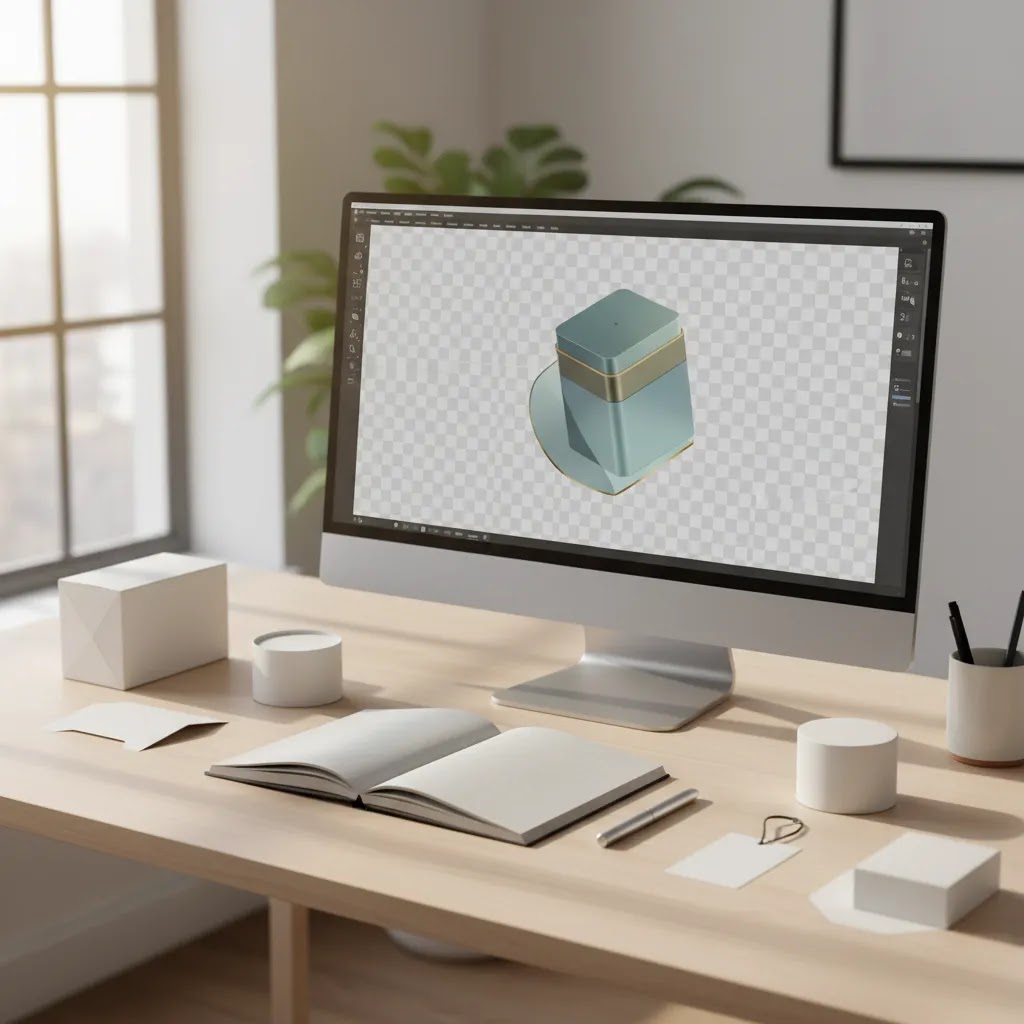
If you run an ecommerce store, transparent product images can save you time across product pages, collection layouts, marketplaces, ads, and creative tests. Adobe Illustrator can handle this well, especially when you are working with logos, icons, packaging mockups, or simple product artwork built from vectors. This guide shows you exactly how to make background transparent in Illustrator, what settings matter when you export, and where store owners usually get tripped up. If you are still deciding whether Illustrator is the right option for your workflow, it also helps to compare it with other background remover options used in ecommerce. The goal here is simple: help you create clean, usable transparent files without wasting time on exports that end up with a white box behind the image.
Contents
- What transparency in Illustrator actually means
- Illustrator transparency shortcuts and how to turn on the transparency grid
- How to make the background transparent in Illustrator
- How to export a transparent background in Illustrator (PNG vs SVG)
- Key Illustrator features that matter for ecommerce images
- Remove a background from an image in Illustrator (vector vs photo reality check)
- Pros and Cons
- Who Illustrator is best for
- AcquireConvert's practical take
- How to choose between Illustrator and faster alternatives
- Frequently Asked Questions
- Key Takeaways
What transparency in Illustrator actually means
Illustrator does not usually add a visible background to your artboard unless you place one there. In most cases, the artboard itself is just a working area. That means your file may already be transparent even if it looks white on screen.
The important part is export settings. If you export to the wrong format or miss the transparency option, your file may flatten onto a white background. That is why many store owners think Illustrator failed, when the issue is really in the save process.
For ecommerce, Illustrator is most useful when you need transparent logos, badges, labels, vector illustrations, and simple product graphics. For photo-based cutouts, especially with hair, shadows, or textured edges, a dedicated remove background workflow or AI editor may be faster and more accurate.
If you manage product image consistency across Shopify collections, transparent PNG exports can also support cleaner merchandising layouts, especially when you combine them with a structured product photography studio setup.
Illustrator transparency shortcuts and how to turn on the transparency grid
What many store owners overlook is that you can save a lot of time by treating the checkerboard as your diagnostic tool. If you are unsure whether you are looking at a real white background or just a white artboard, the transparency grid is the fastest way to find out.
How do I turn on transparency mode in Illustrator?
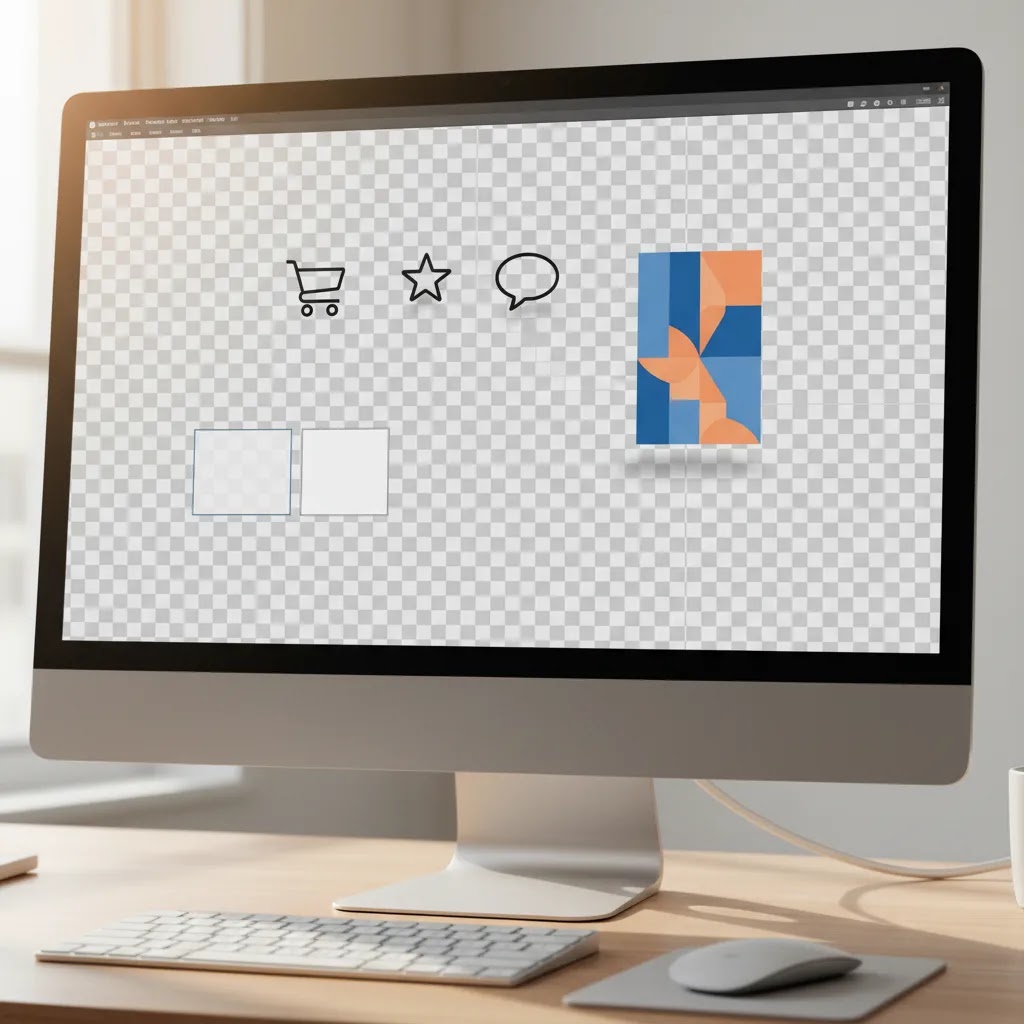
Illustrator does not have a single setting literally called “transparency mode.” The feature people mean is the transparency grid, and you enable it here: View > Show Transparency Grid. When it is on, transparent areas display as a gray-and-white checkerboard.
Illustrator background transparent shortcut (transparency grid)
If you want a faster workflow, use the keyboard shortcut to toggle the transparency grid on and off: Shift + Command + D on Mac, or Shift + Ctrl + D on Windows. In practice, this is a quick way to confirm whether your export problem is in the artwork (a hidden white rectangle) or in the export settings (flattened background).
Mac UI note
On Mac, the menu names are the same, but the layout can feel a little different if you are switching between Creative Cloud apps. If you cannot find it, make sure the Illustrator application menu is active and then open the View menu at the top of your screen, not inside a panel.
How to make the background transparent in Illustrator
Here is the practical process most ecommerce teams use.
1. Open your file and check for an actual background object
Many files include a white rectangle placed behind the artwork. Open the Layers panel and look for a filled shape that covers the artboard. If you find one, delete it or hide that layer.
2. Turn on the transparency grid preview
Go to View > Show Transparency Grid. This shows the gray-and-white checkerboard that indicates transparency. If you still see white behind the artwork after enabling this view, there is probably a white object in the file.
3. Confirm your artwork does not include hidden fills
Select the artwork and check the Appearance, Fill, and Stroke settings. Grouped artwork, clipping masks, and compound paths can sometimes hide a filled object that exports as a background.
4. Export in a format that supports transparency
For most ecommerce use cases, PNG is the safest option. Go to File > Export > Export As, choose PNG, and check Use Artboards if you want a clean crop to the artboard area.
5. Select transparent background in the export settings
After choosing PNG, Illustrator will open PNG options. Set Background Color to Transparent. This is the setting that many people miss.
6. Choose the right resolution
For product badges, overlays, and on-site graphics, 72 ppi may be enough for web use. If the graphic needs to stay sharp on retina displays or in larger layout blocks, choose 150 ppi or 300 ppi depending on the intended use. Larger files can affect page speed, so balance clarity with load time.
7. Test the exported file before uploading to your store
Drop the PNG onto a colored background in your browser, image editor, or Shopify theme preview. This quickly confirms whether transparency worked. If you still see white, go back and check for hidden shapes or export settings.
If you are using another editing app for part of your workflow, you may also want to compare this process with how to make background transparent in paint to see where Illustrator gives you more control.
How to export a transparent background in Illustrator (PNG vs SVG)
Here is the thing, most “transparent background” problems show up after you export, not while you are designing. For ecommerce, that matters because you are usually exporting assets to use in Shopify theme sections, promo graphics, email templates, or ad creatives. Each of those has different expectations for file type.
PNG vs SVG: what to use for Shopify and ecommerce assets
PNG is usually the safest choice when you need predictable transparency everywhere. Think badges, overlays, stickers, and graphic elements that will be placed on top of different backgrounds. It is also the better option when the asset includes effects that do not translate cleanly to SVG, or when you are working with pixel-based elements.
SVG is best when your artwork is truly vector, like logos and icons, and you want it to stay sharp at any size. The practical benefit is that SVG can scale without getting blurry, which is useful across responsive Shopify layouts. The trade-off is that SVG handling depends on where you are using it. Some placements in ecommerce workflows treat SVG differently than raster images, so you typically want to test it inside the exact theme section or app you plan to use.
The export paths that most often cause the “white box” issue
If you want a transparent PNG, the reliable route is the one already covered above: File > Export > Export As, then choose PNG and set Background Color to Transparent. Two settings cause a lot of avoidable rework for store owners.
The first is forgetting Use Artboards. If it is unchecked, Illustrator may export a larger canvas than you expected. That can look like a “box” around the artwork when you place it over a background in your theme or ad creative.
The second is exporting in a way that flattens the background. If you export to a format that does not support transparency, or you miss the transparent background option, Illustrator will typically default to an opaque background, usually white.
For SVG exports, your goal is simpler: keep it as vector and avoid adding any background shape in the artwork. You can export using File > Export > Export As and choose SVG. If the SVG appears to have a background later, it is often because there is an actual rectangle or shape behind the logo inside the file, not because SVG “added” one.
Anti-aliasing and how it affects product overlays
Anti-aliasing controls how smooth edges look on export. In many ecommerce uses, you want smooth edges so overlays do not look jagged on high-resolution displays. If you are exporting small icons or very tight shapes, it is worth checking the result on both light and dark backgrounds, since edge smoothing can sometimes create a faint halo depending on the design.
A quick export checklist for store owners
From a practical standpoint, this small checklist prevents the most common transparency mistakes before you upload assets to Shopify:
- Toggle the transparency grid and confirm you see the checkerboard behind the artwork.
- Check Layers for any hidden rectangles, especially ones with white fill.
- Export as PNG and set Background Color to Transparent.
- Use Artboards if you want a clean crop to a consistent size.
- Open the exported file and test it on a dark or colored background to spot halos and “white box” issues fast.
Key Illustrator features that matter for ecommerce images
Illustrator is not a dedicated product cutout tool, but it does give you useful control in a few specific ecommerce scenarios.
- Vector precision: Ideal for logos, packaging designs, icons, and promotional graphics that need transparent export without losing sharpness.
- Artboard-based exporting: Helpful when you need consistent dimensions across collection tiles, badges, feature callouts, or layered promotional assets.
- Clipping masks and path control: Useful for simple cutouts where the object shape is clean and easy to trace.
- Scalable source files: If you create one master asset in Illustrator, you can export multiple sizes for your Shopify theme, email graphics, and ad creatives.
- Brand asset consistency: Merchants often use Illustrator for trust badges, guarantee icons, size guides, and bundle graphics that need transparent placement over different backgrounds.
That said, there is a real trade-off. If your day-to-day job is isolating photographed products from messy backgrounds, Illustrator is usually slower than purpose-built tools. For those tasks, AI-assisted options such as AI Background Generator, Free White Background Generator, or Background Swap Editor may fit better, depending on whether you need a transparent export, a white background marketplace image, or a lifestyle variation.
For store owners, the decision usually comes down to asset type. Illustrator works well for design assets and simple clean-edged visuals. AI tools tend to be more practical for large product catalogs, quick ad iterations, and high-volume image editing. If you are comparing tool quality for photo cutouts, our remove.bg reviews article is a useful next step.

Remove a background from an image in Illustrator (vector vs photo reality check)
A lot of confusion comes from mixing up two different jobs that both get described as “remove the background.” Illustrator can be great for one of them, and frustrating for the other.
Scenario 1: vector artwork that just needs clean transparency
If your “image” is actually vector artwork, like a logo, icon, badge, or packaging illustration, you are in Illustrator’s comfort zone. In many cases there is no real background at all, just a white artboard view. Your job is to confirm there is not a white rectangle in the Layers panel, then export to PNG (transparent) or SVG depending on how you plan to use the asset in your ecommerce stack.
Scenario 2: a placed product photo where you expect background removal
If you imported a photographed product into Illustrator and you are expecting one-click background removal, you will hit limits quickly. Illustrator can use clipping masks and manual tracing techniques, which can work for clean, simple edges. Still, complex edges like hair, fur, transparent materials, motion blur, soft shadows, and textured products tend to be slow and hard to get right.
Think of it this way, Illustrator is built for drawing and controlling paths. It is not built to intelligently separate a subject from a messy photographic background at scale. You can do it, but you are often doing a lot of manual work that a dedicated background removal tool may handle faster.
A practical decision rule for ecommerce workflows
For most Shopify store owners, Illustrator is worth using for background removal when the edge is simple and the asset will be reused across the site, like a badge, an overlay, or a brand graphic you will place in multiple theme sections. If you are editing large numbers of photos, or you need realistic edges and shadows to look natural, it is usually smarter to switch to a dedicated workflow. That is where background removal tools and AI editors can save time, as long as you still review results before publishing product images live.
Pros and Cons
Strengths
- Excellent for transparent exports of logos, icons, labels, and other vector brand assets.
- Gives you precise control over paths, clipping masks, and artboard sizing.
- Works well when you need one source file exported into multiple web-ready sizes.
- Fits established ecommerce design workflows that already use Adobe Creative Cloud.
- Helpful for creating layered graphics that need to sit on different theme backgrounds without a visible box.
Considerations
- Less efficient for photographed products than dedicated background removal tools.
- Can be confusing for beginners because the artboard may look white even when the file is transparent.
- Export settings matter a lot, and one missed option can produce the wrong file.
- Not the best choice for bulk image editing across large ecommerce catalogs.
Who Illustrator is best for
Illustrator is a strong fit if your store needs transparent assets that start as design files, not raw product photos. Think logo files, collection banners with isolated graphic elements, packaging mockups, icon sets, promo stickers, and trust badges. It is also useful if you work with a designer or brand team already using Adobe tools.
If you are a Shopify merchant editing dozens or hundreds of product photos each week, Illustrator is usually not the fastest route. In that case, transparent background tools and workflow-specific editors may save more time. Store owners often use Illustrator for brand assets and another tool for catalog images, which is a sensible split.

AcquireConvert's practical take
From an ecommerce workflow perspective, Illustrator is best treated as a precise design tool rather than your all-purpose background removal system. Giles Thomas's work as a Shopify Partner and Google Expert consistently points back to a simple principle: choose the tool that matches the asset and the channel. If you need polished brand graphics, Illustrator is a strong option. If you need speed, scale, and frequent photo edits, purpose-built image tools may be the smarter choice.
AcquireConvert focuses on practical workflows for store owners, especially those managing visual merchandising without a full creative team. If you want a broader view, explore our Transparent Background hub and the Background Removal & Editing category to compare methods, use cases, and tool-specific trade-offs before you commit to one process.
How to choose between Illustrator and faster alternatives
There is no single right tool for every ecommerce image task. Use these criteria to decide.
1. Start with the asset type
If the file is a vector logo, badge, icon, or custom design element, Illustrator is usually the better fit. If it is a photographed product on a real-world background, an AI-assisted editor is often faster.
2. Think about volume
For one-off design exports, Illustrator is fine. For a catalog refresh with 200 SKUs, you probably want a faster repeatable system. Manual path work inside Illustrator can become a bottleneck quickly.
3. Match the output to the channel
Marketplace images may need a white background. Shopify product pages may benefit from transparent PNGs in some designs. Social ads might need background swaps or lifestyle scenes. The best workflow depends on where the image will appear.
4. Consider team skill level
If you or your team already know Illustrator, it may be enough for light editing tasks. If not, a specialized editor could reduce training time and improve consistency. This matters a lot for lean ecommerce teams where one person handles merchandising, email, and creative.
5. Balance quality with speed
Illustrator offers control. AI tools offer speed. The right answer depends on whether your current bottleneck is precision or production pace. Many growth-stage stores use a mixed setup: Illustrator for branded assets, AI tools for catalog production, and a controlled shoot process for source images.
One more practical note: transparent backgrounds are useful, but they do not fix weak source photography. If your images are inconsistent, poorly lit, or framed differently from product to product, the better improvement may be upstream in your shooting setup rather than downstream in editing. That is why image editing should be tied back to your overall merchandising workflow, not treated as a standalone design task.
Frequently Asked Questions
How do I make a transparent background in Illustrator?
First, remove any white rectangle or filled object behind your artwork. Then go to View and enable Show Transparency Grid to confirm the background is clear. Export as PNG and set the background color to Transparent in the export options. The artboard itself is not usually the issue. Hidden objects and export settings are.
Why does my Illustrator file look white if it is transparent?
Illustrator shows the artboard as a white working area by default, which can make a transparent file look like it has a white background. Turn on Show Transparency Grid to verify whether the background is actually transparent. If the checkerboard does not appear, check for a hidden white object or placed background layer.
What file type should I use for transparent backgrounds from Illustrator?
PNG is the most common choice for ecommerce use because it supports transparency and works well on websites, marketplaces, and ad creative workflows. SVG can also support transparency for vector-based assets like logos and icons, but it is not always ideal for every storefront use case or platform placement.
Can I make a product photo background transparent in Illustrator?
You can, but Illustrator is not usually the fastest tool for photo cutouts. It works best for simple shapes or when you want manual path control. For product photography with soft edges, shadows, or hair details, a dedicated background removal tool may be more efficient for store owners handling ongoing catalog work.
How do I make background transparent in Illustrator on iPad?
The general idea is the same: remove any background objects and export in a format that supports transparency. Still, the iPad workflow can differ from the desktop version, especially around export menus and advanced controls. If you need frequent ecommerce image production, the desktop version usually gives you more reliable output options.
Why does my exported PNG still have a white background?
The most common causes are a hidden white shape behind the design, exporting to the wrong format, or not setting the PNG background option to Transparent. It is also worth checking clipping masks and grouped elements. A quick test on a colored background often reveals whether the issue is in the file or the export settings.
Is Illustrator better than AI background removal tools?
It depends on the job. Illustrator is better for vector artwork, logos, icons, and manual control. AI tools are often better for speed, bulk product image editing, and non-designers managing ecommerce visuals. Many stores use both, rather than forcing one tool to cover every image task.
Do transparent product images help ecommerce conversion?
They can improve visual consistency and flexibility, which may support a cleaner shopping experience. Still, they are not automatically better for every store. Some themes and categories perform better with white backgrounds or styled contextual images. The best choice depends on your layout, brand presentation, and merchandising strategy.
Should Shopify merchants use transparent PNGs for every product image?
Not always. Transparent PNGs can look great in collection grids, bundles, comparison layouts, and promotional sections. They can also increase file size compared with compressed JPEGs, depending on the image. For Shopify stores, use them where transparency adds design value, not as a blanket rule for every product asset.
How do I remove the white background in Adobe Illustrator?
First, confirm whether the “white background” is just the artboard by turning on View and selecting Show Transparency Grid. If you still see white behind the artwork, open the Layers panel and look for a white rectangle or filled shape behind the design, then hide or delete it. After that, export as PNG and set the background color to Transparent in the PNG export options.
How to make the background of an image transparent?
If the image is vector artwork, you usually just need to remove any background shape and export in a format that supports transparency, typically PNG for ecommerce use. If it is a photo, you will need a cutout, either by manually creating a clean clipping path in Illustrator for simple edges, or by using a dedicated background removal tool for complex edges and high-volume catalog work.
How do I turn on transparency mode in Illustrator?
Use View and select Show Transparency Grid. That checkerboard view is what most people mean by “transparency mode.” It helps you verify whether your background is actually transparent before you export.
How to make Illustrator background transparent shortcut?
The shortcut that matters most is toggling the transparency grid: Shift + Command + D on Mac, or Shift + Ctrl + D on Windows. Use it to quickly check whether you have a hidden white rectangle in the file or if the issue is happening during export.
Key Takeaways
- In Illustrator, the artboard may appear white even when the background is already transparent.
- Use Show Transparency Grid and check layers for hidden white rectangles before exporting.
- Export as PNG and select Transparent in the background settings to keep the file clear.
- Illustrator is strongest for logos, icons, and vector brand assets, not bulk product photo cutouts.
- For ecommerce teams, the best workflow often combines controlled photography, fast editing tools, and Illustrator for branded graphic assets.
Conclusion
If you need to know how to make background transparent in Illustrator, the core process is straightforward once you separate the artboard view from the actual exported file. Remove any background object, preview transparency correctly, and export in a format that supports it. For ecommerce store owners, the bigger decision is not just how to do it, but when Illustrator is the right tool in the first place. It is excellent for vector brand assets and precise design work, but not always the fastest option for product photo editing at scale. If you want more practical guidance, explore AcquireConvert's transparent background resources and image workflow articles for a store-owner view shaped by Giles Thomas's Shopify and Google expertise.
This article is editorial content intended for educational purposes. It is not a paid endorsement unless explicitly stated otherwise. Tool availability and features may change over time, so verify current details directly with the provider. Any workflow or performance benefits mentioned are not guaranteed and may vary based on your store setup, asset quality, team skill level, and ecommerce platform implementation.

Hi, I'm Giles Thomas.
Founder of AcquireConvert, the place where ecommerce entrepreneurs & marketers go to learn growth. I'm also the founder of Shopify agency Whole Design Studios.