What Type of Image Has No Background? (2026)


If you have ever asked what type of image has no background, you are usually really asking which file format supports transparency and which one makes the most sense for your store. For ecommerce, that matters more than it sounds. Transparent images help product thumbnails look cleaner, keep logos crisp across devices, and make design work more flexible when you are updating banners, packaging mockups, or marketplace listings. The short answer is that the image itself does not “have no background” by default. The file format has to support transparency. In most store-owner use cases, that means PNG, WebP, or SVG. If you are still creating transparent cutouts manually, it also helps to understand what a background remover actually outputs and where each file type works best.
Contents
- What “no background” actually means
- What the checkered background means (and how to verify transparency)
- PNG vs WebP vs SVG
- PNG vs JPG vs GIF (and why “no background” breaks)
- How store owners should evaluate image types
- How to make an image background transparent (common methods)
- Pros and Cons
- Who this comparison is for
- AcquireConvert recommendation
- How to choose the right format
- Frequently Asked Questions
- Key Takeaways
- Conclusion
What “No Background” Actually Means
When people say an image has no background, they usually mean the background area is transparent. Instead of a white box or colored rectangle sitting behind the subject, the empty parts of the image let the page design show through.
That is why you might hear phrases like “transparent background,” “cutout image,” or “background removed” used almost interchangeably. Technically, the correct concept is transparency, not background absence.
For ecommerce, this comes up constantly. You may want a product image to sit neatly on a colored collection page, add a logo over a seasonal hero banner, or place an item into a promotional design without a clunky white edge. Transparent image files make that possible.
The main formats store owners compare are PNG, WebP, and SVG. They are not interchangeable. PNG is often the safest option for transparent product cutouts. WebP can support transparency with smaller file sizes in many cases. SVG is ideal for vector-based graphics such as logos, icons, and simple illustrations, but not for standard product photography.
If your broader goal is improving product presentation, it is also worth reviewing related resources on transparent background workflows and when a proper product photography studio setup may still be the better choice.
What the Checkered Background Means (and How to Verify Transparency Before Publishing)
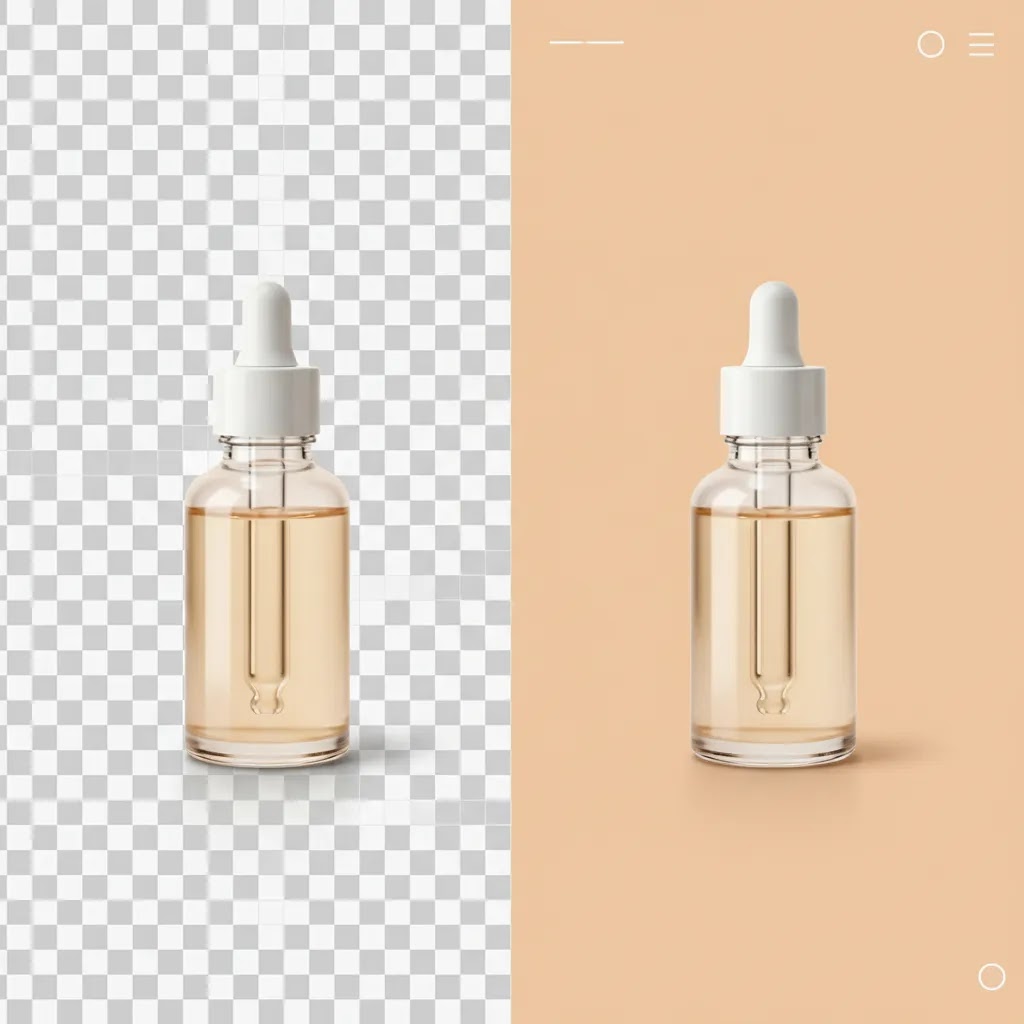
What many store owners overlook is that the gray-and-white checkered pattern you see in editing tools is not a real background. It is just a way for the editor to show you that part of the image is transparent.
Here is the thing, it is possible to see the checkered preview in one tool, then accidentally export a file that no longer has transparency. That is how “no background” breaks in real workflows, especially when you are moving fast and exporting a bunch of product cutouts for Shopify.
How to confirm the transparency is real
Before you upload the image to your store, do a quick verification step:
- Re-open the exported file in an editor and check whether the background area still shows as transparent, not filled.
- Place the image on top of a solid color background inside a design tool. If you see a white box, the transparency is gone.
- Test upload it to the place it will actually be used, such as a Shopify product image slot or a theme section, and preview on desktop and mobile.
Why transparency “disappears” between tools
In many cases, one of these issues is responsible:
- The export format was set to JPG, which does not support transparency.
- The tool flattened layers during export, which can bake in a white (or colored) background.
- An integration or image optimizer converted the file type after export, often to JPG for compression reasons.
From a practical standpoint, if you rely on transparent assets for collection thumbnails, bundle graphics, or logo overlays, it is worth building this quick “verify transparency” step into your routine. It saves a lot of cleanup later.
PNG vs WebP vs SVG
Here is the practical answer to what file type has transparent background support:
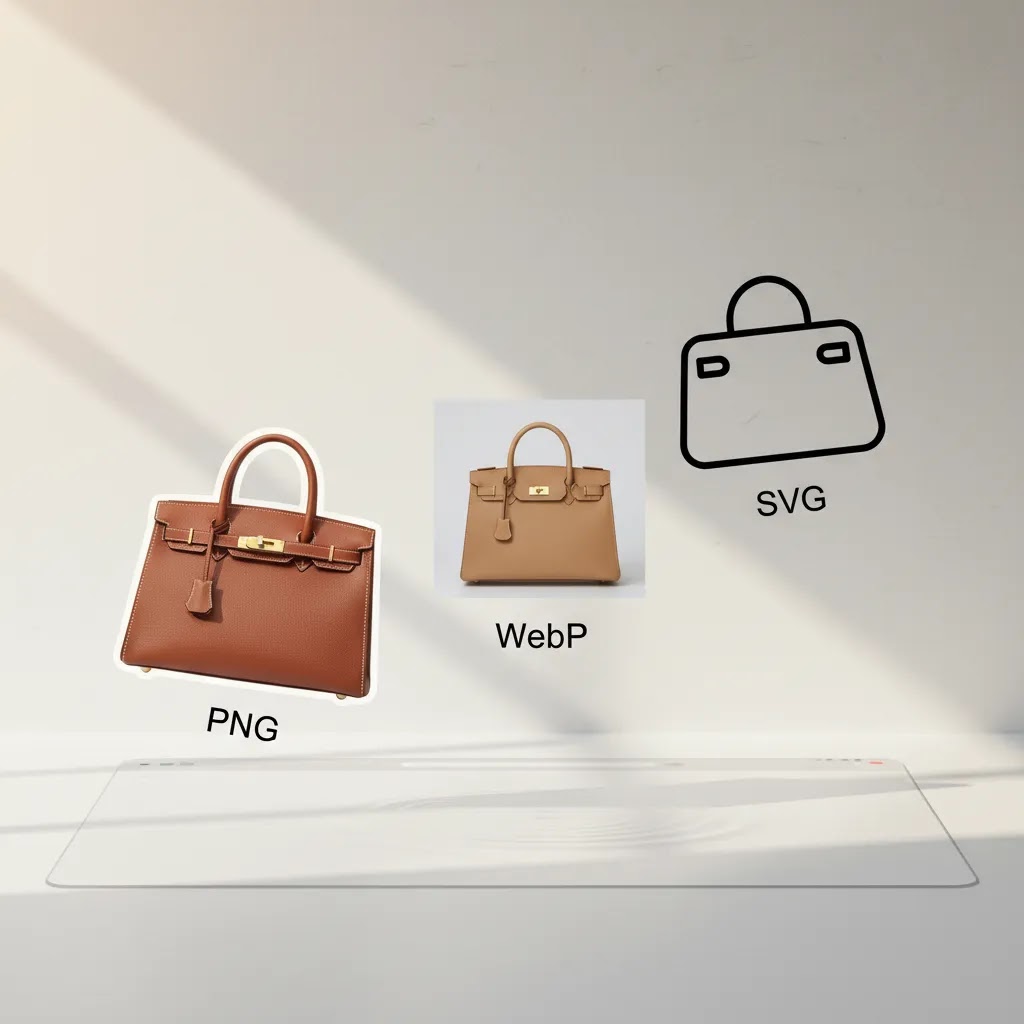
- PNG: Yes, supports transparency. Best for most raster product images, cutouts, screenshots, and designs that need clean edges.
- WebP: Yes, supports transparency. Best when you want smaller files and your store platform and workflow support it well.
- SVG: Yes, supports transparency. Best for vector graphics like logos, badges, icons, and line-based illustrations.
- JPEG/JPG: No native transparency support. If you save a transparent image as JPG, the transparent areas will usually become white or another solid color.
- GIF: Limited transparency support, but generally not the best choice for modern ecommerce product imagery.
PNG is still the file most merchants think of first when they ask what image type has a transparent background. That is because PNG has been the standard answer for years and works predictably across most editing tools, apps, and browsers.
WebP is now a strong alternative if site speed matters and your workflow is modern enough to handle it well. Many Shopify merchants use WebP for lighter pages, though they still keep PNG versions of key assets during editing and export stages.
SVG is different from both PNG and WebP because it is vector-based. It scales without losing sharpness. That makes it excellent for logos in headers, trust badges, and brand graphics. It is not the right format for a photographed product image of a shoe, candle, or supplement bottle.
PNG vs JPG vs GIF (and Why “No Background” Breaks)
Now, when it comes to transparency specifically, PNG vs JPG vs GIF is where most confusion happens. Store owners often remove a background successfully, then export the file in a format that cannot keep the transparency.
PNG for true transparency (alpha transparency)
PNG supports what designers call alpha transparency. Think of it this way, each pixel can be fully transparent, fully opaque, or anywhere in between. That “in between” matters for ecommerce because product edges are rarely perfectly sharp. Hair, fur, glass, soft shadows, and anti-aliased edges all need partial transparency to look natural.
That is why PNG is usually the safest default for product cutouts. You are more likely to avoid jagged edges, weird outlines, and harsh cut lines around the subject.
JPG does not support transparency (what happens when you export)
JPG (or JPEG) has no transparency channel. So if you export a transparent cutout as a JPG, the transparent area has to become something. In many tools it becomes white, but it could also become black, a solid color, or whatever background the tool used while flattening the image.
The reality is that a lot of “my PNG background turned white” issues are really “I exported as JPG somewhere in the workflow” issues. This can happen even if you started with a transparent PNG.
GIF has limited transparency (and it shows on product edges)
GIF can do transparency, but it is limited. Most GIF workflows rely on a single transparent color, not smooth alpha transparency. In practice, that means you may get rough edges or visible halos around a product, especially if the original background was close in color to the product edges.
GIF also has strict color limitations compared to PNG and WebP, which is another reason it is rarely the best choice for modern product imagery.
Is JPG or PNG more clear?
There is not a universal winner here. It is a tradeoff.
- JPG is often good for photographic images without transparency because it can compress files heavily, but that compression can introduce artifacts, especially around sharp edges and text.
- PNG is often “clearer” for graphics, logos, and cutouts because it keeps edges crisp and supports transparency, but file sizes can be larger.
For most Shopify store owners, the practical takeaway is simple: use JPG for full-bleed photography where you do not need transparency, and use PNG (or WebP with transparency) when the background must stay transparent and the edges need to look clean.
How Store Owners Should Evaluate Image Types
Choosing the right transparent image format is less about theory and more about where the file will be used in your store.
1. Product photos usually need raster formats
If you are working with actual product photography, you are dealing with raster images. That points you toward PNG or WebP, not SVG. A transparent cutout of a backpack, skincare bottle, or coffee bag should usually be exported as PNG first, then tested as WebP if performance and compatibility are priorities.
2. Logos and icons usually work better as SVG
Your logo needs to stay sharp in a site header, mobile menu, email signature, and packaging mockup. SVG is often the best fit because it scales cleanly. Store owners often use PNG versions as backups, but SVG tends to be more flexible for brand assets.
3. Page speed matters
Large transparent PNGs can get heavy fast, especially for hero graphics and layered merchandising visuals. WebP may reduce file size while preserving transparency, which can help page performance in many storefront setups. That does not mean WebP is always better. If your editing process, app stack, or export workflow is inconsistent, PNG may still be the more dependable choice.
4. Editing flexibility matters too
Many ecommerce teams keep a master transparent PNG because it is widely supported in design tools and marketplaces. They may then create delivery-ready versions for specific channels. This is especially common when teams use image cleanup tools like AI Background Generator, Free White Background Generator, or Background Swap Editor to prepare creative variations.
5. Marketplace and channel requirements still shape the final choice
Not every destination treats transparent files the same way. Your Shopify theme may display WebP beautifully, while an external marketplace, feed tool, or ad creative workflow may still be easier with PNG. Practical ecommerce operators choose the format based on the final publishing environment, not just the smallest file size.
How to Make an Image Background Transparent (Common Methods Store Owners Actually Use)
Consider this, most store owners are not asking about file formats because they love file formats. They are trying to get a clean cutout they can actually use across product pages, collection thumbnails, email graphics, and ads.
There are a few realistic ways teams usually remove a background. The “best” method depends on how perfect the edges need to be and how many SKUs you are trying to process.
Option 1: Use a background remover tool, then export as PNG (or WebP)
This is often the fastest route. You upload an image, remove the background, then export a transparent file. In many tools the default output is PNG because it is dependable for transparency. Some tools also let you export WebP, which can be useful for delivery if your workflow supports it.
What to double-check before uploading to Shopify:
- Edges: look for halos or fringing around the product, especially on white products that were cut out from a white background.
- Shadows: decide whether you want to keep a natural shadow, remove it entirely, or add a consistent shadow later for a uniform catalog look.
- File size: large transparent PNGs can be heavier than you expect, so test how they affect page load and how they look after theme resizing.
If you are using AI-assisted tools, review the output before publishing. In many cases it is good enough, but reflective products, hair, transparent packaging, and detailed textures can still need manual cleanup.
Option 2: Canva for quick cutouts and marketing assets
Canva is a common choice for merchants because it is simple and fast for social posts, promos, and basic product cutouts. In practice, store owners often use Canva when they need decent transparency quickly, not when they need perfect edge quality across an entire catalog.
Export is the part that matters. Make sure you export as a format that supports transparency, typically PNG. If you export as JPG, you will lose transparency and the background will fill in.
Option 3: Adobe Photoshop for the cleanest edges and control
Photoshop is still the standard when you need control, especially for tricky edges, shadow realism, and consistent output across many SKUs. It takes more time and skill, but it can be worth it for hero products or brands where image quality is a major differentiator.
In most cases, your working file might be layered, and your final export for transparency will be PNG (or WebP, depending on how you publish). If you are building a repeatable catalog workflow, Photoshop can help you keep standards consistent.
Option 4: Outsource background removal when you have catalog scale
For most Shopify store owners, “do it yourself” is fine when you have a small product range, you are testing a new offer, or you are only cleaning up a handful of images for a launch.
What changes is scale. If you have dozens or hundreds of SKUs, manual cleanup can become a time trap. Many merchants outsource background removal to freelancers or services so the team can focus on merchandising, ads, and conversion improvements. If you go this route, your instructions matter. Specify the file format you want delivered, typically transparent PNG, and ask for consistency on shadows and edge cleanup.
Pros and Cons
Strengths
- PNG offers dependable transparency support and is widely accepted across ecommerce tools and design workflows.
- WebP can provide transparent backgrounds with smaller file sizes, which may help page performance.
- SVG stays crisp at any size, making it excellent for logos, icons, and brand graphics.
- Using transparent files gives you more flexibility for banners, overlays, merchandising graphics, and seasonal promotions.
- Transparent assets make it easier to reuse one product cutout across multiple channels and layouts.
Considerations
- PNG files can become large, especially for detailed product cutouts and hero graphics.
- WebP support is strong now, but some workflows, export tools, or partner platforms may still be less convenient than PNG.
- SVG is not suitable for standard product photography and may require extra care for upload and rendering workflows.
- Transparent backgrounds do not automatically improve conversions if the underlying photography or merchandising is weak.
Who This Comparison Is For
This comparison is for ecommerce store owners, Shopify merchants, and marketers who need to choose the right file type for product visuals, logos, and creative assets. It is especially useful if you are updating collection pages, running paid social creatives, building email campaigns, or preparing product images for multiple sales channels.
If you are a solo operator, the main question is usually practicality: which format gives you clean transparency without creating extra work. If you are part of a growing team, the bigger issue is often workflow consistency across designers, apps, and storefront assets.

AcquireConvert Recommendation
For most store owners, the best approach is simple. Use PNG for transparent product cutouts, use WebP when you want to test lighter delivery files, and use SVG for logos and icons. That keeps your workflow clear and avoids using the wrong file type for the job.
At AcquireConvert, the guidance is shaped by practical ecommerce implementation rather than generic design advice. Giles Thomas brings the perspective of a Shopify Partner and Google Expert, which is especially useful when image decisions affect storefront performance, merchandising, and search visibility. If you want to go deeper, check our guide to background removal and editing and our related resource on choosing the right background remover workflow for ecommerce imagery. Those resources can help you move from file-format theory to actually publishing cleaner visuals that fit your store.
How to Choose the Right Format for Your Store
If you are deciding between PNG, WebP, and SVG, use these five criteria.
1. What kind of asset is it?
This is the first filter. If it is a photo, think PNG or WebP. If it is a logo, icon, or illustration, think SVG. Many file-format mistakes happen because merchants choose one “favorite” format and use it for everything.
2. Where will it be published?
Your storefront, landing pages, ads, email platform, and marketplaces may all handle transparency differently. Test the final environment. A file that looks perfect in a design tool may render differently after upload, compression, or theme scaling.
3. How important is load speed?
If you are using a large number of transparent assets on collection pages or homepage sections, file size matters. WebP is worth testing because lighter pages can improve browsing experience. Still, the smallest file is not automatically the best one if it slows down your team or creates rendering issues.
4. Will the image need repeated editing?
If yes, keep a master version in the format your team can edit reliably. For many merchants, that is PNG for photo cutouts and SVG for logos. Delivery formats can change later, but your source file should be stable and reusable.
5. Is the underlying visual good enough?
A transparent background can make a product image look cleaner, but it cannot rescue poor lighting, weak composition, or inaccurate color. If your images still look flat after removing the background, the issue may be the original photography setup rather than the file type. That is where improving your catalog photography process can matter more than switching formats.
For most Shopify stores, a sensible workflow looks like this:
- Create or edit the original transparent cutout.
- Save a master PNG for flexibility.
- Export WebP versions where supported and useful.
- Use SVG only for vector assets like logos and icons.
- Test how files display on desktop, mobile, and key sales channels.
This approach is practical, low-risk, and easier to maintain as your product catalog grows.
Frequently Asked Questions
What type of image has no background?
No image format literally has “no background” by default. What you want is a format that supports transparency. The most common answers are PNG, WebP, and SVG. For ecommerce product photos, PNG is often the safest option. For logos and icons, SVG is usually the better choice.
What is it called when an image has no background?
It is usually called a transparent background image, a cutout image, or a background-removed image. In technical terms, the empty area is transparent, meaning the page or design behind it shows through instead of a white or colored box appearing around the subject.
What file type has transparent background support?
PNG, WebP, and SVG all support transparency. JPG does not. GIF has limited transparency support but is rarely the best format for modern ecommerce visuals. If you need dependable transparent product images, PNG is often the starting point, then WebP can be tested as an optimized delivery format.
Does JPEG or PNG have no background?
PNG can have a transparent background. JPEG cannot. If you remove a background and then export as JPEG, the transparent areas will be filled with a solid color, often white, because JPEG does not support transparency.
What image format has no background?
PNG, WebP, and SVG are the most common formats that can support transparency, which is what people mean by “no background.” For most product cutouts, PNG is the most dependable option. For logos and icons, SVG is often the better fit.
Is JPG or PNG more clear?
It depends on the image and how it is used. JPG can look very good for full photographic images, but compression can create artifacts, especially around sharp edges. PNG often looks clearer for logos, text, and cutouts because it keeps crisp edges and supports transparency, but it can have larger file sizes.
What is an image without background called?
It is typically called a transparent background image, a cutout, or a background-removed image. The important detail is that the file contains transparency so the page behind it shows through.
Is PNG or WebP better for transparent product images?
It depends on your workflow. PNG is more universally familiar and dependable for editing, exporting, and reusing transparent cutouts. WebP may offer smaller files, which can help performance in some storefronts. Many merchants keep PNG master files and publish WebP versions where it makes sense.
Can SVG be used for product photos?
Not in the usual way. SVG is best for vector graphics like logos, icons, and simple illustrations. Product photos are raster images, so PNG or WebP is the better fit. If you convert a photo into SVG, you usually lose the practical benefits you want from standard product photography.
Why does my transparent image turn white after upload?
That often happens when the file is saved as JPG or when a platform exports the image into a non-transparent format. It can also happen if a theme, app, or editor places the image on a white background during rendering. Check the original file type and test the upload destination again.
What image type has a transparent background for logos?
For logos, SVG is usually the best option because it stays sharp at any size and supports transparency. PNG is also common, especially if you need compatibility across a wide range of tools. Many brands keep both: SVG for web use and PNG as a reliable backup.
Does Shopify support transparent images?
Yes, Shopify stores can display transparent images, but the exact result depends on your theme, file type, and how the image is being used. Transparent PNGs and SVG logos are common in Shopify storefronts. As with any asset choice, test on desktop and mobile before rolling changes across the store.
What is the best format for a background-removed product image?
For most ecommerce use cases, PNG is the safest answer. It handles transparent cutouts well and is widely supported across editing tools and store workflows. WebP can also work well if you want smaller files. The best choice depends on where the image will be published and edited.
Key Takeaways
- PNG, WebP, and SVG support transparency, while JPG does not.
- Use PNG for most transparent product photos and cutout assets.
- Use WebP when you want to test smaller transparent files for storefront performance.
- Use SVG for logos, icons, and other vector brand assets, not standard product photography.
- Choose image formats based on the asset type, publishing environment, and workflow, not just file size.
Conclusion
If you came here asking what image type has no background, the practical answer is that transparent backgrounds are supported by certain file formats, not by every image automatically. For most ecommerce teams, PNG is still the go-to for transparent product cutouts, WebP is worth considering for lighter delivery files, and SVG is the right fit for logos and icons. The best choice depends on what you are uploading, where it will appear, and how often you need to edit it. If you want help improving image workflows for your store, explore AcquireConvert’s guides on transparent backgrounds, background editing, and product imagery. Giles Thomas’s Shopify Partner and Google Expert perspective keeps the advice grounded in what online stores can actually implement.
This article is editorial content for educational purposes and is not a paid endorsement unless explicitly stated otherwise. Pricing, features, and tool availability are subject to change, so verify current details directly with each provider. Any performance or conversion impact from image format changes will vary by store, implementation, theme, and traffic source, and specific results are not guaranteed.

Hi, I'm Giles Thomas.
Founder of AcquireConvert, the place where ecommerce entrepreneurs & marketers go to learn growth. I'm also the founder of Shopify agency Whole Design Studios.