Swap Background: Product Photo AI Guide (2026)


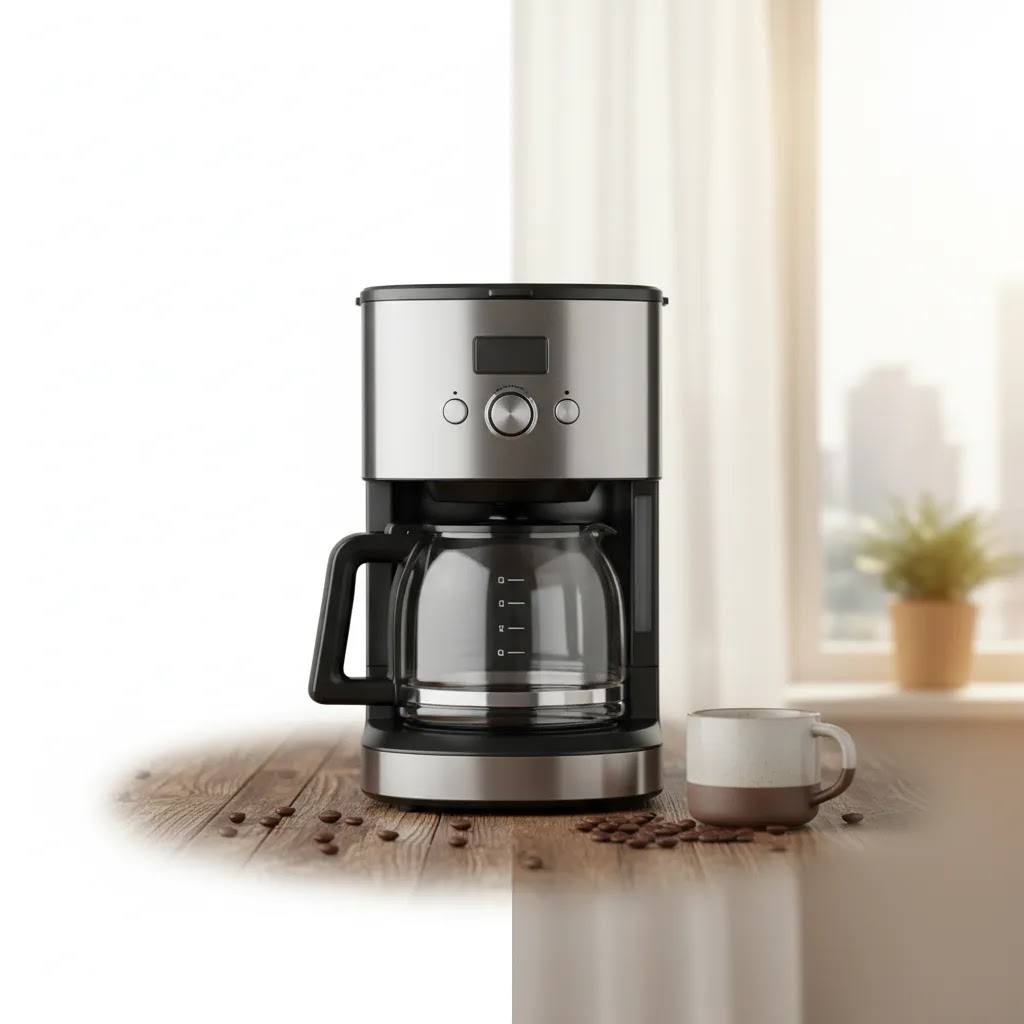
If you run an ecommerce store, your product photos need to do two jobs at once. They need to look clean enough for catalog use and convincing enough to sell the product in context. That is where AI tools that swap background images can help. Instead of reshooting every SKU for seasonal campaigns, social posts, marketplace listings, or Shopify collection pages, you can often reuse the same core image and change the setting around it. If you are still comparing options, AcquireConvert has a helpful ai background generator guide that fits well with this topic. In this article, I’ll walk you through how background swap AI works, where it helps, where it can go wrong, and how to decide whether it is the right workflow for your store.
Contents
What background swap AI actually does
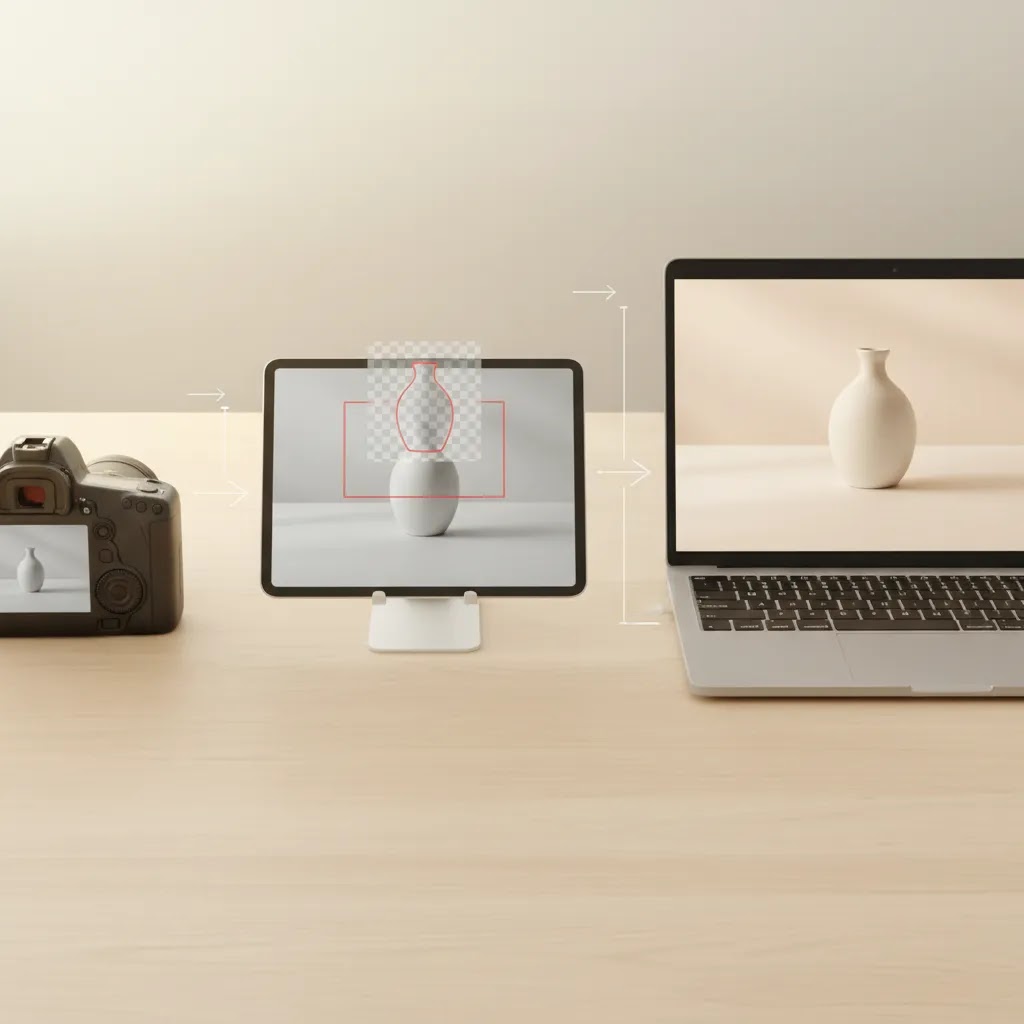
To swap background means separating the product from its original scene and placing it into a new one. In ecommerce, that usually starts with a packshot, a smartphone photo, or a studio image. The AI detects the subject, removes or masks the original background, and then inserts a new visual setting behind the product.
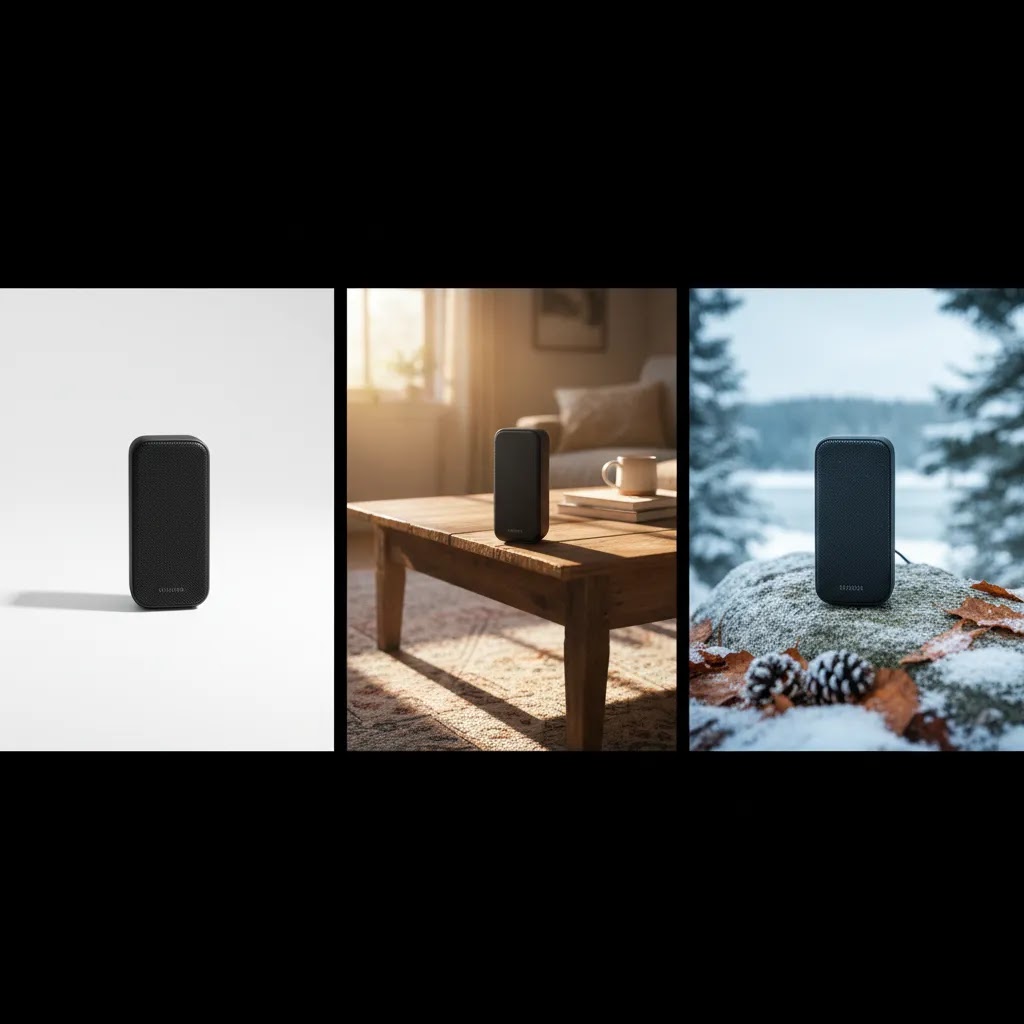
For a Shopify merchant, this can be useful in several real scenarios. You may need a pure white version for your product page, a warmer lifestyle scene for paid social, and a seasonal variation for email campaigns. A single asset can potentially support all three if the product edges, shadows, reflections, and scale stay believable.
That said, background swapping is not the same as professional retouching. Some AI outputs look polished enough for ads and content, while others still need manual cleanup. Fine product details such as transparent packaging, jewelry chains, textured fabrics, glass, or reflective surfaces can expose weak masking fast.
From the current product data available, relevant tools include Background Swap Editor, AI Background Generator, Free White Background Generator, and Magic Photo Editor. Each supports part of the workflow rather than replacing every photography need outright.
How to swap a background step by step (repeatable workflow)
Here’s the thing: most “background swap” results live or die on a simple, repeatable workflow. If you can run the same steps every time, your Shopify product grid stays consistent, your collection pages look intentional, and your team stops debating every single export.
This is a tool-agnostic workflow you can repeat across SKUs.
1. Pick the right source photoIf you have multiple shots, choose the one with the cleanest edge definition. Even lighting, a clear outline, and minimal overlap with props makes everything downstream easier. Avoid motion blur and heavy compression artifacts if you can, because AI masking will often “bite” into the product edge.
2. Remove the background (or create a clean mask)Most background swap tools start by isolating the product. Your goal is a mask that does not look jagged, clipped, or fuzzy. Pay attention to fine details like straps, chains, fur, lace, and transparent plastic. These are common failure points.
3. Choose or generate the new backgroundStart simple. A plain color, white, soft gradient, or subtle texture is often the fastest way to get a believable result. If you generate a lifestyle scene, keep it aligned to your brand and product category so it supports trust rather than looking like a random AI stock photo.
4. Match perspective and product placementPlace the product so the camera angle makes sense. A top-down flat lay product pasted into an eye-level countertop scene will always feel off. If your tool allows repositioning and scaling, use it to keep the product’s horizon and angle consistent with the background.
5. Add or correct shadow and groundingThe most common “AI edit” giveaway is a product that looks like it’s floating. Add a soft contact shadow under the product, and make sure it matches the direction and softness of the background lighting. For glossy items, a subtle reflection may be needed, but keep it restrained.
6. Clean up edges and check for color spillZoom in before you export. Look for halos around the product, fringing, and background color spill along edges. This is especially common when the original background had a strong color cast. If the product edge looks tinted, it can reduce perceived quality fast on a Shopify PDP.
7. Export channel-specific variantsFrom a practical standpoint, you usually need different crops depending on where the image will appear. Your Shopify product grid often wants consistent aspect ratios across a collection page, while ads and email headers may need wider crops. Export a few standardized variants so you are not re-editing every time.
8. Keep a “master” file for future editsSave a master version with the best mask you can get, plus a high-resolution export. If you only save a flattened, compressed image, you will end up redoing the hardest part later when you need a new seasonal background or a different crop.
Before you publish to Shopify, do a quick final check: edges at 100 percent zoom, product not floating, shadows consistent, and the product color not shifted. Those small details are what make the difference between “usable” and “this looks edited.”
On exports, think about file format. PNG can be useful when you need transparency or you are keeping a master with clean edges. JPG is often a better choice for final storefront images when you want smaller file sizes and faster load times. In many cases, you will keep both: a high-quality master, plus optimized storefront versions sized for your theme’s image requirements.
Key features to look for in a background removal tool
The first feature to assess is subject detection quality. If the mask around your product is inconsistent, the rest of the edit will feel off. This matters most for fashion, cosmetics, glassware, and anything with thin edges or semi-transparent materials.
The second feature is scene control. A useful background swap tool should let you choose or generate background images for editing that match your brand. If your store aesthetic is minimal and premium, random AI scenes can hurt conversion trust instead of helping it.
Third, pay attention to editing flexibility after the initial generation. For example, ProductAI offers Magic Photo Editor and Creator Studio, which suggest a broader editing workflow rather than a one-click export only. That matters if you need to adjust placement, lighting feel, or crop for Shopify product cards, collection banners, or Instagram creatives.
Fourth, look for resolution support. Many AI-generated images look acceptable in a small preview but softer on larger PDP layouts or retina displays. If your chosen workflow needs cleanup, pairing it with an image upscaler can help recover some visual sharpness for ecommerce use.
Fifth, think about adjacent cleanup tasks. Some merchants are not just removing a background. They also need to erase packaging labels, badges, or clutter left in a source image. In those cases, a tool or workflow that also helps you remove text from image files can save time.
Finally, judge the output by channel. A hero image for a Shopify PDP needs different standards than an Instagram Story or a blog thumbnail. AI background removal may be good enough for some placements and not for others. The right question is not “Does the tool work?” It is “Does it work for the channel, product type, and brand standard I actually need?”
Choosing backgrounds that look believable (lighting, shadows, and scale)
What many store owners overlook is that the “background” is not really the hard part. The hard part is making the product look like it belongs in that environment. Believability comes down to a few simple visual rules.
Match the light direction and softness
If your product is lit from the left but your new background suggests light from the right, your edit will feel pasted, even if the mask is perfect. Look for these cues in the background: where the brightest area is, where shadows fall, and how soft the shadow edges look. Then aim to match that with your product’s existing highlights and shadow.
Soft, diffused backgrounds generally work better for ecommerce because they hide small inconsistencies. Hard sunlight backgrounds can look great, but they expose every mismatch in shadow direction and edge quality.
Shadow and reflection basics by product type
Shadows are what “ground” your product. The way this works in practice depends on what you sell.
If your tool generates a shadow automatically, do not assume it is correct. Check that the shadow sits under the product, not to the side, and that it fades naturally.
Keep scale and “set design” consistent across SKUs
For most Shopify store owners, the collection page is where inconsistency becomes obvious. If one SKU is placed on a kitchen counter, another is floating on a gradient, and a third is in a dramatic outdoor scene, your product grid can feel chaotic. Even if each image is “nice,” the collection as a whole can feel less trustworthy.
Consider setting a simple background system for each product line. Keep camera angle consistent, keep product size consistent within the frame, and limit yourself to a small set of background styles. You can still rotate seasonal variants, just do it in a controlled way so your storefront looks cohesive.
Pros and Cons
Strengths
Considerations
Who background swap AI is for
This workflow is a strong fit for growth-stage ecommerce brands that already have usable product photos but want more creative flexibility. If you run a Shopify store and need fresh assets for collection pages, landing pages, Meta ads, Google Shopping support creatives, or email campaigns, background swap AI can be a practical way to extend your content library.
It is especially useful for small teams managing many SKUs, frequent launches, or seasonal promotions. It can also help agencies and freelance marketers produce variants faster for clients.
It is less ideal if your brand relies on highly exacting luxury visuals, heavy texture detail, or regulated product imagery standards. In those cases, a product photography studio setup or professional retouching may still be the better core option, with AI used only for supporting creative.
Background swap ideas for ecommerce (and what to avoid)
Think of background swapping as building a small set of “background modes” you can use across your store. The goal is not to generate a different scene for every product. It is to create consistent, channel-specific versions that make your merchandising faster.
Background types that work well for Shopify stores
When a background change can hurt trust
The reality is that background swapping can make your images look “too edited” if you push it. A few common problems show up repeatedly.
A quick decision guide by placement
If you want a simple rule set for Shopify use, start here.
AcquireConvert recommendation
If you are evaluating how AI background removal fits into your product image workflow, treat it as one part of a broader ecommerce photography system rather than a full replacement for every asset type. In practice, experienced merchants often combine a clean original image, a background swap tool, and at least one cleanup or enhancement step before publishing.
AcquireConvert covers that workflow well for store owners who want practical guidance without the hype. Giles Thomas brings the perspective of a Shopify Partner and Google Expert, which matters when your images have to work not only on product pages but across acquisition channels too. For the next step, review our broader Background Removal & Editing resources, compare when to use an ai background remover versus a generator, and explore how visuals affect your wider E Commerce Product Photography strategy.
How to choose the right tool and workflow
There is no single best setup for every store. The right choice depends on your product type, traffic channels, and how polished your imagery needs to be.
1. Start with your source image qualityIf your original photo is dark, blurry, low-resolution, or badly cropped, even the best AI photo editing background removal tool will struggle. Use the cleanest source file you have. A front-facing product shot with good edge definition usually gives the best result.
2. Match the output to the jobFor a main product image, keep the background simple and realistic. For ad creatives or content marketing, you can be more flexible with styled scenes. Many stores make the mistake of using one visual standard for everything. Your PDP, collection page, email banner, and ad creative each have different requirements.
3. Check brand consistencyBefore adopting any background removal free or paid workflow, compare outputs against your live storefront. Do the new scenes align with your color palette, lighting style, and positioning? If not, the image may look novel but still weaken trust.
4. Build a repeatable processThe best results usually come from a repeatable sequence: remove background, swap scene, inspect edges, correct distractions, upscale if needed, then export by channel. If you publish at volume, consistency matters more than novelty. A documented workflow helps your team move faster without making product pages feel uneven.
5. Decide where AI stops and manual editing startsNot every image should be fully automated. For hero SKUs, bestsellers, or high-AOV items, manual review is worth the extra effort. For campaign variants and supporting content, AI may be fully sufficient. This middle-ground approach is usually the most practical for Shopify merchants.
If you are comparing ProductAI options from the current data, the workflow can be segmented clearly. Use Background Swap Editor for the core scene change, Free White Background Generator for clean catalog versions, and Increase Image Resolution if the final output needs extra sharpness. If the original photo contains text elements or distractions, Remove Text From Images may fit earlier in the sequence.
A practical test is to run five real product photos through the same workflow. Use one simple item, one reflective item, one fabric item, one packaged product, and one top seller. Then assess edge quality, realism, editing speed, and whether the files are actually publishable on your store. That small test usually tells you more than a feature list.
Frequently Asked Questions
What does swap background mean for ecommerce photos?
It means removing the original setting behind a product and replacing it with a new one. For ecommerce, that could be a white catalog background, a branded lifestyle scene, or a seasonal campaign visual. The goal is usually to make one product photo more flexible across storefront, ad, and email uses without reshooting the item.
Is AI background removal good enough for Shopify product pages?
Often, yes, but it depends on the product and the quality threshold of your brand. For simple items with clear edges, AI background removal can be good enough for many Shopify stores. For reflective, transparent, or highly textured products, you may still need manual cleanup before using the image as a primary PDP asset.
Should I use a white background or a lifestyle background?
Most stores benefit from using both. White backgrounds are usually best for clarity, consistency, and marketplace-style catalog presentation. Lifestyle backgrounds can help show context and support your brand story. A common approach is to use white for the main product image and lifestyle variants deeper on the product page or in campaigns.
What is the best background for product photos?
For most Shopify stores, a clean, consistent background is the safest choice for your main product images. Pure white is common because it is neutral and keeps attention on the product. Soft light gray, subtle gradients, or a consistent studio texture can also work if it matches your brand. The “best” background is the one that keeps your product accurate, readable at thumbnail size, and consistent across your collection pages.
How do I change the background color to white online?
In most tools, the workflow is: upload your photo, remove the background to isolate the product, then set the new background to white and export. If your product has tricky edges like hair, fur, clear plastic, or glass, zoom in and check for halos and fringing before you publish the image to your Shopify product page.
Can I change a background for free online?
Some tools offer free background removal or limited free exports, and others provide free trials. Just be aware that free outputs may have lower resolution, watermarks, or fewer editing controls. If you are using the image on a main PDP, you will typically want an export that is sharp enough for your theme layout and consistent across your product grid.
Which app is best for swapping photo backgrounds?
The best option depends on your product type and the level of control you need. Look for strong subject masking, the ability to control or choose backgrounds, and export options that match how you publish images on Shopify. If you are testing options, run a small batch of real SKUs through the same workflow and judge edge quality, shadow realism, and whether the results look consistent across a collection page.
What is the difference between background removal and background swap?
Background removal isolates the product and deletes what is behind it. Background swap goes one step further by inserting a different scene or visual setting. In practice, background removal is usually the first step, and swapping is the second. If the first step is weak, the final edited image will usually look unnatural.
Can AI replace a professional product photo shoot?
Sometimes for supporting creative, but not always for your highest-stakes assets. AI can help extend the value of existing photos and reduce the need for constant reshoots. Still, a professionally shot original image often gives you the best starting point, especially for premium products, launches, and hero visuals where trust and detail matter most.
What source image works best for background editing?
A high-resolution image with even lighting, clear edges, and minimal visual clutter usually performs best. The product should be fully visible and not blend into the background. If the source file is noisy, dark, or cropped badly, the AI may create rough edges, odd shadows, or unrealistic proportions in the final result.
Can I use background swap images in ads and emails?
In many cases, yes. These channels often allow more flexibility than your main product page, so AI-edited visuals can work well for creative testing and campaign variation. Still, check that the product remains accurate and recognizable. The image should support the offer, not create confusion about what the customer will actually receive.
How do I make swapped backgrounds look more realistic?
Start with a strong source image, then choose backgrounds with lighting and perspective that suit the product. Keep scale believable, avoid overly dramatic scenes, and inspect edges closely. If the output feels soft, sharpen or upscale carefully. Realism usually comes from restraint and consistency, not from choosing the most visually elaborate generated background.
Are there any risks with AI photo editing background removal?
Yes. The main risks are inaccurate masks, unrealistic shadows, mismatched reflections, and brand inconsistency. There is also a trust risk if edited images make the product look different from what arrives. That is why many merchants use AI for speed and variety, but still apply manual review before publishing important assets live.
Key Takeaways
Conclusion
Background swap AI can be a smart addition to your ecommerce image workflow if you use it with clear expectations. It is especially useful for small teams that need more asset variety without planning constant reshoots. The real value is not just editing speed. It is the ability to create channel-specific visuals while keeping your product presentation consistent.
The best approach is practical: test the workflow on real SKUs, judge outputs by where they will appear, and keep manual review for your most important assets. If you want a deeper look at related tools and workflows, AcquireConvert is a strong place to continue. Explore our background editing guides, compare AI image tools side by side, and use Giles Thomas’s Shopify-focused perspective to decide what fits your store best.
This article is editorial content and not a paid endorsement unless otherwise stated. Tool capabilities referenced here are based on currently available product data and may change over time. Pricing details were not available from the provided tool data, so verify current plans and features directly with each provider before making a decision. Any performance improvements from image editing workflows will vary by store, product type, traffic source, and implementation quality, and are not guaranteed.

Hi, I'm Giles Thomas.
Founder of AcquireConvert, the place where ecommerce entrepreneurs & marketers go to learn growth. I'm also the founder of Shopify agency Whole Design Studios.