How to Make Background Transparent in Paint 3D (2026)

If you run an ecommerce store, transparent product images can help you create cleaner listings, sharper collection pages, and more flexible creative assets for ads, marketplaces, and landing pages. Paint 3D is one option many merchants try first because it is familiar and already available on some Windows setups. The catch is that it is not built specifically for high-volume product image editing, so results depend on image quality, object edges, and how much cleanup you are willing to do manually. In this guide, you will learn how to make background transparent in Paint 3D, where the process works well, and where it starts to slow you down. If you are comparing methods, our guide to choosing a background remover is a useful next step.
Contents
- What Paint 3D can and cannot do
- How to make the background transparent in Paint 3D
- How to save a transparent PNG in Paint 3D (and verify it worked)
- Why ecommerce store owners use transparent backgrounds
- Pros and Cons
- Troubleshooting: Magic Select misses parts of the product
- Who this method is best for
- Better options if you edit product photos often
- How to choose the right background removal workflow
- Frequently Asked Questions
- Key Takeaways
What Paint 3D can and cannot do
Paint 3D can help you isolate a product from its background and save the image for use in other designs. For simple product shots with strong contrast, it may be good enough for one-off edits. That makes it relevant for early-stage store owners testing product imagery, creating rough mockups, or preparing quick assets for internal use.
Still, Paint 3D is not a purpose-built ecommerce image workflow. It lacks the speed, automation, and consistency many merchants need once they start managing larger catalogs. Hair, glass, shadows, reflective packaging, and soft edges can all create problems. If you are working through dozens or hundreds of SKUs, manual editing quickly becomes a bottleneck.
That is why many merchants start with Paint 3D, then move to dedicated tools or services once product photography becomes part of weekly operations. If you want a broader look at methods, see our guide on how to remove background images for ecommerce use.
How to make the background transparent in Paint 3D
Here is the most practical way to do it. The exact interface can vary depending on your Windows version, but the general workflow stays the same.
- Open your image in Paint 3D. Start with the highest-quality image you have. Clean edges are much easier to separate from the background.
- Select Magic Select. This tool is Paint 3D's main subject-isolation feature. Drag the selection box around your product and click Next.
- Refine the cutout. Use the add and remove tools to tell Paint 3D what should stay and what should go. Zoom in closely around corners, straps, product handles, or packaging edges.
- Click Done. Your selected object becomes a movable layer-like element on the canvas.
- Remove the original background area. Move the selected product aside if needed and clear unwanted parts of the base image.
- Turn on transparent canvas. In the canvas settings, enable the transparent canvas option. This is the step many users miss.
- Place the cutout on the transparent area. Make sure only the isolated product remains visible.
- Save as an image format that supports transparency. PNG is usually the right choice. If you save as JPG, transparency will not be preserved.
If you have tried this workflow in classic Paint before, you already know the limitations. Our separate walkthrough on how to make background transparent in paint explains why Paint 3D is usually the better Microsoft option.
How to save a transparent PNG in Paint 3D (and verify it worked)
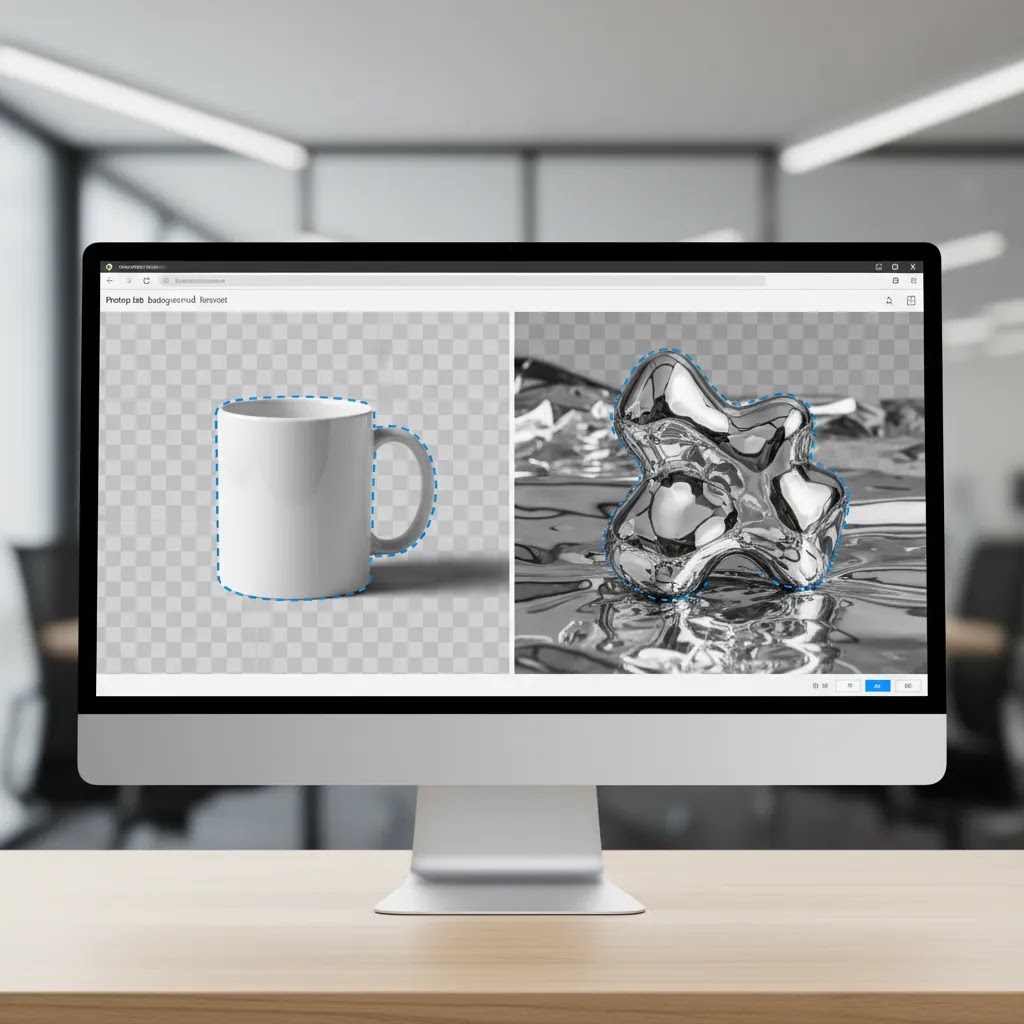
Here is the thing, most "Paint 3D transparency" problems happen at the saving step, not the selection step. Paint 3D can show a transparent canvas in the editor, but if you export the wrong way, you can still end up with a solid background.
From a practical standpoint, the only format you should trust for transparency is PNG. JPG cannot store transparency, so any transparent areas will be filled (usually with white) when you save.
After you have enabled transparent canvas and your product is sitting on the transparent area, export your image as PNG. If you are given format choices, pick PNG and complete the save.
If the file still looks like it has a white background after saving, do not assume it failed right away. Many image viewers display transparency as white (or black) by default, so you cannot judge the result just by opening it once.
To verify your PNG is truly transparent before you upload it to Shopify, use a quick check:
- Reopen the exported PNG in Paint 3D, then turn on transparent canvas again. If the background is truly transparent, you should see the checkerboard-style transparency pattern behind the product.
- Create a new canvas, fill it with a strong color, then place your PNG on top. If the background is transparent, the color will show around the product edges.
- Drop the PNG into a simple design, for example an ad mockup or a banner draft, and confirm you are not seeing a white box around the product.
Common pitfalls to avoid are straightforward but they waste a lot of time:
- Accidentally exporting as JPG because it is a familiar format, which removes transparency.
- Reintroducing a background later, for example pasting the cutout onto a non-transparent canvas, then saving and assuming the file stayed transparent.
- Editing the PNG in another tool later and exporting a new copy as JPG, which flattens the transparency.
For store owners, the goal is not just to create a cutout once. It is to create a file you can reuse across product pages, collection tiles, and ad creatives without finding out at the last minute that the background is actually baked in.
Why ecommerce store owners use transparent backgrounds
Transparent backgrounds matter because product images rarely live in just one place. A SKU photo might appear on your Shopify product page, in a collection grid, inside a bundle graphic, in an email campaign, on Meta ads, or in a comparison chart. A transparent PNG gives you more flexibility without forcing a full reshoot.
For many merchants, the biggest practical benefits are:
- Cleaner merchandising across product pages and category layouts
- Faster ad creative production when you need to place products on colored or lifestyle backgrounds
- More consistent branding across PDPs, promos, and seasonal campaigns
- Better reuse of product shots in landing pages, comparison tables, and marketplace assets
This matters even more if you are still building your visual workflow. Many growing brands start with simple cutouts, then progress to a more polished product photography studio process once conversion-focused creative becomes a bigger priority.
If your main need is transparent cutouts for ecommerce, dedicated tools can save a lot of time. From the current tool data available, ProductAI offers several options that may be more efficient than manual editing, including AI Background Generator, Free White Background Generator, Increase Image Resolution, Remove Text From Images, and Background Swap Editor. These are especially relevant if your team is creating multiple product assets each week.
Pros and Cons
Strengths
- Paint 3D is familiar for many Windows users, so there is little learning curve for basic edits.
- It can work reasonably well for simple product images with clear edges and plain backgrounds.
- You can create transparent PNGs without needing a full design suite.
- It is useful for quick mockups, internal creative tests, or one-off marketplace uploads.
- It gives smaller merchants a low-commitment way to test whether transparent backgrounds improve merchandising flexibility.
Considerations
- Edge detection is inconsistent on detailed products, reflective materials, and soft shadows.
- Manual cleanup can become slow if you manage a medium or large product catalog.
- It is not built for batch processing or repeatable ecommerce workflows.
- Output quality may not be polished enough for premium brands running high-visibility ad campaigns.
Troubleshooting: Magic Select misses parts of the product
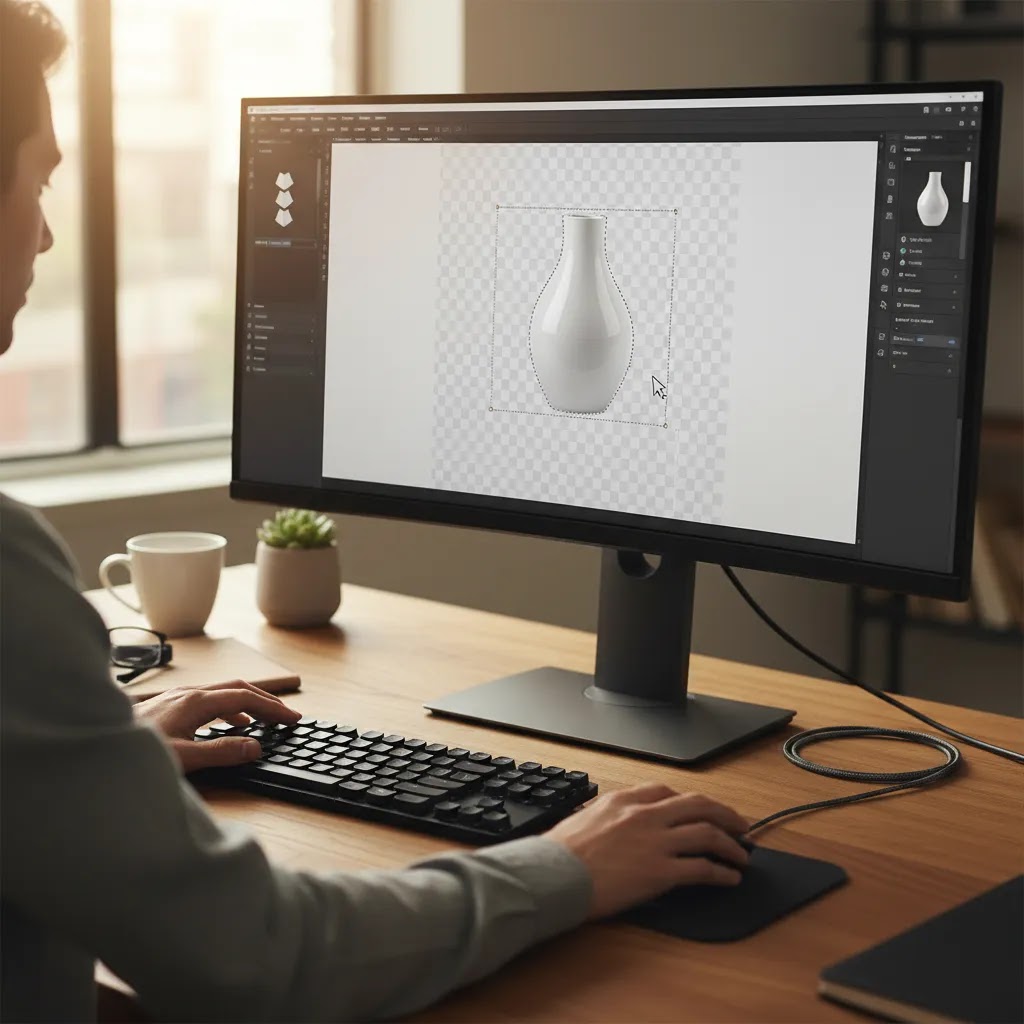
If Paint 3D is cutting off parts of your product, leaving jagged edges, or grabbing chunks of the background, you are not alone. Magic Select works best when the product is simple and the background has strong contrast. Once you get into real ecommerce photography, the edge cases show up fast.
Here are the practical fixes that usually help before you give up on the file.
Start with a tighter selection box
When you first draw the Magic Select box, try to keep it tight around the product. If you include a lot of extra background, Paint 3D has more pixels to guess from, which increases the odds it keeps background artifacts or drops product details.
Work in passes, not one perfect selection
Consider this, you do not always need one flawless cutout in a single step. You can often get a usable result faster by doing a first pass that captures most of the product, then refining with the add and remove tools in smaller areas where it struggled.
Zoom in and refine edges deliberately
Zooming in is not optional if you care about edge quality. From a merchandising standpoint, the most obvious issues on Shopify are usually around corners, thin handles, straps, and packaging cut lines. Use add to restore missing pieces and remove to clean background fragments.
Know the "hard product" categories
Some products are simply difficult for a manual selection tool:
- Hair, fur, and fringe, where the edge is not a clean line
- Glass, clear plastic, and transparent packaging, where the background shows through the product
- Reflective packaging, metallic surfaces, and glossy labels, where highlights confuse the edge
- Soft shadows, especially on white, where removing the background can make the product look like it is floating
The reality is, you can spend a long time fighting these in Paint 3D. If your store sells a lot of products in these categories, it is often faster to switch to a dedicated background remover workflow rather than trying to force Paint 3D to behave like a professional editor.
Improve the source image before you select
Magic Select is only as good as the pixels you feed it. If your results are consistently bad, the issue may be the source image, not your technique.
- Use higher-resolution images whenever possible. Low-res supplier images tend to have blurry edges that are hard to separate cleanly.
- If you can, start with a background that contrasts the product. A dark product on a dark background is a rough starting point for any cutout tool.
- If the image has heavy compression or noise, expect rough edges and more manual cleanup.
For most Shopify store owners, the best approach is to be honest about time. If you can get a clean cutout in a couple of minutes, Paint 3D is doing its job. If you are 15 minutes into one SKU and still chasing edge artifacts, that is usually your signal to use a tool built specifically for background removal.
Who this method is best for
Paint 3D is best for merchants who need a simple transparent background workflow and are editing only a small number of images. If you are validating a product idea, cleaning up a few supplier photos, or preparing visuals for a draft Shopify theme, it may be enough.
It is less suitable for stores with frequent launches, complex products, or strict brand presentation standards. Once image production becomes part of your weekly marketing workflow, you will usually want faster tools, cleaner edges, and more consistency from asset to asset.
Better options if you edit product photos often
If you are removing backgrounds regularly, Paint 3D is usually a starting point rather than a long-term workflow. For ecommerce teams, the better question is not just "can I make this transparent?" but "can I do this repeatedly, accurately, and fast enough to support merchandising?"
That is where specialist tools can help. ProductAI's current tool set includes Creator Studio, Magic Photo Editor, Background Swap Editor, Place in Hands, AI Background Generator, and Free White Background Generator. Based on the names and available URLs, these tools appear oriented toward product image transformation and creative variation rather than just manual cutouts. That could make them more practical for merchants creating campaign assets, listing images, and marketplace-friendly product photos.
If you are comparing dedicated removers, our remove.bg reviews article is a useful next step. You can also browse our broader resources in Transparent Background and Background Removal & Editing for other workflows and tools.
At AcquireConvert, we look at these choices through an ecommerce operations lens. Giles Thomas's experience as a Shopify Partner and Google Expert shapes that approach. The question is not whether a tool can create a transparent file once. It is whether it supports the image quality, speed, and merchandising consistency your store needs as it grows. If you are weighing manual editing against specialist tooling, explore the related AcquireConvert guides above to compare the trade-offs in a more practical way.
How to choose the right background removal workflow
If you are deciding whether to keep using Paint 3D or move to a more specialized option, these are the criteria that matter most.
1. Volume of images
If you edit fewer than 10 images a month, Paint 3D may be perfectly workable. If you edit product launches, bundles, or ad creatives every week, manual selection will start eating into merchandising time fast.
2. Product complexity
Simple boxes, bottles, and objects with strong contrast are easier to isolate. Jewelry, fabrics, transparent packaging, cosmetics, and products with shadows usually need better subject detection or more careful retouching.
3. Brand presentation standards
For test stores or draft creatives, a slightly imperfect cutout may be fine. For premium DTC brands, edge quality matters. Rough halos and missing details can make listings look less polished, even if customers do not consciously notice why.
4. Workflow speed
Store owners often underestimate the hidden cost of repetitive image cleanup. If your team is touching the same file multiple times for PDPs, ads, email, and social, a faster workflow can create a meaningful time saving even without changing any other part of your marketing stack.
5. Output flexibility
Think beyond one product page. You may need transparent images for collection cards, upsell blocks, hero graphics, holiday campaigns, or comparison modules. Choose a method that supports repeated reuse, not just one finished file.
A practical rule is this: use Paint 3D for occasional, low-stakes edits. Move to specialist tools or services when image production affects launch speed, merchandising quality, or ad creative efficiency.
Frequently Asked Questions
Does Paint 3D actually support transparent backgrounds?
Yes, Paint 3D can support transparency if you turn on transparent canvas and save the finished image as a PNG. The common mistake is doing the subject selection but exporting as JPG, which removes the transparent background effect.
Is Paint 3D better than classic MS Paint for transparent backgrounds?
Usually, yes. Paint 3D includes Magic Select and transparent canvas, which make it more useful for basic cutouts. Classic Paint is much more limited for this task, especially if you need a clean PNG for ecommerce product imagery.
Why does my background still look white after I save the file?
This typically happens because the file was saved in a format that does not preserve transparency, such as JPG, or because transparent canvas was not enabled. Check both settings before exporting your image.
Can I use Paint 3D for Shopify product images?
Yes, for occasional edits. If you are uploading a few simple SKU images, Paint 3D may do the job. If you need consistent catalog presentation or frequent ad creative variations, a more specialized workflow will usually be more efficient.
Does Paint 3D work well for hair, shadows, or glass products?
Not especially well. Those edge cases are difficult for manual selection tools and often need cleanup. If your store sells beauty products, fashion items, reflective packaging, or glassware, expect mixed results.
What file type should I use for a transparent background?
PNG is the usual choice because it supports transparency and works well for ecommerce merchandising. JPG does not preserve transparent areas, so the background will be filled instead of staying clear.
How to change background into transparent?
In Paint 3D, you typically use Magic Select to isolate your product, remove the background area from the base image, then enable transparent canvas in the canvas settings. The final step is exporting as PNG, because PNG preserves transparency.
How to remove background in 3D?
In Paint 3D, use Magic Select to draw a box around the product, refine with add and remove, click Done, then clear the leftover background from the canvas. Turn on transparent canvas so the empty area stays transparent, then export as PNG.
Can I make a transparent background in Paint (classic MS Paint)?
Classic Paint is very limited for true transparent background workflows. In most cases, if you need a transparent PNG cutout for ecommerce, Paint 3D is the more workable Microsoft option because it supports transparent canvas and includes Magic Select.
How to make a transparent background in Paint on Windows 11?
Many Windows 11 users end up using Paint 3D for transparency because it supports transparent canvas and PNG export. The steps are the same: isolate the product with Magic Select, enable transparent canvas, and export as PNG. If your buttons look different than a tutorial screenshot, it is usually a UI variation between Windows versions, not a different workflow.
Is there a faster option than Paint 3D for product photo editing?
Yes. Dedicated product image tools are generally faster, especially if they are built for background editing, white backgrounds, or creative variations. That matters more as your SKU count and marketing output increase.
Should I use a transparent background or a white background for ecommerce?
It depends on where the image will be used. Transparent images are flexible for design and promotions, while white backgrounds are often preferred for marketplaces, comparison layouts, and consistent product page presentation. Many stores use both.
Where can I learn more about background removal options for ecommerce?
AcquireConvert has several helpful guides for store owners comparing methods, including tutorials on Paint, broader background removal workflows, and reviews of dedicated tools. Those are useful if you are deciding between manual editing and specialist software.
Key Takeaways
- Paint 3D can create transparent product images, but only if you enable transparent canvas and export as PNG.
- It works best for simple, low-volume ecommerce image edits with clear product edges.
- Manual cleanup becomes a real time cost once your store starts producing images regularly.
- Dedicated product image tools may be a better fit for stores that need speed, consistency, and repeatable creative workflows.
- Transparent images are useful across Shopify product pages, ads, email graphics, and promotional assets.
Conclusion
If you were searching for how to make background transparent in Paint 3D, the short answer is that yes, it can be done, and for basic ecommerce image tasks it may be enough. The longer answer is that Paint 3D is most useful as a simple manual option, not as a scalable product image workflow. Once your catalog grows or your visual standards rise, cleaner and faster tools often make more sense. AcquireConvert focuses on these practical trade-offs for real store owners. If you want to compare options more closely, explore our transparent background guides, background editing resources, and tool evaluations shaped by Giles Thomas's experience as a Shopify Partner and Google Expert.
This article is editorial content for educational purposes and is not a paid endorsement unless explicitly stated otherwise. Tool features and availability are based on current accessible data and may change over time. Pricing was not available from the provided product data, so readers should verify current details directly with each provider. Results from background removal tools vary by image quality, product complexity, and workflow.

Hi, I'm Giles Thomas.
Founder of AcquireConvert, the place where ecommerce entrepreneurs & marketers go to learn growth. I'm also the founder of Shopify agency Whole Design Studios.