Photoshop Animation for Ecommerce (2026 Guide)

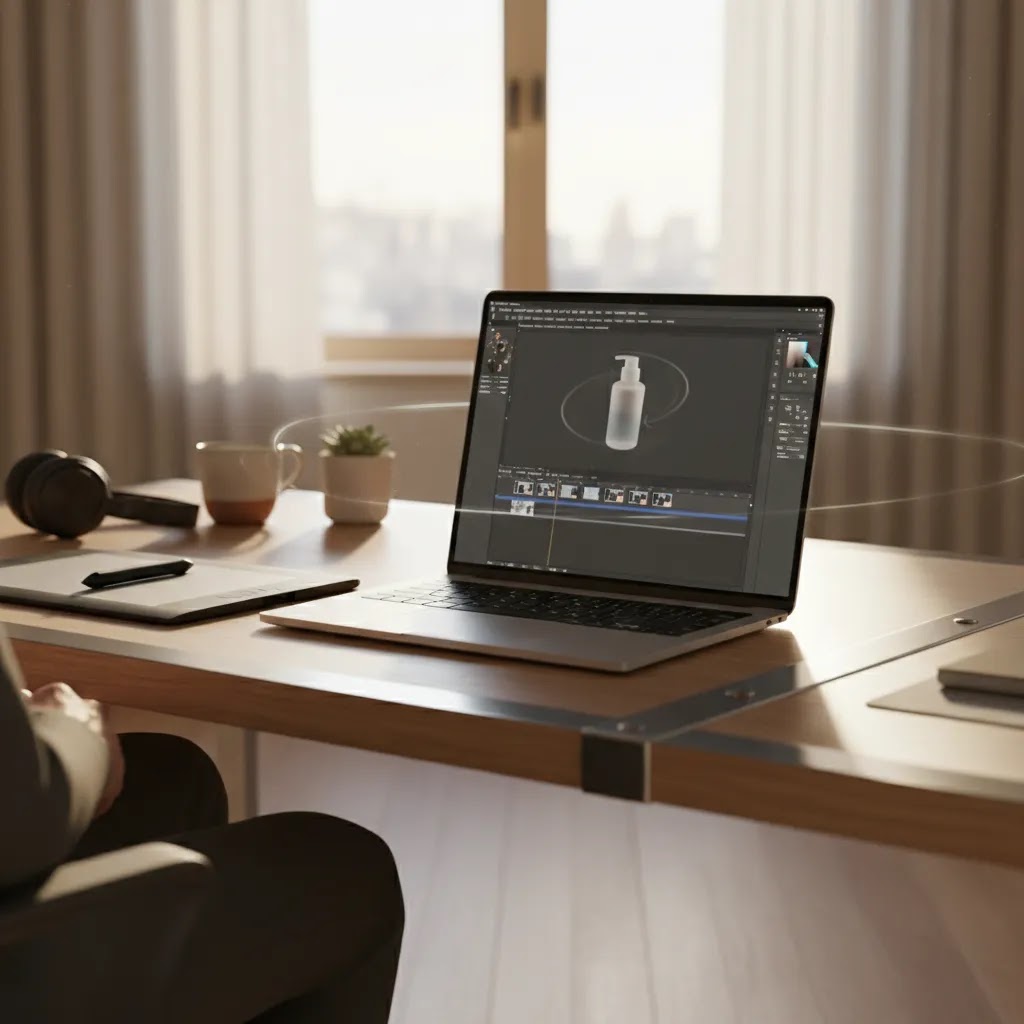
If you sell physical products online, motion can help shoppers understand fit, finish, texture, scale, and use much faster than static images alone. That is why many merchants look at photoshop animation for product GIFs, simple motion assets, and lightweight ad creatives before investing in full video production. Photoshop is not the newest animation tool on the market, and it is not the best fit for every workflow. Still, it remains a practical option for short product loops, transparent exports, and frame-based edits that support ecommerce content. If you are comparing it with newer AI tools or trying to decide whether it deserves a place beside your video advertising workflow, this guide will help you assess where Photoshop works well, where it falls short, and what kind of store owner should actually use it.
Contents
- What Photoshop Animation Is Good For
- Key Features for Product GIFs and Motion
- How to Animate in Photoshop (Step-by-Step for Product GIFs)
- Pros and Cons
- Export Settings That Matter (GIF, MP4, and Transparent Background Options)
- Who Photoshop Animation Is Best For
- AcquireConvert Recommendation
- How to Choose Between Photoshop and Other Options
- Common Photoshop Animation Mistakes Store Owners Make (and How to Fix Them)
- Frequently Asked Questions
- Key Takeaways
What Photoshop Animation Is Good For
Photoshop animation is best understood as a practical asset-production tool, not a full motion graphics suite. For ecommerce teams, that matters. You do not always need cinematic editing. Sometimes you need a clean product spin, a blinking feature callout, a before-and-after sequence, or a short transparent animation to place on landing pages, PDPs, emails, or ads.
For many merchants, Photoshop is most useful when you already work in layered PSD files and want to turn those layers into frame animations or timeline-based motion. This can be effective for simple 360 product animation mockups, product reveal loops, color-change demonstrations, and ad variations made from existing product photography.
It can also help bridge the gap between still photography and video. If you already have strong source images from a controlled product photography studio setup, Photoshop gives you a familiar environment for preparing motion-ready assets. That is especially helpful for Shopify merchants who want more visual interest on product pages without jumping straight into a heavier editing workflow.
The limitation is just as important as the benefit. Photoshop is not the most efficient choice for advanced scene transitions, polished audio-led edits, or high-volume short-form video production. If your goal is ad creative at scale, AI-assisted motion tools and dedicated editors may be more appropriate.
Key Features for Product GIFs and Motion
The biggest advantage of Photoshop for ecommerce is control. You can work directly with isolated product layers, masks, shadows, text overlays, and smart objects in one file. That makes it useful for merchants who need precision rather than one-click automation.
Here are the features that matter most in a product-motion workflow:
- Frame animation and timeline modes: Useful for short loops, rotating frames, blinking labels, and simple GIF creation.
- Layer-based editing: Helpful when you want to animate product components, text callouts, sale badges, or color variants independently.
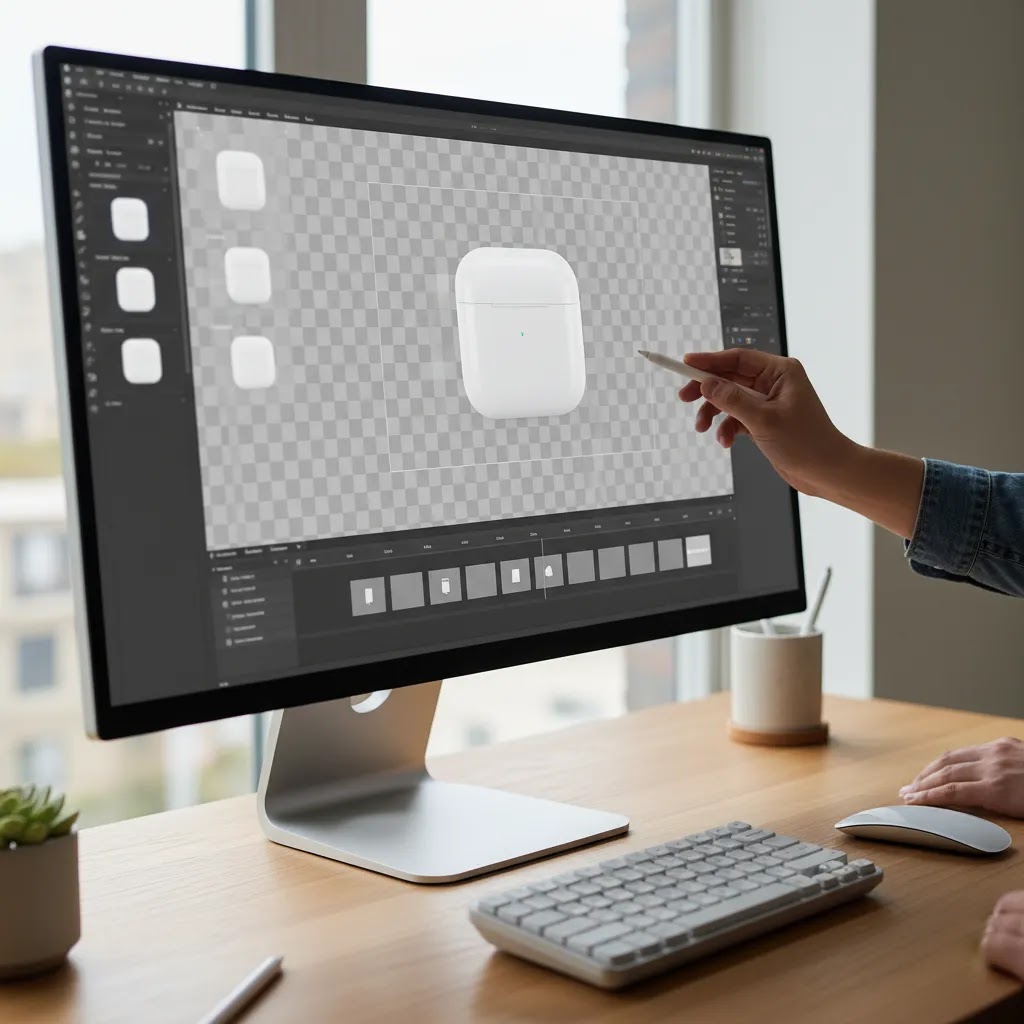
- Masking and background control: Important if you need to export photoshop animation transparent background assets for overlays, landing pages, or ad placements.
- Smart objects: Good for reusable templates, especially if you create multiple animated assets for collections or seasonal campaigns.
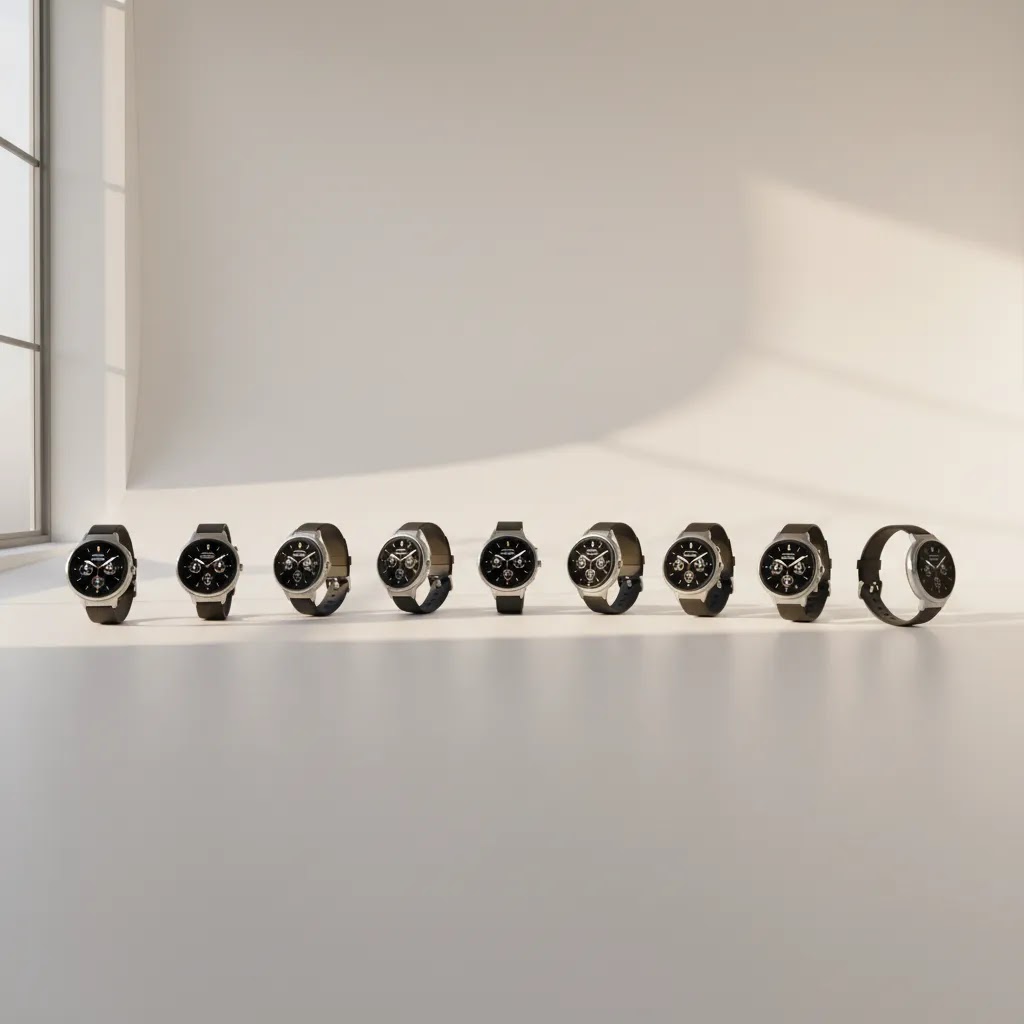
- Image sequencing: Practical for faux 360 product animation effects when you have a product photographed across multiple angles.
- Precise export handling: GIFs, MP4 workflows, and transparent asset preparation can be managed with more control than many lightweight online tools provide.
For ecommerce use, Photoshop also pairs well with supporting asset tools. If your footage or source files need cleanup first, a video bg remover workflow may be more efficient before compositing. If your current visuals look flat, reviewing stronger video backgrounds can improve the final output more than animation effects alone.
Where AI enters the picture is speed. The product data available here includes image-generation and editing tools such as AI Background Generator, Free White Background Generator, Increase Image Resolution, Background Swap Editor, and Magic Photo Editor. These are not replacements for Photoshop animation itself, but they can speed up prep work before you create motion assets from product images.
How to Animate in Photoshop (Step-by-Step for Product GIFs)
Here is the thing, most Photoshop animation frustration comes from not knowing where the animation tools actually live, and choosing the wrong mode for the asset you want to ship to your Shopify store.
Where the animation tools are in Photoshop
You will typically start in two places:
- Go to Window, then choose Timeline.
- At the bottom of the workspace, Photoshop will prompt you to create either a Frame Animation or a Video Timeline.
For ecommerce outputs, the choice affects your workflow:
- Frame Animation is usually the most direct path for classic product GIFs, simple spins built from an image sequence, and short looping callouts. It is literal frame-by-frame control.
- Video Timeline is often better when you want smoother motion, keyframes, and MP4 exports. It can still produce loops, but you think in seconds and tracks, not individual frames.
If your primary deliverable is a GIF for a product page or email, Frame Animation is often the fastest starting point. If your primary deliverable is an MP4 for ads or a Shopify product media slot, Video Timeline may be the better default.
A simple, repeatable frame animation workflow for product GIFs
From a practical standpoint, you want a workflow you can repeat across products without rebuilding everything.
- Step 1: Prep your PSD layers first. Clean edges, fix dust, and lock in your crop before you animate. Animation will amplify sloppy masks.
- Step 2: Set a consistent canvas size. Pick dimensions that match how you plan to place the asset on a Shopify product page. Consistency matters if you are creating variants and want them to feel like one system.
- Step 3: Open Window, then Timeline, then choose Create Frame Animation.
- Step 4: Build frames from layers. Many store owners duplicate frames and toggle layer visibility so each frame shows the right product angle, label, or callout.
- Step 5: Set frame delays. Use a delay that matches the goal. For a spin, you often want shorter delays. For a feature callout, you may want a longer hold so shoppers can actually read it.
- Step 6: Set looping. For product education, looping forever is common. For some placements like certain email clients or support docs, you may prefer a limited loop. Test where it will be used.
- Step 7: Use tweening carefully. Tween can help you smooth simple transitions, but it can also create messy in-between frames if your layers shift, change size, or have different masks. Use it when your frames are consistent, skip it when they are not.
- Step 8: Preview and check for defects. Scrub through the animation and look for flicker, jagged edges, banding in gradients, or unwanted shifts in shadows and highlights.
One of the best “quality checks” is to zoom in and watch the edges of the product. If the cutout edge crawls frame to frame, it usually means your masks are inconsistent, or your layers are not aligned on the same pixel grid.
PSD setup tips that make ecommerce animation faster
What many store owners overlook is that the PSD structure is the real productivity lever. When the file is set up properly, you can reuse it for future products and seasonal campaigns.
- Use safe margins for text callouts. Give your labels space so they do not end up too close to the edges after Shopify theme cropping on mobile.
- Name layers for variants and components. A simple naming convention like “variant-black,” “variant-white,” “badge-sale,” and “callout-zipper” makes it much easier to toggle visibility per frame.
- Use smart objects for repeatable elements. If you keep the product cutout, shadow, and badge styles as smart objects, you can swap source images and keep the animation structure intact.
- Keep one master template per asset type. A “PDP feature loop” template and a “simple spin” template can cover a lot of use cases without reinventing the wheel.
The way this works in practice is simple: you do the messy setup once, then you produce new product loops by swapping the smart object content and updating only the frames that need it.
Pros and Cons
Strengths
- Excellent for short product GIFs, layered motion mockups, and simple ecommerce creative variations.
- Works well when your team already uses Photoshop for retouching, compositing, or product image prep.
- Gives you strong control over masks, layers, shadows, and transparent export preparation.
- Useful for turning still product photography into animated assets without a full video shoot.
- Can support lightweight 360 product animation sequences if you have consistent multi-angle source images.
- Strong template potential for sale graphics, feature callouts, and repeatable motion assets across collections.
Considerations
- Less efficient than dedicated motion tools for longer videos, complex transitions, or ad editing at scale.
- Requires more manual work than newer AI animation workflows, especially for high-volume creative production.
- Transparent video exports can be confusing for non-designers, depending on format needs and destination platform.
- Not ideal as a standalone product animation video maker free option, since Photoshop is commercial software and pricing should be checked directly with Adobe.
Export Settings That Matter (GIF, MP4, and Transparent Background Options)
Now, when it comes to Photoshop animation, the export step is where a lot of ecommerce assets go wrong. You can have a good-looking animation inside Photoshop, then ship a file that is too heavy for a Shopify product page, or so compressed it looks muddy.
Export paths in Photoshop and what each is best for
Photoshop gives you a few different export routes. Each one has a “best use” for ecommerce:
- Save for Web (Legacy): This is still the most common choice for GIFs, because it gives you direct control over GIF-specific settings like color reduction and dithering. If you care about file size and quality tradeoffs, this is usually where you end up.
- Export, then Export As: Useful for many still-image exports, but it is not always the best for detailed GIF control. Depending on your version of Photoshop, you may find it less predictable for animated GIF optimization than Save for Web (Legacy).
- File, then Export, then Render Video: This is typically the path for MP4 outputs from the Video Timeline. For many Shopify and ad placements, MP4 gives you a better quality-to-size ratio than GIF.
Think of it this way, GIF is often a compatibility play, MP4 is often a performance play. In many cases, an MP4 loop will look sharper at a smaller file size than an equivalent GIF, but your destination and theme setup determine what is actually usable.
GIF versus MP4 for Shopify: a practical tradeoff
For most Shopify store owners, the decision is usually about page speed and visual clarity:
- GIF can be great for short, simple loops and email-friendly assets, but file sizes can balloon fast, especially with larger dimensions, lots of colors, or high frame rates.
- MP4 is typically smaller and cleaner for smooth motion. It is often a better fit for product page media and paid social placements, assuming the platform supports the placement you want.
If your animation includes subtle gradients, realistic shadows, or detailed textures, MP4 is usually more forgiving. GIF compression tends to punish those details.
Transparent background realities in Photoshop exports
A lot of merchants search for “export photoshop animation transparent background” and expect the answer to be one click. The reality is that transparency depends on both the format and the destination.
- Animated GIF can support transparency, but it is 1-bit transparency in many cases. That means you can get harsh edges instead of smooth feathering, which matters for product cutouts.
- MP4 does not support an alpha channel in the standard way most ecommerce workflows expect. You can export MP4 for general use, but you should not assume it will preserve transparency.
Some formats and workflows can preserve alpha channels, but whether that is useful depends on where you plan to place the asset. Many ecommerce destinations and ad placements will flatten transparency anyway.
A simple test-first workflow is to export a tiny sample early, then place it in the real destination. That could be your Shopify theme section, a landing page builder, or the ad platform preview. If transparency breaks, you know to adjust before you spend time perfecting the animation.
Ecommerce performance considerations: keep assets lean
The reality is that motion assets can quietly slow product pages. That can matter for conversion, especially on mobile traffic where Shopify store performance is often fragile.
- Keep dimensions reasonable. If the animation displays at 800 px wide on your product page, exporting at 2000 px wide usually wastes bytes without adding shopper value.
- Watch frame rate and frame count. A high frame rate and long duration can balloon GIF size. If a 2-second loop communicates the product feature, a 6-second loop may be unnecessary.
- Use a quality check that matches your channel. Preview on mobile, not just on a desktop monitor. Compression artifacts that look fine on desktop can look worse on smaller screens.
If you are unsure, start smaller, then scale up only if the asset looks visibly degraded. That approach typically protects your Shopify page speed while you test whether motion actually improves product understanding.
Who Photoshop Animation Is Best For
Photoshop animation makes the most sense for ecommerce teams that already have a design-led workflow. If you are a Shopify merchant, solo founder, or in-house marketer who already edits PDP images in Photoshop, adding simple motion there may be more realistic than adopting an entirely new stack.
It is particularly useful for stores selling visually differentiated products such as cosmetics, accessories, apparel details, home goods, or premium packaging. In these categories, short loops can help communicate finish, functionality, or transformation.
If your goal is fast AI-generated video from text prompts, Photoshop is probably not the first tool to test. But if you need controlled product presentation, layered brand consistency, and editable source files that fit your merchandising workflow, it is still a credible option.
AcquireConvert Recommendation
At AcquireConvert, we would treat Photoshop animation as a practical middle-ground tool for merchants who need better product motion without moving fully into professional video production. Giles Thomas’s perspective as a Shopify Partner and Google Expert is useful here because the right choice depends on where the asset will be used. A product-page loop, a paid social creative, and a Google-facing video ad often require different levels of polish, speed, and variation.
If you are still evaluating how motion fits into your store, browse the broader Product Video & Animation category for adjacent tactics and workflow options. If your goal is performance creative rather than merchandising support, our guide to ai ad generator options is the more relevant next step. Photoshop can be a strong production tool, but the best workflow starts with your ecommerce use case, not the software itself.
How to Choose Between Photoshop and Other Options
If you are deciding whether to use Photoshop animation, judge it against the job you need done. Most store owners make better creative decisions when they evaluate workflow, output format, speed, and channel fit before they think about tool loyalty.
1. Start with the asset type
If you need GIFs, looping product highlights, transparent overlays, or frame-by-frame animation from stills, Photoshop is a sensible option. If you need UGC-style ad edits, story-driven reels, or frequent campaign refreshes, a dedicated video or AI tool may save time.
2. Look at your source material
Photoshop works best when you already have clean source images. Strong lighting, consistent angles, and isolated product shots matter. If your base imagery is weak, animation will not fix the underlying issue. In many stores, better photography improves conversion assets more than motion alone.
3. Match the tool to the channel
For on-site product education, simple motion often does enough. A short product loop on a PDP can show mechanism, texture, or before-and-after use without the load and production demands of full video. For ad platforms, especially if you need multiple variants quickly, Photoshop may feel too manual.
4. Consider editing speed and team skills
If your team already knows Photoshop, the learning curve is lower than adopting a new motion platform. That makes it attractive for in-house ecommerce teams that need speed with familiar tools. If no one on your team is comfortable with layers, masks, and export settings, newer AI-assisted workflows may be easier to operationalize.
5. Think about scalability
Photoshop is strong for controlled, branded production. It is weaker for large-scale variation. If you launch products frequently and need many motion creatives each week, combine it with AI prep tools or move some production into specialized software. For example, tools like Creator Studio or Place in Hands may help generate supporting image assets before you animate selected winners.
A practical rule is this: use Photoshop when control matters more than speed, and use AI-first or dedicated video tools when speed matters more than layer-level precision.
Common Photoshop Animation Mistakes Store Owners Make (and How to Fix Them)
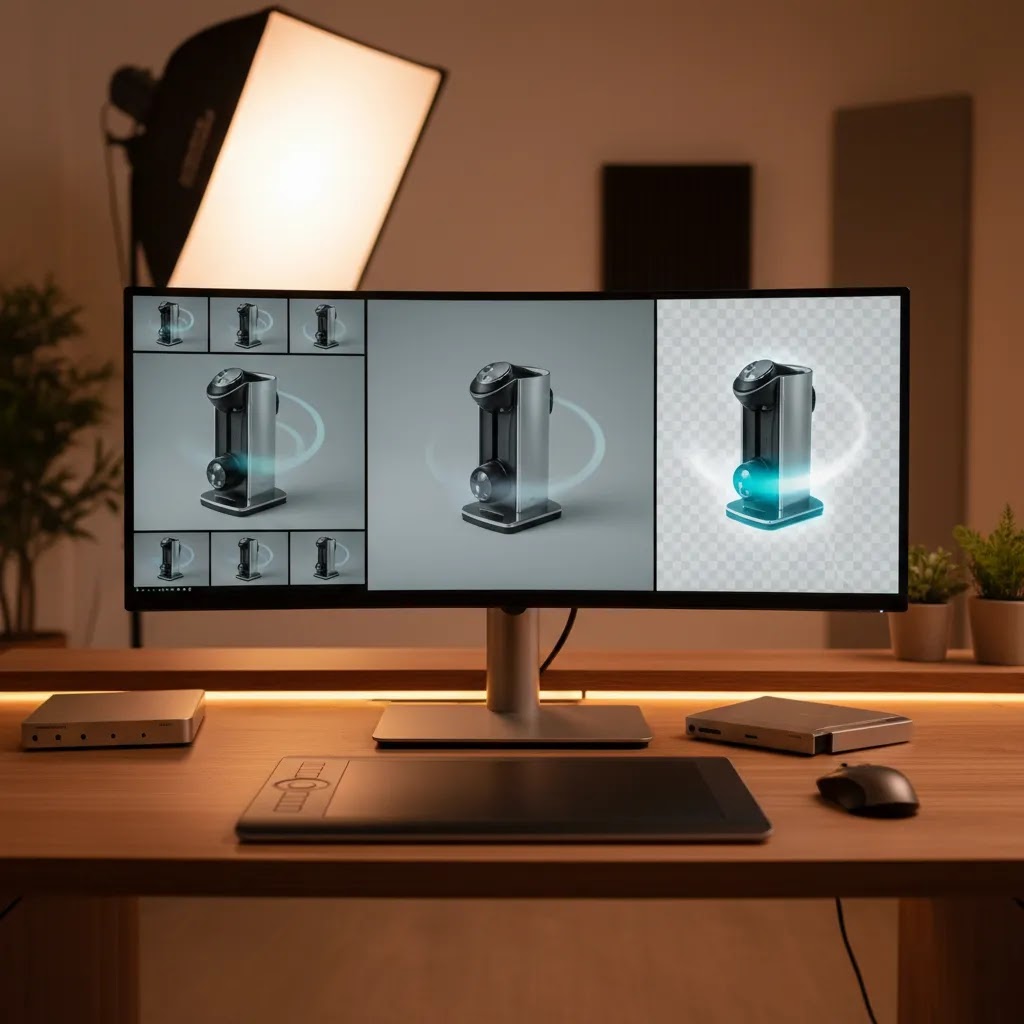
Photoshop can produce clean product loops, but the reality is that ecommerce teams often run into the same few problems. Fixing them is usually less about “more effects” and more about tightening up source images, timeline discipline, and export choices.
Technical output issues: what causes “bad GIFs”
If your GIF looks rough, it is usually one of these:
- Banding in gradients: This often shows up in backgrounds, shadows, and subtle color fades. GIF color limits and aggressive compression are common causes. If the background matters, consider a flatter background, more careful dithering, or switching to MP4 where possible.
- Jagged edges on cutouts: Hard edges and halos are often a transparency limitation problem. It can also happen when the source mask is low quality or when you resized layers inconsistently across frames. Fix the mask first, then keep scaling consistent.
- Color shifts: If the product color looks different frame to frame, check whether adjustment layers are applied consistently, and be careful with color profile conversions during export. For ecommerce, consistency is more important than “stylized.”
- Muddy detail: This is common when GIF settings over-compress, or when you exported a big canvas and then scaled it down in your Shopify theme. Export closer to the real display size so the compression is working on the actual pixel dimensions shoppers see.
A good habit is to export a small test early and view it in the real context. A loop can look fine on a white Photoshop canvas and then look messy on a textured product page background.
Workflow mistakes that waste hours
Consider this, most time loss comes from building animation on top of unstable files.
- Animating before cleanup: If you animate first, then retouch, you end up fixing the same issue across many frames. Do your cleanup, masking, and alignment before you duplicate frames.
- Not using smart objects and templates: If every animation is a one-off PSD, you will rework the same steps for every SKU. Smart objects and a template timeline can reduce repeat effort, especially for variant animations.
- Inconsistent source angles for 360-style spins: A convincing spin depends on consistent camera height, lens look, lighting, and rotation increments. If the photos jump in perspective, the animation will feel jittery no matter what you do in Photoshop.
If you are doing a lot of 360 product animation, the best fix is usually upstream: tighten the photography process so frames are consistent, then keep your Photoshop file as a repeatable assembly line.
Channel-fit mistakes: motion that hurts more than it helps
Not every loop belongs on a product page. Motion should answer a buying question, not compete with the add to cart button.
- Using a heavy GIF where an MP4 loop is better: If your Shopify theme supports it cleanly, MP4 may give you a smaller file with better quality. GIF is not automatically the “best” ecommerce format.
- Adding motion that distracts: Flashing badges and constant movement can pull attention away from price, value props, and product photos. For many Shopify stores, the strongest motion is subtle and product-led.
- Over-animating text callouts: If shoppers cannot read it in a glance on mobile, it is not helping. Hold frames long enough for comprehension, and keep copy short.
The way this works in practice is: start with one product question you want to answer, build a loop that answers it, then measure whether it improves product understanding and purchase confidence. If it does not, simplify.
Frequently Asked Questions
Is Photoshop good for product GIFs?
Yes, Photoshop can be very good for product GIFs if you need short loops, controlled branding, and layer-based editing. It is especially useful for feature callouts, color changes, simple spins, and before-and-after effects. For high-volume campaign production, though, it may feel slower than dedicated animation or AI tools.
Can Photoshop create 360 product animation?
It can create a basic 360 product animation effect if you already have a sequence of consistent product images captured from multiple angles. Photoshop is not a full 3D platform, but it can turn ordered image frames into a convincing spin animation for ecommerce use, particularly on product pages or landing pages.
How do you export Photoshop animation with a transparent background?
That depends on the final format and placement. For ecommerce, you usually need transparent-friendly assets for overlays or compositing, not every platform supports them equally. The safest workflow is to keep clean layer masks, test exports early, and confirm the destination platform supports the transparent format you plan to use.
Is Photoshop better than an AI animation video generator?
Not universally. Photoshop is usually better for precise editing and brand control. AI animation tools are often better for speed, idea generation, and high-volume creative testing. If you care most about exact visual treatment of a product, Photoshop may be the stronger choice. If you need rapid variation, AI may be more efficient.
Can Shopify stores use Photoshop animations on product pages?
Yes, Shopify stores can use motion assets on product pages, though implementation depends on file format, theme performance, and page-speed considerations. The best use cases are short, informative loops that help answer buying questions. Keep asset size lean and test whether the motion improves understanding rather than distracting from purchase intent.
Is Photoshop a free ai animation video generator?
No. Photoshop is not a free tool and it is not primarily an AI animation video generator. It is a commercial design and editing platform with animation features. Adobe pricing is subject to change, so you should verify current subscription costs directly with Adobe before building it into your content workflow.
What is the best use case for Photoshop animation in ecommerce?
The best use case is often simple, product-centered motion that benefits from precise editing. Think packaging reveals, material highlights, angle rotations, ingredient callouts, or step-by-step visual demonstrations. These assets can support PDP engagement, email campaigns, and paid creative without requiring a full studio video production process.
Should I use Photoshop or a product animation video maker free tool?
If cost is your main concern and you need only lightweight assets, a simpler tool may be enough. If visual quality, layered editing, and reusable templates matter, Photoshop can justify the extra effort. The decision comes down to your volume, team skill level, and whether you need precision or speed more urgently.
Does Photoshop fit an AI image to video animation workflow?
It can fit as part of the workflow, especially for asset cleanup, layering, masking, and motion preparation. Many merchants use AI tools to generate or improve still images first, then bring those assets into Photoshop for more controlled animation. That hybrid approach often works well for ecommerce merchandising teams.
Can you do animation in Photoshop?
Yes. Photoshop includes animation features through the Timeline panel, where you can build frame animations (commonly used for GIFs) or timeline-based motion (commonly used for video exports like MP4). It is best suited to short, product-focused loops rather than long-form video editing.
Is Photoshop Animate free?
Photoshop is not free. Some people say “Photoshop Animate” when they mean “animating in Photoshop,” but there is no separate free Photoshop animation product. Adobe pricing can change, so it is worth checking current subscription options directly with Adobe.
Which is the No. 1 animation software?
There is not one best tool for every business. For ecommerce, the right pick depends on what you are animating and where it will be used. Photoshop can be a strong option for frame-based product GIFs and layered brand assets. Dedicated animation tools can be better for character animation, motion graphics, or high-volume video workflows.
Is Adobe animation discontinued?
Adobe has changed product names and focus over time, which creates confusion. Photoshop’s animation features are still available inside Photoshop. Adobe Animate (a separate app) also still exists, but it is different from “Photoshop animation.” If you are building a workflow for your store, focus on the output you need (GIF, MP4, transparency) and then confirm the current Adobe product capabilities before committing.
Key Takeaways
- Photoshop animation is most useful for short, controlled product motion rather than full-scale video production.
- It works best when you already have clean product imagery and a team comfortable with Photoshop layers and exports.
- For Shopify stores, the strongest use cases are PDP loops, product feature highlights, and simple 360-style sequences.
- AI tools can complement Photoshop by improving or generating source assets before animation begins.
- Choose Photoshop for control, not for speed at scale.
Conclusion
Photoshop remains a credible option for ecommerce product motion, especially if you want precise control over how products appear in GIFs, short loops, and transparent visual assets. It is not the fastest route for every merchant, and it is not the best tool for every type of video. But for stores that already rely on strong imagery and want to add motion without overcomplicating production, it can still earn its place in the workflow. If you are mapping out a broader visual content strategy, explore AcquireConvert’s guides on video backgrounds and related product-motion topics. Giles Thomas’s Shopify and Google experience shapes the approach here: start with the buying journey, match the format to the channel, and only then choose the tool.
This article is editorial content created for AcquireConvert and is not presented as a paid endorsement unless explicitly stated otherwise. Pricing for third-party software and services is subject to change and should be verified directly with each provider. Tool suitability depends on your workflow, store setup, and channel requirements. Results from creative changes may vary and are never guaranteed.

Hi, I'm Giles Thomas.
Founder of AcquireConvert, the place where ecommerce entrepreneurs & marketers go to learn growth. I'm also the founder of Shopify agency Whole Design Studios.